
How to Fix 'There Has Been a Critical Error on This Website' in WordPress
A practical guide to the WordPress 5.2+ 'critical error on this website' message, Recovery Mode emails, and matching the error ID to your debug.log.
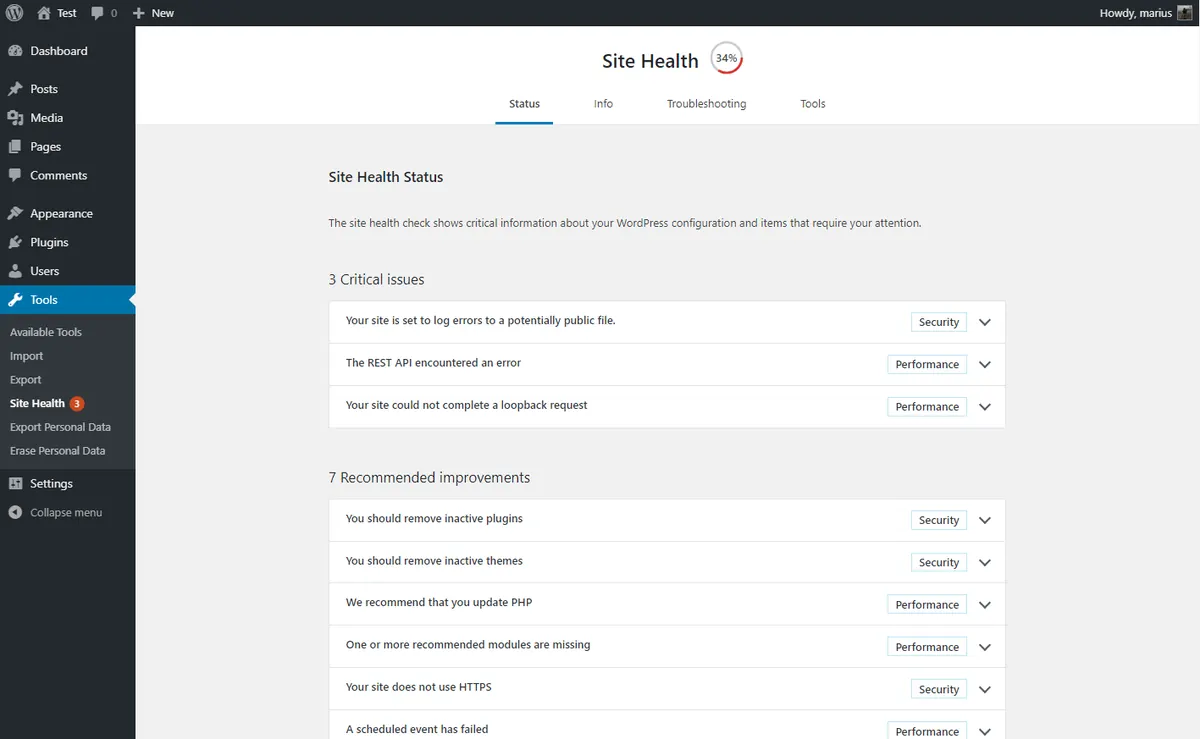
What's Happening
WordPress 5.2 introduced a friendlier but still terrifying message: 'There has been a critical error on this website.' The page is down, but the site is trying to email you a recovery link that contains an error ID. That ID, plus the debug log, is your fastest path back online.
"There has been a critical error on this website" replaced the old white screen of death in WordPress 5.2. The wording is softer, but the underlying failure is the same: a PHP fatal error stopped a page from rendering. What did change is that WordPress now emails the site admin with a Recovery Mode link.
Recovery Mode is worth the two minutes it takes to explain. It logs the admin into a safe version of the dashboard where broken plugins and themes are quietly suspended, so the fix can happen from the admin instead of over SFTP.
This guide covers the Recovery Mode workflow first, then the manual fallback for cases where the email never arrives, and finally the log-reading steps that identify the file the fatal error came from.
What the WordPress 5.2 Critical Error Message Means
Before WordPress 5.2, a fatal PHP error produced a blank white page or a raw stack trace. Since 5.2, WordPress catches the fatal error and shows a clean message: 'There has been a critical error on this website.' Behind that screen, it tries to email the site administrator with a Recovery Mode link.
The message is a safety net. It means PHP could not finish loading the page, but WordPress is still partially functional enough to log the failure and send a notification. The goal is to get you back into wp-admin without exposing the raw error to visitors.
Step 1: Check Your Admin Email for Recovery Mode
Within minutes of the crash, the site administrator email should receive an email with the subject 'Your Site is Experiencing a Technical Issue' or similar. The body contains a link to Recovery Mode. Click that link as soon as possible because the token inside it expires after a set period, usually a few hours.
The link looks like https://yoursite.com/wp-login.php?wp-recovery-mode=safe-XXXX, where the random string after the equals sign is the error ID. Keep that ID handy. It is the bridge between the email and the line in your debug.log.
https://yoursite.com/wp-login.php?wp-recovery-mode=safe-abc123xyzStep 2: Turn On the Error Log
Even if the email arrived, you still need to see the actual error. The recovery link tells you which component WordPress suspects, but the log tells you the exact file and line. Edit wp-config.php through FTP or your hosting file manager and add the standard debug constants above the 'stop editing' line.
define('WP_DEBUG', true);
define('WP_DEBUG_LOG', true);
define('WP_DEBUG_DISPLAY', false);
@ini_set('display_errors', 0);
Step 3: Reproduce the Critical Error and Read the Log
After enabling the log, reload the broken page once. WordPress writes the most recent fatal error to the bottom of /wp-content/debug.log. Each line includes a timestamp, the error type, the message, and a file path with a line number. The path almost always contains the plugin or theme folder responsible.
[20-Jun-2026 14:32:01 UTC] PHP Fatal error: Uncaught Error: Call to undefined function my_custom_function() in /home/site/public_html/wp-content/plugins/broken-plugin/loader.php:27Step 4: Match the Error ID to the Log Entry
If the error ID from the Recovery Mode link appears in the log, you can be certain you are looking at the right entry. In some logs, the Recovery Mode system includes the error ID in the debug line. If not, use the timestamp, the file path, and the fact that the newest fatal error is the one that caused the critical error screen.
Once you know the component, you have three options: update it, replace it with an alternative, or remove it. I rarely patch third-party code directly. A clean swap is safer and faster than editing someone else's plugin on a live server.
Step 5: Recover When the Email Never Arrives
If the email is blocked by your host or goes to an old address, you can still recover the site manually. The fallback method is the same one I use for the white screen of death: disable all plugins, switch to a default theme, and re-enable components one by one.
- Connect via FTP or your host's file manager.
- Rename /wp-content/plugins to /wp-content/plugins-off.
- Reload the site. If it works, rename the folder back and deactivate plugins one by one in wp-admin.
- If the issue persists, rename /wp-content/themes/your-theme to force a default theme.
- Check debug.log after each change to confirm the fatal error is gone.
Step 6: Fix the Broken Component and Prevent Recurrence
After you identify the plugin or theme, look for an update, a support thread, or a replacement. If the issue started after an update, rolling back to the previous version can buy you time while the developer fixes the bug. Once the site is stable, disable WP_DEBUG and delete the debug.log so the next error is easy to spot.
- Update the plugin or theme to the latest version.
- If the update caused it, use WP Rollback to return to the previous version.
- Replace the component if it is abandoned or repeatedly causes fatal errors.
- Test updates on a staging copy before applying them to the live site.
Complete Fix Checklist
- 1Check the admin email address for a WordPress Recovery Mode email from WordPress with a link ending in ?wp-recovery-mode=...
- 2If the email did not arrive, enable WP_DEBUG and WP_DEBUG_LOG in wp-config.php and reproduce the error.
- 3Open /wp-content/debug.log and find the most recent PHP Fatal error that matches the timestamp of the crash.
- 4Match the error ID from the Recovery Mode link to the line in the log if available, or use the file path and line number in the log to find the failing plugin or theme.
- 5Rename the culprit plugin or theme folder via FTP to restore access, then update, replace, or contact the developer.
Quick Tips
- Recovery Mode links expire after a set time, so use the email quickly or generate a new crash to trigger a new email
- Some hosts block WordPress emails, so check spam and your host's mail log before assuming the email failed
- You can also recover by renaming /wp-content/plugins if the email never arrives
Frequently Asked Questions
Related Guides
Sources and Further Reading
- Debugging in WordPress - WordPress.org Developer Resources
- Editing wp-config.php - WordPress.org Advanced Administration
- PHP runtime configuration: memory_limit and execution time - PHP Manual
- PHP error handling and logging directives - PHP Manual
More guides in this area: Critical Errors troubleshooting hub