
How to Duplicate a Page or Post in WordPress (2026 Guide)
Cloning a page in WordPress should take one click, but the default editor still does not include a Duplicate button in 2026. Here are the three methods I use on client sites, from a free plugin to a code snippet and a manual copy that works when nothing else does.

What's Happening
You are staring at a page you spent an afternoon building, a long landing page with a dozen sections, custom fields, a hero, a form, and you want to spin up a second version for a new campaign without redoing the layout. The problem is that WordPress does not have a Duplicate button out of the box. You can copy the page content, but that leaves featured images, page templates, SEO settings, and custom fields behind. The right method depends on how the page was built, whether you use Elementor or the block editor, and whether you want a one-off copy or a repeatable workflow for your team.
Duplicating a page in WordPress is one of those tasks that feels like it should be a single click and, out of the box, is not. Core WordPress has no built-in duplicate action, which is why every editorial team ends up either recreating the page by hand or reaching for a plugin.
The real question is not which method works, because several do. It is which method fits the workflow: a plugin for editorial teams who need it in one click, a functions.php snippet for developers who prefer not to add a plugin, or a page builder template for design-heavy sites where the layout matters more than the content.
This guide covers all three, explains where each one fits, and includes the details that decide the choice on a real project: how meta fields are copied, how featured images are carried across, and how the duplicate handles categories, tags, and custom taxonomies.
Option 1: Use the Yoast Duplicate Post Plugin (Best for Most Sites)
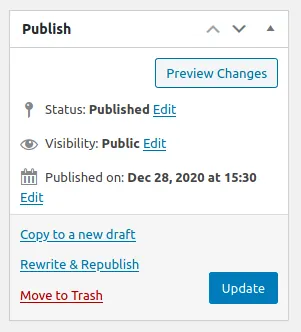
This is what I install on 90 percent of client sites. Yoast Duplicate Post is free, has over 4 million active installs, is actively maintained, and works with every post type including pages, custom post types, and WooCommerce products. It adds a Clone link, a New Draft link, and a Rewrite & Republish option to every row in the post list.
Install it from Plugins > Add New, activate, and you are done. No settings page tour needed. Hover any page in the Pages list and you will see the new options. Click Clone and a duplicate draft appears instantly with everything copied. Click New Draft to be sent straight into the editor of the copy. Click Rewrite & Republish if you want to edit a live page in draft form and swap the live version out when you are ready.
Configuring What Gets Copied
The default settings copy title, content, featured image, and Yoast SEO meta, which is what most people want. If you use Rank Math, All in One SEO, ACF, or Meta Box, open Settings > Duplicate Post > What to copy and tick the taxonomies and custom fields you rely on. This is the single most common thing I have to fix on client sites, the plugin is installed but nobody enabled the custom field copy option, and every duplicate loses half its data.
The Permissions tab lets you restrict which user roles can duplicate posts. On sites where junior editors keep accidentally publishing duplicate drafts as live pages, I limit the feature to Editors and Administrators only. It takes 30 seconds and prevents a whole class of embarrassing mistakes.
Option 2: A functions.php Snippet (Best for Developer-Heavy Sites)
If you run a site where every extra plugin is scrutinized for performance and security impact, a code snippet is the leaner option. It adds a Duplicate link to the row actions using wp_insert_post, copies post meta with update_post_meta, and copies taxonomies with wp_set_object_terms. No admin UI to configure, no plugin update cycle to track.
Drop the snippet below into your child theme's functions.php or into a site-specific plugin. Never edit the parent theme directly, or the next update wipes your work. Once the snippet is live, refresh the Pages screen and you will see a new Duplicate link next to Edit, Quick Edit, and Trash.
// Add a Duplicate link to the post row actions
function wprescue_duplicate_post_as_draft() {
  if (empty($_GET['post'])) wp_die('No post to duplicate.');
  $post_id = absint($_GET['post']);
  check_admin_referer('wprescue_duplicate_' . $post_id);
  $post = get_post($post_id);
  if (!$post) wp_die('Post not found.');

  $new_id = wp_insert_post(array(
    'post_title'   => $post->post_title . ' (Copy)',
    'post_content' => $post->post_content,
    'post_status'  => 'draft',
    'post_type'    => $post->post_type,
    'post_author'  => get_current_user_id(),
  ));

  // Copy taxonomies
  foreach (get_object_taxonomies($post->post_type) as $tax) {
    $terms = wp_get_object_terms($post_id, $tax, array('fields' => 'slugs'));
    wp_set_object_terms($new_id, $terms, $tax);
  }

  // Copy post meta (featured image, custom fields, SEO)
  foreach (get_post_meta($post_id) as $key => $values) {
    foreach ($values as $value) {
      add_post_meta($new_id, $key, maybe_unserialize($value));
    }
  }

  wp_safe_redirect(admin_url('post.php?action=edit&post=' . $new_id));
  exit;
}
add_action('admin_action_wprescue_duplicate', 'wprescue_duplicate_post_as_draft');

function wprescue_duplicate_link($actions, $post) {
  if (current_user_can('edit_posts')) {
    $url = wp_nonce_url('admin.php?action=wprescue_duplicate&post=' . $post->ID, 'wprescue_duplicate_' . $post->ID);
    $actions['duplicate'] = '<a href="' . esc_url($url) . '">Duplicate</a>';
  }
  return $actions;
}
add_filter('post_row_actions', 'wprescue_duplicate_link', 10, 2);
add_filter('page_row_actions', 'wprescue_duplicate_link', 10, 2);
Option 3: Duplicate an Elementor Page Manually
Elementor has its own built-in template system that does the job without any plugin. Open the page you want to copy in the Elementor editor. In the bottom-left panel, click the arrow next to the green Update button and choose Save as Template. Give it a clear name, something like 'Landing Page - March Campaign' so you can find it later.
Create a new page in wp-admin (Pages > Add New), leave it blank, click Edit with Elementor. Once the editor loads, click the folder icon in the middle of the canvas, switch to the My Templates tab, hover the template you just saved, and click Insert. The full layout drops into the new page. Set the title, adjust the URL slug, and publish. This method does not copy the featured image or SEO meta, so set those manually on the new page.
Duplicating in the Block Editor (Gutenberg)
The block editor has a hidden shortcut most people miss. Open the source page, click the three-dot menu in the top-right corner of the editor, and choose Copy all blocks. Create a new draft, click into the empty canvas, and paste. Every block, including its settings, colors, and layout, drops in cleanly.
What this does not copy is the featured image, the page template selector, the excerpt, or any SEO meta. For a straightforward blog post duplicate this is fine, but for a landing page with a hero image and a custom template you will want the plugin route instead.
What to Check Before Publishing the Duplicate
Whichever method you use, run through this quick check before you hit Publish on the copy. Skipping it is how sites end up with two pages competing for the same URL, or a duplicate that lost its custom fields silently.
- The slug (URL) is unique and describes the new page, not '-copy' or '-2'
- The featured image is set and matches the intent of the new page
- Categories and tags are correct for the new page, not blindly inherited
- The page template selector (if your theme has one) points to the right template
- SEO title, meta description, and canonical URL are updated for the new page
- Custom fields (ACF, Meta Box, WooCommerce product data) copied over
- The new page is set to Draft or Private until you are ready to publish
A Real Client Example
A SaaS company hired me to help their marketing team stop breaking their site every quarter. The pattern was always the same. Someone would copy a high-performing landing page for a new campaign by installing a random duplicate plugin they found in a Google search, running it once, and leaving it active. Six months later they had four different duplicate plugins installed, three of them abandoned by their developers, and one of them a known vector for admin takeover.
We uninstalled all of them, standardized on Yoast Duplicate Post, wrote a two-page internal doc explaining exactly which fields the plugin copies and how to update the slug and SEO meta on the copy, and trained the team on the Rewrite & Republish workflow. That single change eliminated four plugins, closed a security gap, and cut their landing-page turnaround time from a day to about 20 minutes.
Preventing Duplicate Content Issues
The one SEO risk with any duplicate workflow is publishing two pages with the same content live at the same time. Google will pick one to rank and ignore the other, and if you are unlucky it picks the wrong one. Two habits prevent this entirely.
First, always keep the duplicate as a draft until you have rewritten the content or repurposed the page for a genuinely different offer. Drafts are never indexed. Second, if the duplicate really is meant to serve similar content (a location page for a service business, for example), set a canonical URL in your SEO plugin pointing to the primary version. That tells Google which one to rank and prevents the two pages from competing.
Final Checklist
Run through this before you decide the duplicate is done.
- You chose the method that matches your site (plugin, snippet, Elementor template, or block copy)
- The duplicate is a draft, not published
- Every custom field and taxonomy came across
- The featured image is set on the new page
- The slug is unique and human-readable
- SEO title, meta description, and canonical are set for the copy
- The primary version and the duplicate serve different intents, or the copy has a canonical pointing to the primary
Complete Fix Checklist
- 1Install a free duplicate plugin like Yoast Duplicate Post or Duplicate Page if you need a one-click solution across every post type.
- 2For Elementor or block editor pages, use the built-in template save option and re-insert it into a new draft.
- 3For developers, drop a small snippet into functions.php that adds a Duplicate link to the post row actions with no plugin needed.
- 4Verify that featured image, categories, tags, page template, and SEO meta all copied across before publishing the duplicate.
- 5Rename the slug of the new draft so the two pages do not compete for the same URL.
Quick Tips
- A plugin is the right answer for non-technical teams, a snippet is right for developer-heavy sites where every extra plugin adds weight
- Always duplicate to a draft first, never publish the copy immediately, or you will end up with duplicate content warnings in search
- Custom field data (ACF, Meta Box) needs a plugin that explicitly copies post meta, otherwise you will lose it
Frequently Asked Questions
Related Guides
Sources and Further Reading
- Writing posts - WordPress.org
More guides in this area: Content Workflow troubleshooting hub