
WordPress CSS Broken After an Update: How to Restore It
Site looks like plain HTML from 1998 after an update? It is almost never lost styling. Here is what to check.
What's Happening
When CSS appears missing, it's almost always a caching, mixed-content, or theme-file issue, not a real loss of styling.
When a WordPress site suddenly displays as unstyled HTML, with no colours, no columns, and no navigation, the CSS is almost never actually broken. What is broken is the browser's, the CDN's, or the caching plugin's ability to serve the current stylesheet.
The real cause is usually stale cache. A theme update or a plugin change bumped an asset version, but a cache layer somewhere in the stack is still handing out the old one, or worse, a 404 for a file that no longer exists.
This guide walks through the four cache layers where the problem tends to hide, in the order they should be cleared, and covers the theme-side checks that come next if the site still looks unstyled after every cache is empty.
Start With a Hard Refresh and Clear Browser Cache
This is always my first step, and honestly, it fixes a good 30% of the "broken CSS" calls I get. Your web browser, whether it's Chrome, Firefox, or Safari, stores copies of website files to load them faster on subsequent visits. This is called the browser cache. When you update WordPress, the CSS files might change, but your browser is still serving up the old, cached version.
Performing a hard refresh forces your browser to bypass its cache and download fresh copies of all files, including your CSS. It's different from a regular refresh. For Windows users, it is usually Ctrl + F5. On a Mac, it's Cmd + Shift + R. Try this first, and then check your site again. You will be surprised how often this simple trick works.
If a hard refresh doesn't work, you will need to clear your browser's entire cache. This is a more thorough step. In Chrome, for example, you go to Settings, then Privacy and security, then Clear browsing data. Make sure "Cached images and files" is checked. Do this, restart your browser, and then check your site.

Bypass Web Application Firewalls and CDN Caches
After the browser cache, the next layer I look at is any caching setup on the site itself. Many WordPress sites use a Content Delivery Network, or CDN, like Cloudflare, Sucuri, or StackPath. These services also cache your site's files, but they do it at a global level to speed up delivery to visitors around the world. Your CDN might be serving an outdated version of your CSS.
You usually need to log into your CDN provider's dashboard and look for an option to "purge cache" or "clear cache." This will clear their stored files and force them to grab the newest versions from your server. Each CDN has a slightly different interface, but the function is always clearly labeled. Do this after any major WordPress update.
Similarly, if you use a Web Application Firewall, or WAF, like Sucuri or Wordfence's premium service, these can also have their own caching mechanisms. Like CDNs, you will need to log into their dashboard and purge their cache. If you are unsure if you have a CDN or WAF, check your DNS settings or ask your hosting provider. I have spent far too long chasing a CSS issue only to realize a CDN was still serving old files.
Clear WordPress Caching Plugins
Almost every performance-optimized WordPress site uses a caching plugin. Plugins like WP Super Cache, W3 Total Cache, LiteSpeed Cache, or WP Rocket create static HTML versions of your dynamic WordPress pages. This makes your site load incredibly fast, but it is also a prime suspect for broken CSS after an update.
When WordPress updates, core files, themes, and plugins might get new CSS. Your caching plugin, however, might still be delivering the old, cached version of your pages. This means your browser is getting old instructions for how to style your site.
You need to log into your WordPress admin area, navigate to your caching plugin's settings, and find the option to "Clear Cache" or "Purge All Cache." This is a critical step after any WordPress update involving theme or plugin changes. I have seen countless sites look broken until a simple cache clear on the plugin brought everything back.
<?php
/**
 * Plugin Name: My Custom Cache Clear
 * Description: Adds a simple button to clear cache for common plugins.
 */

function my_custom_cache_clear_admin_menu() {
    add_menu_page(
        'Clear Cache',
        'Clear Cache',
        'manage_options',
        'my-cache-clear',
        'my_custom_cache_clear_page',
        'dashicons-performance',
        99
    );
}
add_action('admin_menu', 'my_custom_cache_clear_admin_menu');

function my_custom_cache_clear_page() {
    ?>
    <div class="wrap">
        <h1>Clear Caching Plugin Cache</h1>
        <p>This tool attempts to clear the cache for some common caching plugins.</p>
        <form method="post" action="">
            <?php wp_nonce_field('my_cache_clear_action', 'my_cache_clear_nonce'); ?>
            <input type="submit" name="clear_cache_button" class="button button-primary" value="Clear All Known Caches">
        </form>

        <?php
        if (isset($_POST['clear_cache_button']) && check_admin_referer('my_cache_clear_action', 'my_cache_clear_nonce')) {
            echo '<h2>Clearing Cache...</h2>';

            // Clear WP Super Cache
            if (function_exists('wp_cache_clear_cache')) {
                wp_cache_clear_cache();
                echo '<p>WP Super Cache cleared.</p>';
            }

            // Clear W3 Total Cache
            if (function_exists('w3tc_pgcache_flush')) {
                w3tc_pgcache_flush();
                echo '<p>W3 Total Cache cleared.</p>';
            }

            // Clear LiteSpeed Cache
            if (class_exists('LiteSpeed\Purge')) {
                LiteSpeed\Purge::purge_all();
                echo '<p>LiteSpeed Cache cleared.</p>';
            }

            // Clear WP Rocket
            if (function_exists('rocket_clean_domain')) {
                rocket_clean_domain();
                echo '<p>WP Rocket cache cleared.</p>';
            }

            // Add more caching plugins here as needed.

            echo '<p>Cache clearing attempts complete. Please check your site.</p>';
        }
        ?>
    </div>
    <?php
}
Check for Mixed Content Issues (HTTP vs HTTPS)
Mixed content is a classic problem when migrating a site to HTTPS or after certain updates. It happens when your site is served over HTTPS, but some resources, like your stylesheets, are still being requested over HTTP. Browsers block these insecure HTTP requests on an HTTPS page for security reasons, which means your CSS might not load at all. This leaves your site looking unstyled.
To check for mixed content, open your browser's developer tools. In Chrome, you can right-click anywhere on your page and select "Inspect," then go to the "Console" tab. Look for warnings or errors related to mixed content, often stating something like "Mixed Content: The page at 'https://yourdomain.com' was loaded over HTTPS, but requested an insecure stylesheet 'http://yourdomain.com/style.css'."
The fix often involves updating your database to replace all `http://` instances with `https://` for your domain. You can use a plugin like "Better Search Replace" or manually run SQL queries if you are comfortable with phpMyAdmin. Ensure your WordPress Address (URL) and Site Address (URL) in Settings, General are also set to HTTPS. This is one of those issues that can really stump you if you do not know where to look.
- Use a plugin like "Better Search Replace" to replace `http://yourdomain.com` with `https://yourdomain.com` in your database.
- Check your WordPress Address (URL) and Site Address (URL) in `Settings > General` and ensure they both use `https://`.
- Install an SSL Insecure Content Fixer plugin if you continue to see issues.
UPDATE wp_options SET option_value = REPLACE(option_value, 'http://yourdomain.com', 'https://yourdomain.com') WHERE option_name IN ('home', 'siteurl');
UPDATE wp_posts SET post_content = REPLACE(post_content, 'http://yourdomain.com', 'https://yourdomain.com');
UPDATE wp_postmeta SET meta_value = REPLACE(meta_value, 'http://yourdomain.com', 'https://yourdomain.com');
Verify Your Theme's style.css File Exists
This might seem obvious, but I once had a client who, in an attempt to "clean up" their server, accidentally deleted their `style.css` file from their active theme directory. Result? Instant unstyled site. Sometimes, a botched update or a server issue can cause a file to go missing or become corrupted. Your `style.css` file is the heart of your theme's design.
To check this, you will need to access your site via FTP or your hosting control panel's file manager. Navigate to `wp-content/themes/your-active-theme/`. Look for the `style.css` file. If it is missing, you have found your problem. You might also want to check the file size. If it is 0KB, it is empty and effectively missing.
If the file is gone, your best bet is to re-upload your theme. If it is a premium theme, download a fresh copy from the theme vendor. If it is a free theme from the WordPress repository, you can delete and reinstall it (your content will not be affected). Always backup your site before doing this, especially if you have made direct edits to your theme's files.
Inspect Theme and Plugin Conflicts
Sometimes, a WordPress update might introduce an incompatibility between your theme and one of your plugins, or even between two plugins. This can manifest as broken CSS if one component is trying to load a stylesheet in a way that conflicts with another. It is a classic problem in the WordPress ecosystem given the sheer number of combinations.
To diagnose this, you need to perform a conflict test. First, temporarily switch to a default WordPress theme like Twenty Twenty-Four. If your CSS comes back, the issue is with your theme. If it does not, the problem is likely with a plugin. Then, activate your original theme and deactivate all plugins. Reactivate them one by one, checking your site after each activation, until the CSS breaks again. The last plugin you activated is the culprit.
Once you identify the conflicting plugin or theme, you have a few options. Check if there is an update available for the problematic component. If not, contact the developer for support. In the interim, you might need to find an alternative plugin or roll back the WordPress update if the issue is critical. I have spent hours doing conflict testing, it is tedious but often necessary.
Check for CSS Errors and Syntax Issues
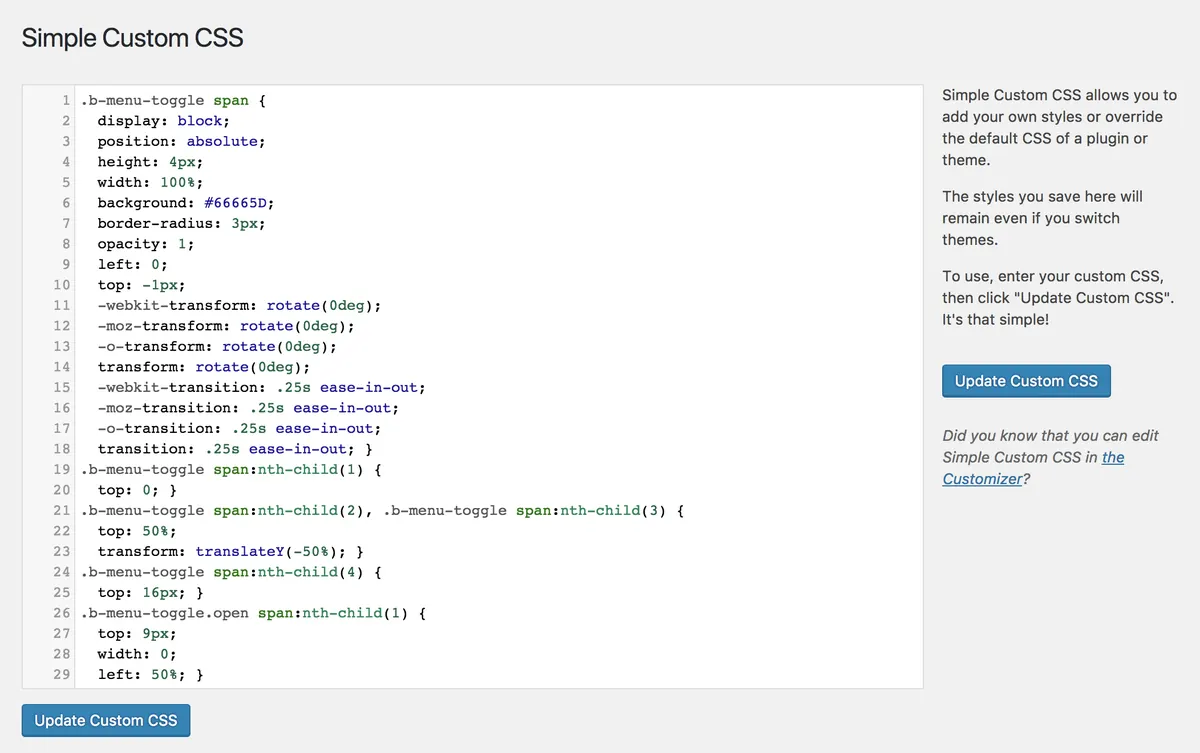
While WordPress core updates usually do not introduce syntax errors into your custom CSS, if you have recently added custom CSS to your theme's `style.css` file, through the Customizer, or via a plugin, a WordPress update might expose previously hidden errors. A small typo, like a missing semicolon or curly brace, can stop an entire stylesheet from loading correctly.
You can use your browser's developer tools again, specifically the "Console" tab, to look for CSS loading errors. Sometimes, the browser will tell you if a stylesheet failed to load or has parsing errors. You can also use an online CSS validator to paste your custom CSS and check for syntax errors. This is particularly useful if you have a lot of custom code.
If you find errors, carefully review your custom CSS and correct them. If you are using the Customizer for custom CSS, you can often preview changes before saving, which helps catch errors. For plugin-based custom CSS, some plugins offer syntax highlighting and error checking. Always make sure your custom code is valid and well-formed.
Database Issues and Corrupted Files
In rare cases, a WordPress update, especially a major one, can involve changes to the database structure or can go wrong, leading to corrupted core files. If your CSS is still broken after trying all the above steps, you might be looking at a deeper issue. This is less common but definitely something I have encountered, usually after an update was interrupted.
You can try to repair your WordPress database. Most hosting providers offer a tool like phpMyAdmin where you can select your database and run a repair function. WordPress also has a built-in repair option, though it is usually for more specific table issues. To enable it, you add `define('WP_ALLOW_REPAIR', true);` to your `wp-config.php` file, then visit `yourdomain.com/wp-admin/maint/repair.php`.
If core files are corrupted, you might need to manually re-upload the WordPress core files. You can download a fresh copy of WordPress from wordpress.org, then via FTP, upload all files and folders EXCEPT `wp-content`. This will replace any corrupted core files without affecting your themes, plugins, or uploads. Remember to back up everything before attempting this. This is a more advanced step and usually a last resort.
- Backup your entire site (files and database).
- Download a fresh copy of WordPress from wordpress.org.
- Via FTP or file manager, delete the `wp-includes` and `wp-admin` directories on your server.
- Upload the `wp-includes` and `wp-admin` directories from your fresh WordPress download.
- Upload individual files from the root of the fresh WordPress download, overwriting existing ones, but be careful NOT to overwrite your `wp-config.php` file or the `wp-content` directory.
<?php
// In wp-config.php
define('WP_ALLOW_REPAIR', true);
?>
Complete Fix Checklist
- 1Hard refresh the page (Ctrl+Shift+R or Cmd+Shift+R).
- 2Clear caching plugin and CDN cache.
- 3Check browser console (F12) for blocked HTTP assets on an HTTPS site.
- 4Verify the theme's style.css exists in /wp-content/themes/your-theme.
- 5Switch to a default theme briefly to confirm the issue is theme-specific.
Quick Tips
- Use a child theme to prevent loss of customizations
- Purge CDN after every theme update
Frequently Asked Questions
Related Guides
Sources and Further Reading
- Using themes - WordPress.org
- Debugging in WordPress - WordPress.org Developer Resources
- Editing wp-config.php - WordPress.org Advanced Administration
More guides in this area: Themes troubleshooting hub