
How to Increase Maximum Upload File Size in WordPress (Every Working Method)
Hitting the 'exceeds the maximum upload size for this site' error? Here is every method that actually works, in the order I try them on client sites.

What's Happening
The 'maximum upload size' limit in WordPress is not set by WordPress itself. It comes from PHP, and your host controls the default. When you try to upload a 12 MB image or a 40 MB video and WordPress refuses with 'exceeds the maximum upload size for this site', the limit is sitting in one of four places: php.ini, .htaccess, wp-config.php, or your hosting control panel. Most guides online tell you to edit a single file and call it done. In real life the limit only lifts when the right file for your host is changed, and on some hosts you have to ask support because the value is locked.
The upload size limit in WordPress is not a WordPress setting. It is the smaller of three PHP directives, upload_max_filesize, post_max_size, and memory_limit, plus whatever the web server allows in a single request body. WordPress simply reports whichever of those is lowest.
That is why the limit refuses to change when only one directive is edited. Setting upload_max_filesize to 128M while post_max_size stays at 8M produces exactly the same behaviour as before, because the smaller number still wins.
This guide covers the four places the limit can be raised, how to check which host uses which configuration file, and how to confirm the new limit is actually live before spending an hour trying to upload a large file.
Confirm the Current Limit First
Before changing anything, find out what limit WordPress is actually enforcing right now. Log in, go to Media > Add New, and look at the bottom of the page. WordPress prints 'Maximum upload file size: X MB' in plain text. That number is the live value PHP is handing to WordPress on this request. If you change a config file and the number on this page does not change after a refresh, the change did not take effect and you need to try a different file.
The second check is the WordPress Site Health screen at Tools > Site Health > Info > Server. Expand the Server section and you will see the exact values of upload_max_filesize, post_max_size, memory_limit, and max_execution_time. These are the four PHP settings that govern uploads. Note them down before editing anything. If something breaks you can revert.
Method 1: Use Your Host Control Panel
If your host gives you a PHP settings panel, use it. Editing files works but gets overwritten on managed hosts during deploys, and skipping the panel means future support tickets get more complicated because the host cannot see your override. On cPanel the panel is called MultiPHP INI Editor. On Plesk it is PHP Settings inside the domain. On Hostinger it is Advanced > PHP Configuration. On Cloudways it is Application Settings > PHP-FPM. On SiteGround it is Site Tools > Devs > PHP Manager. On Kinsta and WP Engine the value is managed by support and you ask them in chat.
Whichever panel applies, raise upload_max_filesize and post_max_size to the same value, with post_max_size slightly higher. A safe pair is upload_max_filesize 128M and post_max_size 144M. Save, wait ten seconds, then refresh Media > Add New. The new number should appear.
Method 2: Edit php.ini Directly
If your host gives file access but no PHP panel, you create or edit php.ini. The location depends on the host. On many shared hosts you can drop a php.ini in your site root or in /wp-admin and PHP will read it for that directory. On others you need a .user.ini file. The phpinfo trick from the FAQ tells you exactly which file PHP is loading on your setup.
Add the four lines below. Save the file, refresh Media > Add New, and confirm the limit changed. If it did not change, the file is in the wrong location for your host and you should fall back to .htaccess or the wp-config method.
upload_max_filesize = 128M
post_max_size = 144M
memory_limit = 256M
max_execution_time = 300
Method 3: Add Rules to .htaccess
On Apache hosts you can raise the limit from .htaccess. Open the file in your site root. Right before the # BEGIN WordPress line add the four directives below. Save, refresh Media > Add New, confirm the limit changed. If you get a 500 Internal Server Error on the next page load, your host has php_value disabled. Remove the lines, the limit will revert, and use Method 4 instead.
php_value upload_max_filesize 128M
php_value post_max_size 144M
php_value memory_limit 256M
php_value max_execution_time 300
Method 4: Use wp-config.php
wp-config.php cannot change upload_max_filesize directly because WordPress reads that value from PHP after the config file runs. What you can change from wp-config is the memory limit and the execution time, both of which need raising for large uploads. Add the lines below above the 'stop editing' comment.
If your host blocks file-level php.ini and .htaccess overrides, wp-config is sometimes the only place where any change sticks. It will not raise upload_max_filesize on its own, but combined with a plugin like Big File Uploads it can be enough to get past the limit on locked-down shared hosts.
@ini_set('upload_max_filesize', '128M');
@ini_set('post_max_size', '144M');
@ini_set('memory_limit', '256M');
@ini_set('max_execution_time', '300');
Method 5: Use a Plugin
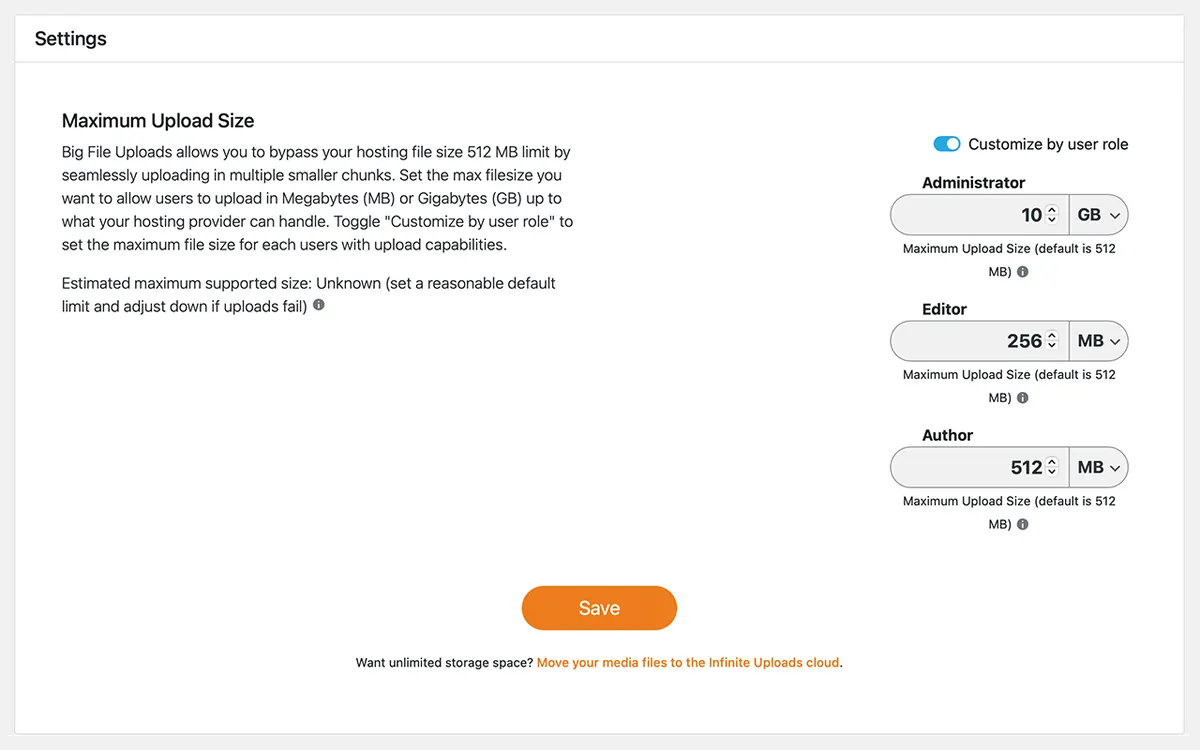
If editing files makes you nervous or your host blocks every override, install Big File Uploads (formerly Tuxedo Big File Uploads). It exposes a slider in the WordPress admin that sets the limit per role. Activate, go to Settings > Big File Uploads, drag the slider, save. The plugin chunks large files into pieces small enough to slip under your host's PHP limit and reassembles them on the server.
Big File Uploads works on hosts where every file edit gets ignored because it bypasses upload_max_filesize entirely. It is the only method I know that reliably works on free or heavily restricted shared hosting. The trade-off is that very large files (over 500 MB) can take several minutes to assemble and may hit max_execution_time on the assembly step, so raise that too.

Method 6: SFTP Plus Add From Server
For files over 256 MB the browser uploader is not the right tool. A dropped packet means starting the whole transfer over, and most hosts time out long before a 1 GB video finishes uploading through the admin. The right approach is to upload the file by SFTP straight to /wp-content/uploads/ and then register it with WordPress so it appears in the Media Library.
Install the Add From Server plugin. Upload the file by SFTP to /wp-content/uploads/. Go to Media > Add From Server, browse to the file, and import. The file now appears in the Media Library with no upload limit involved at all because the file was never sent through PHP.
Verify the Change
After any of the methods above, refresh Media > Add New and check the new limit. If the number changed, you are done. If it did not, the change landed in the wrong file. Create phpinfo.php in your site root with the single line in the next snippet, load /phpinfo.php in your browser, and search the output for 'upload_max_filesize'. The value shown there is what PHP is actually using. If it is not the value you set, the file you edited is not the one PHP is reading.
Delete the phpinfo.php file immediately after checking. It leaks server configuration to anyone who finds the URL and is a real security risk if left in place.
<?php phpinfo(); ?>A Real Client Example
A magazine client called because their photographer could not upload the new cover shot. WordPress kept rejecting the file at 18 MB. The host was a popular cPanel shared plan. MultiPHP INI Editor showed upload_max_filesize at 16 MB. I raised it to 64 MB and saved. Refresh Media > Add New: still 16 MB. The host's PHP-FPM pool was not picking up the change.
The fix was a php.ini in the site root with the four lines from Method 2. The MultiPHP value never changed, but the per-directory php.ini took precedence and the new value appeared immediately. Total fix time about ten minutes including the phpinfo trick to confirm which file PHP was reading. The lesson: on shared hosts the panel is the first thing to try but not always the thing that works.
When the Host Blocks Everything
Some budget hosts cap upload_max_filesize at the server level and reject every override no matter where you put it. If you have tried every method above and the limit on Media > Add New has not moved, the cap is locked. Two options remain: open a support ticket and ask them to raise it for your account, or move the file in by SFTP and register it with Add From Server. Both work, neither is a quick fix.
If you find yourself doing this often, the cheapest way out is to move to a host that does not cap uploads. Cloudways, Kinsta, WP Engine, and most managed WordPress hosts start at 128 MB or higher. The migration is a one-time job and ends a class of support tickets permanently.
Keep the Limit Sensible
Once you can upload large files, the next problem is that contributors will. A 40 MB unoptimized photo on a hero slot kills your Largest Contentful Paint score and burns through your CDN budget. Pair the upload increase with three habits to keep the site fast.
- Install Imagify or ShortPixel to compress on upload
- Set a Media Library policy: no image over 2 MB published without review
- Enable WebP delivery in your caching plugin so visitors get modern formats
- Use video hosting (YouTube, Vimeo, Bunny Stream) for clips over 50 MB instead of self-hosting
- Run a quarterly audit of /wp-content/uploads to remove unused large files
Final Verification
After the limit is raised, do one full end-to-end test. Upload a file that is slightly under the new limit. Upload a file that is slightly over. The first should succeed, the second should fail with a clean error message, not a server timeout. If the second fails with a 504 Gateway Timeout or a blank screen instead of the WordPress error message, max_execution_time or your proxy timeout is too low for the file size you allowed. Raise both, retest, and the system is then properly tuned for the workload you set it for.
Complete Fix Checklist
- 1Check the current limit at Media > Add New, the page shows the maximum upload size at the bottom.
- 2Identify your host type: shared cPanel, managed WordPress (Kinsta, WP Engine, SiteGround), or VPS with root access.
- 3On cPanel hosts, open MultiPHP INI Editor and raise upload_max_filesize and post_max_size to the same value.
- 4On managed hosts, check the host dashboard first, most have a one-click slider for upload size before you need to edit files.
- 5If you have file access but no PHP panel, add the upload_max_filesize line to .htaccess or to a custom php.ini in your site root.
- 6Verify the new limit appears at Media > Add New, if it does not, the change landed in the wrong file for your host.
Quick Tips
- upload_max_filesize and post_max_size must both be raised, post_max_size must be larger than upload_max_filesize
- max_execution_time and memory_limit usually need raising too for large files
- Some shared hosts cap the value at the server level, no file edit can override it
Frequently Asked Questions
Related Guides
Sources and Further Reading
- Uploading files - WordPress.org
- PHP file upload configuration - PHP Manual
More guides in this area: Media troubleshooting hub