
WordPress HTTP Error When Uploading Images: The Real Fix
The vague 'HTTP error' on the media uploader has four real causes. Here is how I diagnose and fix it on client sites in under 10 minutes.
What's Happening
You drag a JPG into the WordPress media library and a red bar appears saying 'HTTP error'. No error code, no explanation, no clue what went wrong. The cause is almost always one of four things: PHP memory, file size limits, the image processor library, or a security rule on the server.
The "HTTP error" that WordPress shows in the media uploader is famously unhelpful. It is a single line with no detail, no code, and no hint about which part of the upload pipeline failed. That vagueness is why the same error can have four completely different causes.
An image upload passes through the browser, the web server, the PHP process that handles the request, the image library that resizes the file, and finally the filesystem where the resized files are written. Each of those hops can fail independently, and each produces the same generic HTTP error message.
This guide covers the four realistic causes in the order they should be tested, starting with the free browser-side and PHP-side checks and only moving to server configuration if the earlier ones come back clean.
Step 1: Rule Out the Browser and the File
Before touching the server, eliminate the easy stuff. Try the upload again in a different browser. Try in incognito with all extensions disabled. Try a different file, ideally a small PNG. If a 50 KB PNG uploads fine but a 4 MB JPG fails, the problem is server-side memory or file size limits, not WordPress.
Also rename the file. WordPress sanitizes filenames but some plugins and CDNs do not, and a filename with spaces, accented characters, or symbols like # and & is enough to trip a WAF rule. A plain lowercase name like photo.jpg is the safest test.
Step 2: Enable Debug Logging and Reproduce the Error
Open wp-config.php and add the three debug constants below. They make WordPress write the real PHP error to /wp-content/debug.log without showing it to visitors. Reproduce the upload, then open the log file. The most recent line is almost always the answer.
define('WP_DEBUG', true);
define('WP_DEBUG_LOG', true);
define('WP_DEBUG_DISPLAY', false);
@ini_set('display_errors', 0);
Step 3: Raise PHP Memory and Upload Limits
On 70 percent of the HTTP error tickets I see, raising memory and upload limits fixes it instantly. Add the lines below to wp-config.php and a .user.ini file in your site root. If your host blocks .user.ini, ask support to raise the limits at the PHP level.
; .user.ini in your site root
upload_max_filesize = 64M
post_max_size = 64M
memory_limit = 256M
max_execution_time = 300
Step 4: Force the GD Image Library
WordPress picks Imagick over GD by default when both are installed. Imagick is more powerful but it also crashes more often on shared hosts because it forks subprocesses for each resize. Forcing GD is harmless on standard sites and resolves a large share of HTTP errors on hosts running old Imagick builds.
add_filter('wp_image_editors', function($editors) {
    return ['WP_Image_Editor_GD', 'WP_Image_Editor_Imagick'];
});
Step 5: Check Cloudflare, Sucuri, and Other WAFs
If you sit behind Cloudflare, log in, go to Security > WAF, and look at recent blocked requests filtered by your own IP. A WAF rule that blocks multipart POST is a very common cause of the HTTP error after the site is otherwise healthy. The fix is either to pause Cloudflare for the test or add a bypass rule for /wp-admin/.
Sucuri and other cloud firewalls have similar logs in their dashboard. The Ray ID or request ID in the firewall log is the fastest way to confirm it was the WAF and not WordPress that rejected the upload.
Step 6: Disable Image Optimization Plugins One at a Time
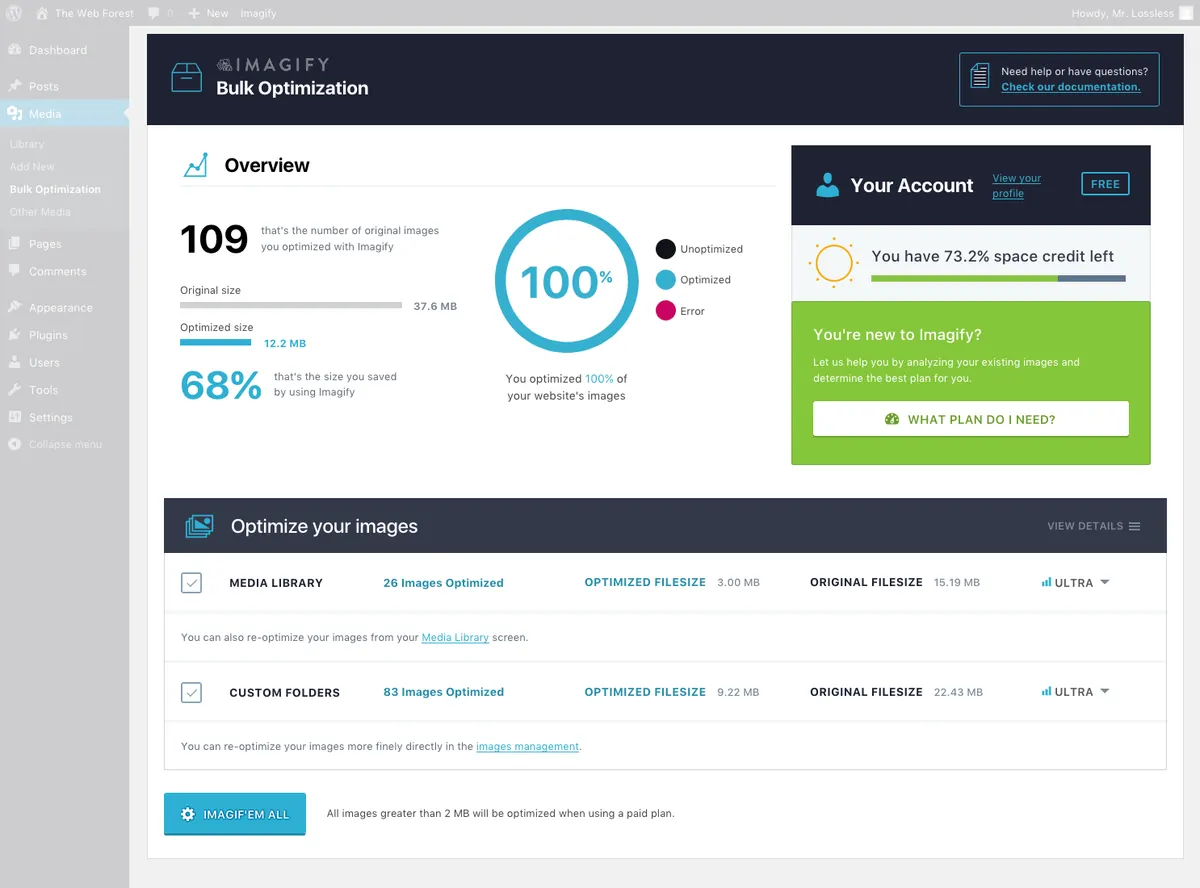
Imagify, Smush, ShortPixel, and EWWW Image Optimizer all hook into the upload process to compress or resize new images. If any of them is misconfigured or has a stale API key, the entire upload fails with the same generic HTTP error.
Deactivate each one in turn and retry the upload. When the upload succeeds, you have your culprit. Reactivate it and check its settings for an expired API key, a quota cap, or an unsupported format.
When the Error Is Intermittent
An HTTP error that happens once a day, only on big files, with no pattern, is almost always memory. Shared hosts give you a memory ceiling and your site hovers near it during traffic spikes. When an upload comes in at the wrong moment, PHP runs out of RAM mid-resize and the worker dies.
If you cannot raise memory further on your host, the long-term fix is to move off the shared plan or to resize images before uploading. ShortPixel Adaptive Images and similar tools offload the heavy lifting to a third-party service so your server never has to resize a 6 MB photo.
Why Imagick Crashes More Often Than People Admit
Imagick is a PHP wrapper around the ImageMagick command-line tool. Every time WordPress resizes an image with Imagick, PHP shells out to a separate ImageMagick process, that process opens the file, builds the thumbnail, and writes the output. On a healthy server this is invisible. On a busy shared host with capped processes per user, it is one of the most common sources of silent upload failures.
The trouble is that ImageMagick respects its own policy.xml file, which can be tuned to deny memory, disk, or even specific file formats. Many shared hosts ship an aggressive policy.xml that denies PDFs, denies certain MIME types, or caps memory at 64 MiB. When you upload a 5 MB JPG, Imagick tries to open it, hits the cap, and exits with status 1. WordPress sees the failed worker and shows you 'HTTP error'.
If you have shell access, run `convert -list policy` to see your host's current limits. If you do not, the safest move is to force GD as shown earlier in this guide. GD lives inside the PHP process, has no separate policy file, and is more predictable on shared hosting even though it is technically slower for large batch jobs.
Filename Sanitization Edge Cases That Still Bite in 2026
WordPress sanitizes filenames before saving them, but the sanitization is conservative. Emojis in a filename used to crash uploads outright, that is fixed, but filenames with Arabic, Hebrew, or right-to-left characters still confuse some hosts because the filesystem stores the bytes one way and the database stores them another. When the file path round-trips through both layers, the lookup can fail and WordPress reports the upload as broken even though the file landed on disk.
Two-byte characters in iPhone screenshot filenames (the curly apostrophe and the en dash that Apple silently inserts) are another quiet cause. A filename like 'IMG_2026'06'25.HEIC' contains characters that look like normal apostrophes but are U+2019. WordPress accepts them, the database row writes fine, but some CDNs reject the URL when the file is later requested, which makes the upload look like it failed even though the asset is there.
When in doubt, rename the file before testing. A plain ASCII filename like test-upload.jpg eliminates a whole category of false positives in under three seconds.
How to Tell the Difference Between an HTTP Error and a Timeout
WordPress shows the same 'HTTP error' message for two completely different failures. The first is an immediate failure where the AJAX request returned a non-200 status. The second is a timeout where the request never got an answer at all because the worker died mid-resize. The fix differs.
Open the browser DevTools network tab, retry the upload, and watch the async-upload.php request. If it returns within a second with status 500, you have a PHP fatal that landed in your debug.log. If it spins for 30 seconds and then shows 'failed' with no status code, you hit a server timeout and the fix is on the memory or worker side, not in the code.
This single check saves about 20 minutes per ticket. Without it you end up raising memory limits to fix a PHP fatal or chasing a fatal that does not exist because the real cause was a 30-second proxy timeout in front of PHP.
Permanent Hardening: A Small mu-Plugin That Catches Future Failures
After cleaning up the immediate failure, drop the snippet below into /wp-content/mu-plugins/upload-debug.php. It logs every failed upload with the PHP error message, the filename, the user ID, and the memory peak. The next time someone reports 'I tried to upload a photo and it broke', you have a real log entry instead of a vague complaint.
<?php
// /wp-content/mu-plugins/upload-debug.php
add_filter('wp_handle_upload_prefilter', function ($file) {
    if (!empty($file['error'])) {
        error_log(sprintf(
            '[upload-debug] user=%d file=%s size=%d error=%s peak_mem=%s',
            get_current_user_id(),
            $file['name'] ?? 'unknown',
            $file['size'] ?? 0,
            $file['error'],
            size_format(memory_get_peak_usage(true))
        ));
    }
    return $file;
});
Checklist Before You Hand the Site Back to the Client
Before closing the ticket, run through a five-point check so the same issue does not surface again next week. Upload a small PNG, a 5 MB JPG, a HEIC straight from an iPhone, a WebP, and a PNG with a transparent background. If all five succeed, the uploader is properly fixed across the formats real users send.
Then revisit the Media Library and make sure the thumbnails generated cleanly. A successful upload that produced no thumbnail is still a half-broken upload and tells you the image library is starved of memory even though the original landed on disk. Regenerate Thumbnails plugin can backfill any half-finished assets in one click.
- Test JPG, PNG, WebP, HEIC, and a transparent PNG in sequence
- Confirm thumbnails generated for every test file
- Tail /wp-content/debug.log during each test for hidden warnings
- Verify Cloudflare WAF event log shows no blocked requests
- Document the final memory_limit and upload_max_filesize values in a site README so the next admin does not undo them
Complete Fix Checklist
- 1Try the upload again after waiting 60 seconds, the error is sometimes a transient server timeout.
- 2Rename the file to lowercase with no spaces or special characters and retry.
- 3Raise PHP memory_limit to 256M and upload_max_filesize to 64M in php.ini or .user.ini.
- 4Force WordPress to use the GD image library by adding a small filter to functions.php.
- 5Disable image optimization plugins (Imagify, Smush, ShortPixel) one at a time and retry the upload.
- 6If you use Cloudflare, temporarily pause it and retry, an over-zealous WAF rule blocks multipart uploads on some sites.
Quick Tips
- Try a different browser before assuming server-side
- Test with a small PNG to rule out file size
- Check /wp-content/debug.log immediately after a failed upload for the real PHP error
Frequently Asked Questions
Related Guides
Sources and Further Reading
- Uploading files - WordPress.org
- PHP file upload configuration - PHP Manual
More guides in this area: Media troubleshooting hub