
Why Is My WordPress Site So Slow? Real Fixes That Work
Speed fixes I actually use on client sites. No theory, no plugin spam, just the moves that move the needle.
What's Happening
Most slow WordPress sites share the same culprits: no caching, large images, too many plugins, or weak hosting.
A slow WordPress site rarely has one villain. It usually has three or four small drags stacked on top of each other: an oversized hero image, a couple of heavy plugins loading on every page, a caching layer that never got turned on, and a database that has been collecting expired transients for years.
Performance work goes faster when it starts with measurement rather than opinion. A single run in PageSpeed Insights or GTmetrix will name the largest contentful paint offender, the render-blocking scripts, and the total blocking time, which turns "the site feels slow" into a specific to-do list.
This guide follows that measurement-first order: identify what is actually slow, fix the item that would move the biggest number, and only then move on. It saves hours compared with the shotgun approach.
Start With Core Web Vitals and PageSpeed Insights
When a client first complains about a slow site, my first stop is always Google PageSpeed Insights. It gives you a quick, objective overview of where the site stands in terms of performance. It also highlights specific issues that Google cares about, which directly ties into search engine rankings. I find it much more helpful than just blindly guessing what might be wrong.
PageSpeed Insights focuses on Core Web Vitals. These are three specific metrics: Largest Contentful Paint (LCP), First Input Delay (FID), and Cumulative Layout Shift (CLS). LCP measures loading performance, FID measures interactivity, and CLS measures visual stability. Addressing these directly improves user experience and pleases Google, which is a win-win in my book.
I typically run the report for both mobile and desktop. Sometimes, issues that show up on mobile are not apparent on desktop, and vice versa. Pay close attention to the recommendations. They often point you directly to the problem areas, like unoptimized images or render-blocking resources. This initial report gives me a baseline and helps prioritize my efforts.

Implement a Solid Page Caching Solution
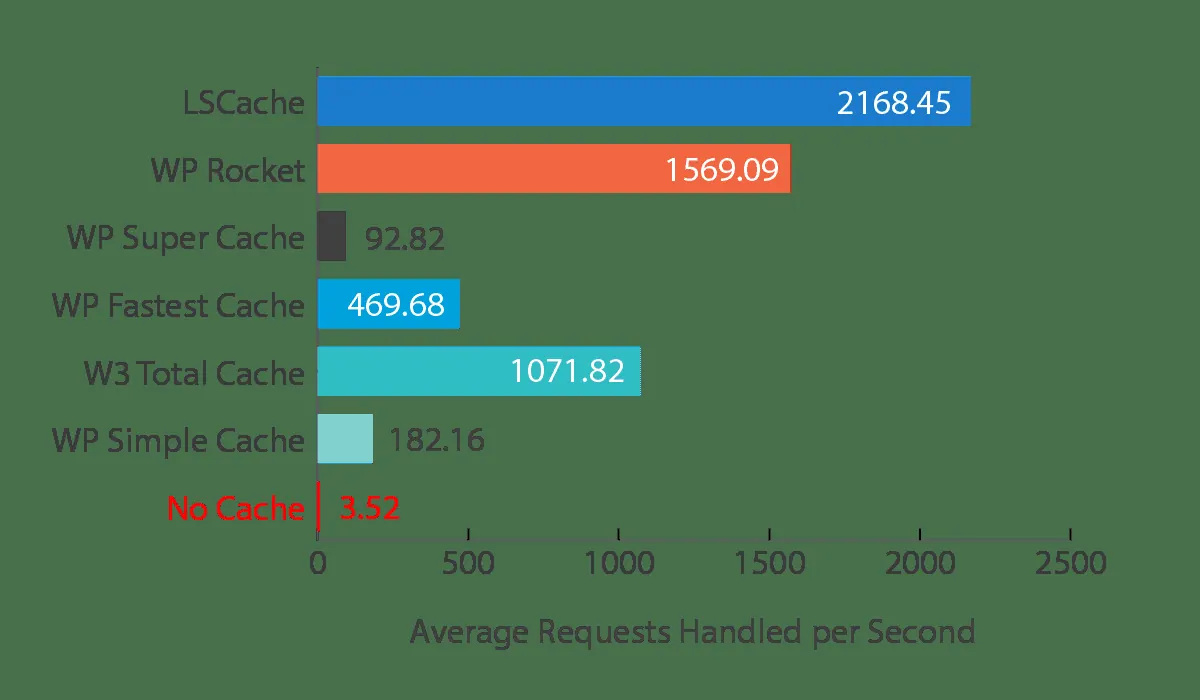
If there's one single thing that has the most immediate impact on WordPress site speed, it's page caching. For years, every time I'd launch a new site, caching was one of the first things I'd set up. Without it, every time a user visits a page, WordPress has to fetch data from the database, process PHP, and then assemble the page. This is incredibly inefficient.
A page cache plugin saves a static version of your page after the first visit. Subsequent visitors get this saved HTML file directly, bypassing all the heavy lifting WordPress normally does. This dramatically reduces server load and speeds up delivery. I've seen sites go from several seconds to under one second with just a solid caching strategy.
My go-to recommendations are WP Rocket or LiteSpeed Cache, especially if you're on a LiteSpeed server. For basic needs, even plugins like WP Super Cache can make a huge difference. Just pick one, configure it properly, and make sure it's active. Remember to exclude dynamic pages, like checkout pages, from caching to avoid issues.
- WP Rocket (premium, user-friendly)
- LiteSpeed Cache (free, highly optimized for LiteSpeed servers)
- WP Super Cache (free, solid basic caching)
Optimize and Compress Your Images
Images are often the biggest culprits for slow loading times. High-resolution photos taken directly from a camera can be several megabytes each. A few of those on a page and your site is guaranteed to drag. I remember a client who uploaded 20MB hero images directly from their photographer. The site was unusable until we optimized them.
Before uploading, always resize images to the dimensions they will actually be displayed at on your site. There's no point in uploading a 4000px wide image if it's only ever displayed at 800px. Then, compress them. This reduces the file size without noticeable loss in quality for most web use cases. I always do both.
For existing images, a good image optimization plugin can batch compress them. Plugins like Smush or EWWW Image Optimizer are fantastic for this. They can convert images to WebP format, which offers superior compression. Setting up lazy loading for images is also a must. This ensures images only load when they enter the user's viewport, saving initial load time.
- Smush (free and premium versions)
- EWWW Image Optimizer (free and premium versions)
- Imagify (premium, excellent compression)
Audit and Cleanup Your Plugins
Plugins are one of the greatest strengths of WordPress, but they are also its biggest weakness when it comes to performance. Every plugin you install adds code, and some of that code runs on every page load. After years of running client sites, I've seen bloated plugin lists cause more problems than almost anything else. A customer once had 70+ active plugins on their site, most of them unnecessary. It was a disaster.
Start by deactivating any plugins you no longer use. Then, go through your active list. For each plugin, ask yourself: 'Is this absolutely essential? Is there a lighter alternative?' Sometimes, a plugin might be doing something simple that you could achieve with a few lines of custom code in your theme's functions.php file. Use tools like Query Monitor to see which plugins are making the most database queries or taking the longest to load.
Delete unused plugins, don't just deactivate them. Deactivated plugins can still leave behind database tables and files. Also, be wary of plugins that promise to do too many things. Often, a specialized plugin for one task performs better than an 'all-in-one' solution. My rule of thumb is quality over quantity.
<?php
/**
 * Example: Manually adding Google Analytics code instead of a plugin.
 * Add this to your child theme's functions.php file.
 */
function my_theme_google_analytics() {
    ?>
    <!-- Google tag (gtag.js) -->
    <script async src="https://www.googletagmanager.com/gtag/js?id=YOUR_GA_TRACKING_ID"></script>
    <script>
        window.dataLayer = window.dataLayer || [];
        function gtag(){dataLayer.push(arguments);}
        gtag('js', new Date());
        gtag('config', 'YOUR_GA_TRACKING_ID');
    </script>
    <?php
}
add_action('wp_head', 'my_theme_google_analytics', 10);
Ensure You Are Running Modern PHP
WordPress is built on PHP, and like any software, PHP gets faster with each new version. The first time I upgraded a client's site from PHP 7.0 to 7.4, the speed difference was instantly noticeable. It felt like giving the server a turbo boost. Running an old version of PHP is like trying to run modern software on an ancient computer. It simply won't perform well.
Most hosting providers allow you to easily change your PHP version within your hosting control panel. Always aim for the latest stable version, which at the time of this writing is PHP 8.1 or newer. Newer versions come with significant performance improvements and better security. However, always test thoroughly after an upgrade, as some older plugins or themes might not be fully compatible with the very latest PHP versions.
Before upgrading, make a full backup of your site. Then, switch to the new PHP version and check your site for any errors. If you encounter issues, you can always revert to the previous version. The performance gains usually outweigh the minor compatibility checks you might need to do.
# Example .htaccess rule to set PHP version (if your host allows it)
<IfModule handler_module>
    AddHandler application/x-httpd-php81 .php
</IfModule>

# Or often through your hosting panel, look for 'Select PHP Version' or 'PHP Manager'.
Utilize a Content Delivery Network (CDN) Like Cloudflare
A CDN speeds up your site by serving your static assets from servers physically closer to your users. Imagine your website is hosted in New York. A user in California has to ping a server across the country every time they visit. That adds latency. I started using CDNs on almost all client sites years ago. The improvement for international audiences is dramatic.
Cloudflare is one of the most popular CDNs, with a generous free plan that offers significant performance and security benefits. It caches your static content, like images, CSS, and JavaScript, on its global network of servers. When a user requests your site, Cloudflare delivers these assets from the nearest server, drastically reducing load times.
Setting up Cloudflare involves changing your domain's nameservers. It's a fairly straightforward process, and Cloudflare provides clear instructions. Beyond caching, Cloudflare also offers DDoS protection and a web application firewall, adding an extra layer of security. It's a powerful tool that every WordPress site owner should consider.
Optimize Your WordPress Database
Over time, your WordPress database can become cluttered with revisons, spam comments, transient options, and other unnecessary data. This bloat can slow down database queries, which in turn slows down your entire site. I've often seen databases grow to an unmanageable size on long-running client sites if they're not regularly maintained.
Plugins like WP-Optimize or WP-Sweep can help you clean up and optimize your database. They can remove post revisions, optimize database tables, delete spam comments, and clear out transient options. Running these optimizations regularly, say once a month or after a major content update, can keep your database lean and fast.
Always backup your database before performing any optimization. While these plugins are generally safe, it's good practice to have a restore point. A well-optimized database ensures that WordPress can retrieve the information it needs quickly, leading to faster page loads.
- WP-Optimize (free and premium versions)
- WP-Sweep (free, focuses on database cleanup)
Choose a High-Quality WordPress Host
All the optimization in the world won't matter if your site is sitting on cheap, overcrowded hosting. It's like putting racing tires on a car with a lawnmower engine. I learned this early on when a client's site kept grinding to a halt despite all my efforts. The culprit was always the shared hosting environment trying to cram too many sites onto one server.
Good hosting provides adequate resources, like CPU and RAM, and is optimized for WordPress. Look for hosts that offer features like SSD storage, LiteSpeed or Nginx web servers, and built-in caching at the server level. Managed WordPress hosts often provide these optimizations out of the box, saving you a lot of manual configuration.
While cheap shared hosting might seem appealing initially, the performance and reliability issues will cost you more in the long run. Invest in a reputable host that understands WordPress and prioritizes performance. It's one of the best investments you can make for your site's speed and stability.
- WP Engine (managed WordPress hosting)
- Kinsta (premium managed WordPress hosting)
- SiteGround (good balance of performance and price)
Complete Fix Checklist
- 1Install a caching plugin (WP Super Cache, LiteSpeed, or W3 Total Cache).
- 2Compress images with ShortPixel, Smush, or TinyPNG.
- 3Audit plugins and remove anything you don't use.
- 4Switch to PHP 8.1 or newer in your hosting panel.
- 5Put Cloudflare (free tier) in front of your site as a CDN.
Quick Tips
- Test before and after at PageSpeed Insights
- Lazy-load images and iframes
Frequently Asked Questions
Related Guides
Sources and Further Reading
- Optimization - WordPress.org Advanced Administration
- Core Web Vitals - web.dev (Google)
More guides in this area: Performance troubleshooting hub