
WordPress Not Sending Email: Fix Contact Forms and Notifications for Good
Contact form submissions disappearing? Password resets never arriving? Here is the real reason WordPress emails fail and the SMTP setup that actually works.

What's Happening
WordPress sends mail through PHP's mail() function by default, and almost no modern host allows that to reach a real inbox. The result is a site that looks like it is sending email but actually drops every message at the server. Contact form entries vanish. New user notifications never arrive. Password resets bounce. WooCommerce order receipts go missing. The fix is not a plugin tweak, it is moving WordPress off PHP mail entirely and onto authenticated SMTP through a real sending service.
Contact form emails, password resets, WooCommerce order notifications, and comment moderation all share the same underlying WordPress function, wp_mail(). If wp_mail() cannot deliver, every one of those features breaks at the same time, and the form itself almost always looks perfectly healthy in the process.
The default wp_mail() implementation uses the PHP mail() function, which tries to hand the message off to a local mail transfer agent on the web server. On most modern shared and cloud hosts, that agent either does not exist or is rate-limited to nearly zero, which is why the emails silently disappear.
This guide covers the SMTP setup that fixes wp_mail() for good, the SPF, DKIM, and DMARC records that keep those messages out of the spam folder, and the debugging tools that show exactly where a lost email was dropped.
Step 1: Prove WordPress Is Actually Sending
Before changing anything, find out whether the failure is at WordPress or after WordPress hands the message off. Install WP Mail Logging from the plugin repository. Activate it. Trigger whatever email is failing: submit the contact form, request a password reset, place a test WooCommerce order. Now open WP Mail Logging.
If the log shows the message with a green success indicator, WordPress did its job. The mail left wp_mail() successfully and the problem is downstream: the host rejected it silently, the recipient filtered it, or the From header failed authentication at the receiving end. If the log shows nothing at all or a red error, the form plugin is not calling wp_mail() and you need to fix that first by enabling the SMTP override in the form's settings.
This five-minute check separates two completely different problems and saves you from configuring SMTP for an issue that was actually a misconfigured form plugin.
Step 2: Pick a Real Sending Provider
PHP mail() through your host is not a real sending pipeline. The fix is authenticated SMTP through a transactional provider whose entire job is making sure messages reach inboxes. Pick one based on volume and budget.
For under 300 emails per day Brevo's free tier covers it. For under 100 emails per day per recipient Mailgun's pay-as-you-go starts at zero. For high volume Amazon SES is roughly 10 cents per thousand emails after the first 62,000 from EC2. For pure deliverability with no fuss Postmark costs more but lands every message in the inbox.
- Brevo: 300 free per day, simple setup, good for small business
- Mailgun: 100 free per day on the Foundation plan, strong API
- SendGrid: 100 free per day, widely supported in every plugin
- Amazon SES: cheapest at scale, slightly more setup
- Postmark: best inbox delivery for transactional mail, paid only
Step 3: Install an SMTP Plugin
WP Mail SMTP and Fluent SMTP are the two I trust. Both replace WordPress's default mailer with an authenticated SMTP transport. Fluent SMTP is free and stores logs in your own database. WP Mail SMTP has a free tier plus paid features like backup mailers and centralised reporting across multiple sites.
Install your choice, run the setup wizard, and pick your provider from the list. The plugin will ask for API keys or SMTP credentials. Paste them in, save, and run the test email feature. The test should land in the inbox you specified within thirty seconds.
// Add to wp-config.php to override the From address site-wide
define('WPMS_MAIL_FROM', 'hello@yourdomain.com');
define('WPMS_MAIL_FROM_NAME', 'Your Brand');
define('WPMS_MAIL_FROM_FORCE', true);
define('WPMS_MAIL_FROM_NAME_FORCE', true);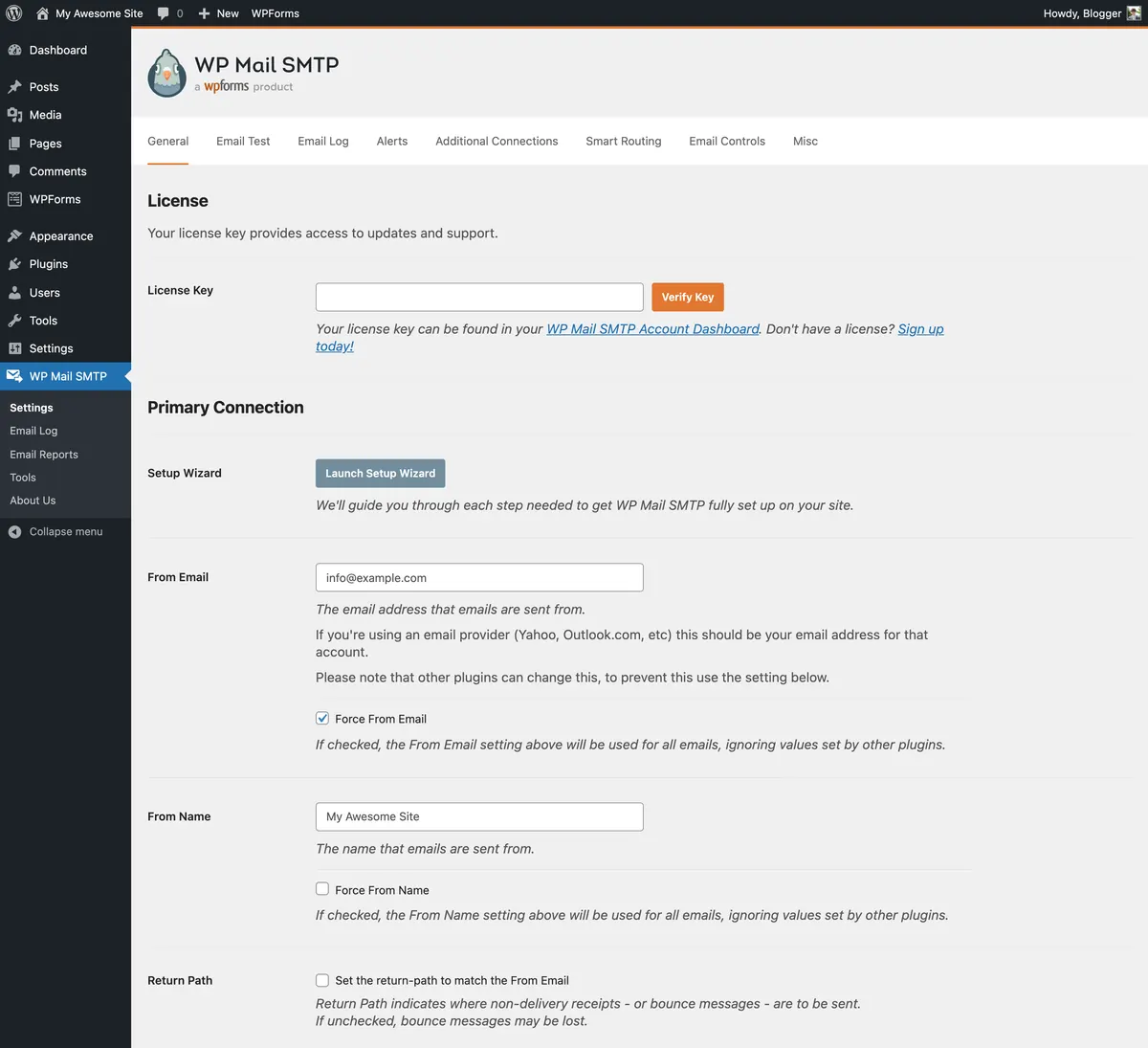
Step 4: Add SPF, DKIM, and DMARC to Your DNS
This is the step almost every WordPress tutorial skips and the reason most SMTP setups still land in spam. Three DNS records tell Gmail and Outlook that your sending provider is allowed to send mail using your domain. Without them, every message looks like spoofing and gets binned regardless of how cleanly the SMTP connection completed.
Your provider gives you the exact records to add. Brevo shows them under Senders and IPs > Domains. Mailgun shows them in the Sending tab. Copy each record into your domain's DNS panel (Cloudflare, GoDaddy, Namecheap, whoever you registered with). Wait fifteen minutes, then click Verify in the provider dashboard.
- SPF: a single TXT record listing every server allowed to send for your domain
- DKIM: a TXT or CNAME record holding a public key the provider uses to sign messages
- DMARC: a TXT record telling receivers what to do when SPF or DKIM fails (start with p=none, monitor for two weeks, then move to p=quarantine)
Step 5: Test Deliverability with Mail-Tester
Go to mail-tester.com. Copy the unique email address it shows. Open WP Mail SMTP test email or your form plugin, send a test to that address, then click 'Then check your score' on mail-tester.
Aim for 9 out of 10 or higher. If you score 7 or 8, the report will tell you exactly what is missing: usually a misconfigured DKIM or a missing DMARC record. Fix the flagged item, send a new test, retest. Each test gets a new throwaway address, so iterate until the score is in the green.
Step 6: Force Form Plugins to Use Your SMTP
Contact form plugins are the biggest reason SMTP setups appear to fail. Most of them have their own email settings that can override wp_mail(). If the form is sending its own way, all your SMTP work is bypassed for that form.
Contact Form 7: nothing to do, it uses wp_mail() natively. WPForms: Settings > Email > 'Send To' uses wp_mail() by default. Gravity Forms: install the WP Mail SMTP add-on or set the Notification's From Email to your verified sender. Ninja Forms: Email & Actions, set the From Address to your verified sender. Fluent Forms: General Settings > Email Verification, make sure SMTP is enabled.
A Real Client Example
An ecommerce client noticed her WooCommerce order receipts were not reaching customers about three weeks after launch. The site was on a popular shared host. PHP mail() was 'working' (returning true) and the test email from the SMTP plugin we initially installed was 'sending', but real customer receipts were missing.
The log showed wp_mail() succeeded every time. Mail-tester scored 3 out of 10 because the From address on customer receipts was the customer's own email, not the store's verified sender. WooCommerce was set to send 'from' the customer so replies would thread, which sounds reasonable until you realise it means Gmail sees mail claiming to come from gmail.com sent through SendGrid's IPs. SPF fails, DKIM fails, message binned.
The fix was to set the From address to orders@theirdomain.com (verified at SendGrid) and use Reply-To for the customer's email. SPF passed, DKIM signed, receipts landed in inboxes within a minute. The whole investigation took an hour. The setup mistake was 30 seconds to make and impossible to spot without the mail-tester report.
Common Pitfalls That Waste Hours
A few patterns come up so often that listing them saves you from each one in turn.
- Using 'wordpress@yourdomain.com' as the From address when wordpress@ does not exist as a verified sender at your provider, the message gets rejected at the relay
- Forgetting that DNS changes take up to 24 hours, retesting at 2 minutes and assuming it failed
- Sending tests only to your own Gmail (which trusts your own messages more), missing that other recipients see them in spam
- Leaving WP Mail Logging on for months and bloating the database with 50,000 log rows, set a retention policy
- Using Gmail SMTP for high volume and getting the whole Google Workspace account locked out because WordPress tripped the bulk-send threshold
- Setting up SPF but listing the wrong include, breaking sends for your old provider when you migrate
When Email Still Fails After Every Fix
If you have done all of the above and email still does not reach the inbox, there are only three explanations left. The recipient's mail server is rate-limiting you (rare for transactional volume but real for marketing blasts). Your sending domain has historical spam reports against it from before you owned it (check your domain's reputation at Google Postmaster Tools). Or the recipient has filtered your domain manually (ask them to check filters in their mail client).
None of these are WordPress problems anymore. At this point WordPress is sending cleanly, SMTP is authenticated, DNS is correct, and the bottleneck is at the receiving end. The fix is patience, reputation building, or a conversation with the recipient. The WordPress side of the pipeline is solved and the next ticket will be about something else entirely.
Final Checklist Before You Close the Ticket
Run through this once and you are done.
- WP Mail Logging shows a green success row for the failing email type
- SMTP plugin test email lands in the inbox (not spam) within 60 seconds
- Mail-tester score is 9 out of 10 or higher
- SPF, DKIM, DMARC all show 'pass' in the Gmail 'Show original' view of a test message
- Form plugin sends through wp_mail() and the From address is on your verified domain
- A real submission from a real form on the live site reaches the destination inbox
Complete Fix Checklist
- 1Confirm WordPress is actually trying to send by installing WP Mail Logging and triggering a test from Tools > Site Health.
- 2Check spam folders at the recipient, then check your sending domain reputation at mail-tester.com.
- 3Install WP Mail SMTP, Fluent SMTP, or Post SMTP and pick a transactional mail provider, not your hosting cPanel mailbox.
- 4Create a verified sender at Brevo, SendGrid, Mailgun, Amazon SES, or Postmark and copy the API key into the SMTP plugin.
- 5Add SPF, DKIM, and DMARC DNS records for the sending domain, this is the step most people skip.
- 6Send a test email from the plugin to a Gmail address and check the message headers for 'pass' on SPF and DKIM.
- 7If forms still fail, switch the form plugin to use the SMTP plugin's mailer instead of its own built-in transport.
Quick Tips
- PHP mail() is the cause 9 times out of 10, switch to SMTP before changing anything else
- Free Gmail SMTP works but caps at 500 sends per day and gets blocked under load, use a real provider
- Without SPF and DKIM records on your domain, Gmail and Outlook will silently bin your mail even when sending succeeds
Frequently Asked Questions
Related Guides
Sources and Further Reading
- wp_mail() function reference - WordPress.org Developer Resources
- Email sender guidelines - Google Workspace Admin Help
More guides in this area: Email troubleshooting hub