
How to Find and Fix Plugin Conflicts in WordPress
A clean way to isolate the broken plugin without taking your live site down for an hour.
What's Happening
Plugin conflicts are the #1 cause of WordPress problems. The fix is always the same pattern: isolate, identify, replace.
Roughly two out of every three broken WordPress sites come down to a plugin conflict of some kind, either between two plugins or between a plugin and the active theme. The pattern is so common that experienced troubleshooters test for it before they look at anything else.
A conflict rarely announces itself as "plugin X broke plugin Y." It shows up as a white screen, an unusable block editor, a broken checkout, or a settings page that will not save. The underlying cause is almost always two pieces of code trying to hook into the same WordPress action or filter with incompatible expectations.
The workflow in this guide is the same one used inside managed WordPress hosts: isolate, reintroduce, and confirm. It reliably identifies the guilty plugin without needing to read a single line of PHP.
Understanding WordPress Plugin Conflicts
A plugin conflict happens when two or more plugins, or a plugin and your theme, try to do the same thing or interfere with each other's code. It's like having two chefs in a small kitchen, each trying to cook a different meal at the same time using the same ingredients. Things are bound to get messy. This can lead to a range of issues, from minor display problems to your entire site crashing and showing the dreaded 'white screen of death', which I've seen more times than I care to admit.
The most common triggers for these conflicts are recent updates, either to a plugin, your theme, or WordPress itself. A developer might release an update that changes how their plugin interacts with the core WordPress code, and suddenly, it clashes with another plugin that hasn't made similar adjustments. New plugin installations are also a prime suspect. I always tell clients to be cautious with new plugins, especially if they add a lot of functionality.
Identifying a conflict often starts with noticing a change. Did you just update something? Install a new plugin? If your site was working fine moments before, and now it isn't, those recent changes are your most likely culprits. This is why keeping a mental log of recent actions, or even a simple journal for your site, can be incredibly helpful when things go wrong.
Initial Checks Before Deactivating Anything
Before we start turning things off, let's do some quick checks. These can often pinpoint the problem without needing to dive into more complex steps. First, is it just you, or is the site down for everyone? Use a service like 'Down for Everyone or Just Me' to confirm. I've had many panicked calls only to find out it was a local network issue on the client's end, not their website.
Next, clear your browser cache and any caching plugins you might be using. Sometimes, you're seeing an old, cached version of your site that still shows the problem, even if the issue has been resolved in the backend. I once spent an hour troubleshooting a display bug only to realize a client's aggressive caching plugin was serving cached content. A simple cache clear solved it.
Finally, verify your WordPress and plugin versions. Make sure everything is up to date, or if a recent update caused the issue, note that down. Sometimes, a quick update to a core WordPress version or another plugin can resolve known conflicts that developers have already patched.
The Health Check & Troubleshooting Plugin
For most people, the Health Check & Troubleshooting plugin is the best place to start. It's developed by the WordPress core team, so it's trustworthy and doesn't add more bloat to your site. This plugin lets you isolate issues in a safe mode, meaning visitors to your site won't see any of the changes you're making. It's a lifesaver for agency work, allowing me to troubleshoot a live site without interrupting client traffic.
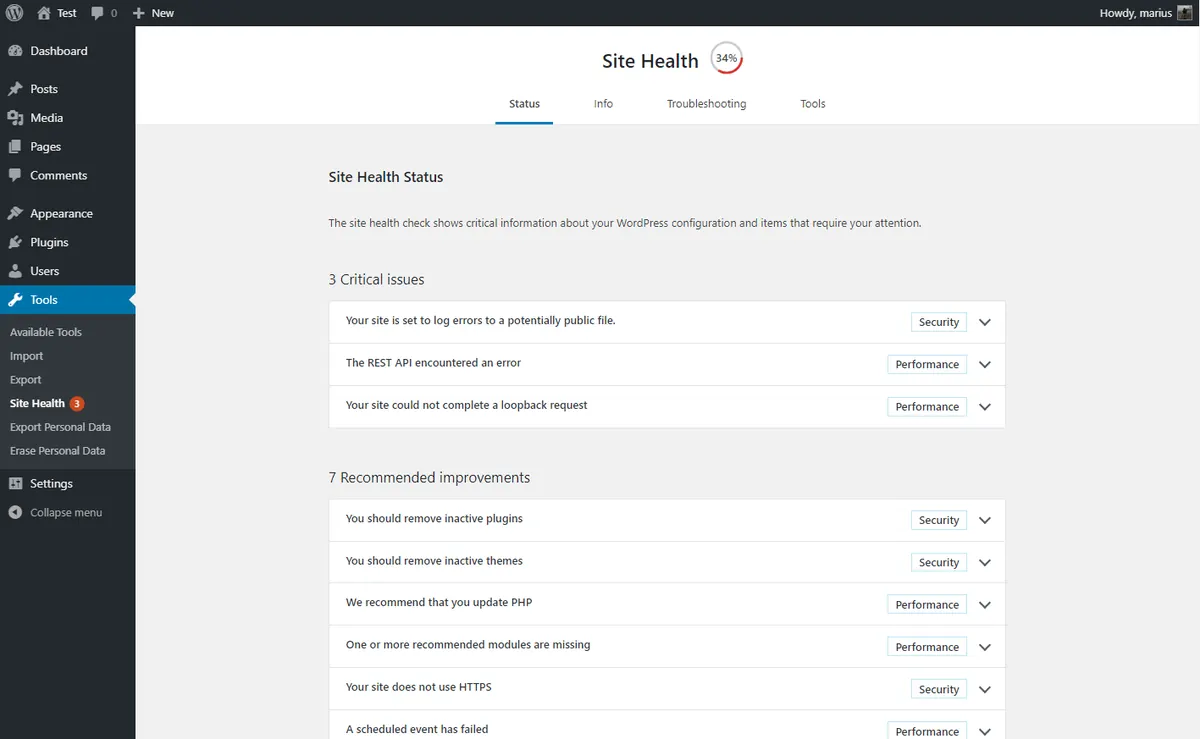
Once installed and activated, go to Tools, then Site Health, and finally the Troubleshooting tab. Click 'Enable Troubleshooting Mode'. This will temporarily deactivate all plugins and switch to a default WordPress theme, like Twenty Twenty-Four, but only for you, the logged-in administrator. Your site visitors still see everything as it was.
Now, go to the Plugins section in your WordPress admin. You'll see all your plugins deactivated in this special mode. Start activating your plugins one by one, checking your site after each activation. If the problem reappears after activating a specific plugin, you've found your culprit. I usually start with the plugins I installed or updated most recently, as they are the most likely suspects.
wp plugin install health-check --activate
wp health-check troubleshooting enable
Manual Plugin Deactivation via WordPress Admin
If for some reason you can't use the Health Check plugin, or you're just more comfortable with a direct approach, you can manually deactivate plugins. This method is straightforward if you can still access your WordPress admin dashboard. Go to 'Plugins' then 'Installed Plugins'.
Now, you'll use a process called 'binary search' or 'half-splitting'. Instead of deactivating one by one, which can take forever if you have many plugins, deactivate roughly half of your plugins at once. Check your site. If the problem is gone, you know the culprit is in the group you just deactivated. If the problem persists, it's in the group that's still active.
Keep repeating this process, narrowing down the group with the problem plugin until you're left with just one. For example, if you have 20 plugins, deactivate 10. If the problem goes away, reactivate 5 of those 10. If it comes back, deactivate 2 or 3 of those 5. It's much faster than going one by one. I used this method a lot before the Health Check plugin existed, and it's still a reliable fallback.
Deactivating Plugins via FTP or File Manager
Sometimes, a plugin conflict can be so severe that it locks you out of your WordPress admin entirely. This is when you'll need to use FTP, or your hosting provider's file manager, to get in. Don't worry, it's not as technical as it sounds. You're simply renaming a folder, which WordPress interprets as deactivating the plugin.
First, use an FTP client like FileZilla or your hosting control panel's file manager to connect to your website. Navigate to the 'wp-content' folder, then into the 'plugins' folder. Inside, you'll see a list of folders, each corresponding to an installed plugin.
The quickest way to solve a lockout is to rename the entire 'plugins' folder to something like 'plugins_old'. This immediately deactivates all plugins, and if your access returns, you know a plugin was the cause. You can then rename it back to 'plugins' and proceed to rename individual plugin folders one by one, checking your site after each rename, until the problem plugin is identified. Rename the problematic plugin's folder to 'plugin-name_old' to keep it deactivated, or simply delete the folder if you're sure you won't use it again.
Cleaning Up and Next Steps
Once you've identified the problematic plugin, you have a few options. If it's not essential, the easiest solution is to simply delete it and find an alternative. There are usually many plugins that offer similar functionality. If it's a critical plugin, first check for updates. Sometimes, just updating it fixes the conflict. If an update doesn't help, reach out to the plugin developer's support.
When contacting support, provide them with as much detail as possible: the specific error message, when the problem started, and what other plugins you have active. I've found that developers are much more helpful when you give them specific information instead of a vague "your plugin broke my site." Offer to share your troubleshooting steps, including which other plugins were active when the conflict occurred.
Finally, once your site is back to normal, remember to reactivate all the good plugins you temporarily deactivated. If you used the Health Check plugin, simply disable troubleshooting mode. If you manually deactivated, reactivate each plugin and double-check your site. Take a fresh backup, too, now that everything is working again.
Preventing Future Plugin Conflicts
Prevention is always better than cure. To minimize future conflicts, be selective about the plugins you install. Ask yourself if you truly need that functionality. Look for plugins with good reviews, regular updates, and active support. A plugin that hasn't been updated in years is a red flag, as it might not be compatible with newer WordPress versions.
Before installing any new plugin, especially on a live site, always test it on a staging site first. Most good hosting providers offer staging environments. This allows you to experiment without affecting your live visitors. I can't stress this enough; testing on a staging site has saved me countless headaches. Make sure your staging site is a recent copy of your live site for accurate testing.
Keep your WordPress core, themes, and plugins updated regularly. Developers often release updates to fix bugs and prevent conflicts. But don't just hit 'update all' without a thought. Do it systematically. Update one plugin, check the site. Update another, check the site. This way, if something breaks, you know exactly what caused it. And, of course, always have a recent backup before updating.
Complete Fix Checklist
- 1Deactivate all plugins (either in Plugins screen or by renaming /wp-content/plugins via FTP).
- 2Confirm the issue is gone.
- 3Reactivate plugins one by one, testing after each.
- 4When the issue returns, you've found the conflict.
- 5Look for an update, contact the developer, or replace with an alternative.
Quick Tips
- Use Health Check plugin's Troubleshooting Mode to test without affecting visitors
- Test in a staging environment when possible
Frequently Asked Questions
Related Guides
Sources and Further Reading
- Managing plugins - WordPress.org
- Debugging in WordPress - WordPress.org Developer Resources
- Editing wp-config.php - WordPress.org Advanced Administration
More guides in this area: Plugins troubleshooting hub