
WP-Cron Not Running? How to Fix It and Replace It With a Real Cron Job
Scheduled posts stuck as Missed Schedule, backup plugins that never fire, WooCommerce emails that show up hours late — the culprit is almost always wp-cron. Here is what wp-cron actually does, why it fails, and how I move client sites onto a real server cron in about ten minutes.
What's Happening
Something on the site is supposed to run on a schedule and it never does. A scheduled post publishes hours late or lands on Missed Schedule. UpdraftPlus or BackWPup skips a nightly backup. WooCommerce fails to send the follow-up email six hours after checkout. The Action Scheduler queue climbs into the thousands. Nine times out of ten the shared cause is wp-cron: it is not a real cron job, it only runs when someone visits the site, and on a low-traffic or aggressively cached site it barely runs at all.
Wp-cron is one of the most misunderstood pieces of WordPress. It has cron in the name, which makes people assume it works like a Unix cron job running quietly in the background. It does not. Wp-cron is a PHP script that only executes when a visitor loads a page on your site, and even then only when WordPress decides enough time has passed since the last run.
That design was a smart choice back when most hosts did not give users cron access. In 2026, on a site with full-page caching, a low traffic pattern, or a serious plugin stack that queues hundreds of Action Scheduler tasks, it is the wrong choice. Scheduled posts miss their window. Backup plugins skip runs. WooCommerce follow-up emails arrive hours late.
The fix is not to install another cron plugin on top of wp-cron. The fix is to turn wp-cron off inside WordPress and let the server run cron the way every other serious application does. This guide walks through what wp-cron actually is, how to prove it is the problem on your site, and the exact steps to replace it on cPanel, Plesk, and a plain Linux server.
What wp-cron actually does
Every time WordPress needs to run something on a schedule, whether that is publishing a scheduled post, sending a WooCommerce email, running a backup, or clearing a transient, it registers an event with wp_schedule_event(). Those events are stored in a serialised array inside the cron row of the wp_options table.
When a page loads, WordPress checks that array, sees which events are due, and fires them by making a non-blocking HTTP request to wp-cron.php on its own domain. That request is what actually runs the queued tasks. If no page loads, no request fires, no tasks run.
The knock-on effects are subtle. A cached page never hits PHP, so a visitor who lands on a cached page does not trigger wp-cron. On a heavily cached site the only requests that trigger wp-cron are admin loads and cache misses, which can be as few as a handful per day on a small business site. That is why the problem is worse the better your caching gets.
The symptoms that point to wp-cron
You almost never see an error that says wp-cron is broken. You see the downstream effect. Here is the pattern I look for when a client says something is late or missing.
- Scheduled posts stuck on Missed Schedule for hours or days
- UpdraftPlus, BackWPup, or BlogVault reporting skipped or delayed backup runs
- WooCommerce order confirmation emails arriving 30 to 60 minutes late
- Action Scheduler queue in WooCommerce > Status > Scheduled Actions climbing to thousands of pending rows
- MailPoet campaigns sitting in Sending status without progressing
- Broken Link Checker or Redirection plugin logs stale for weeks
- Site health warning that a scheduled event failed to run
Prove it with WP Crontrol before you change anything
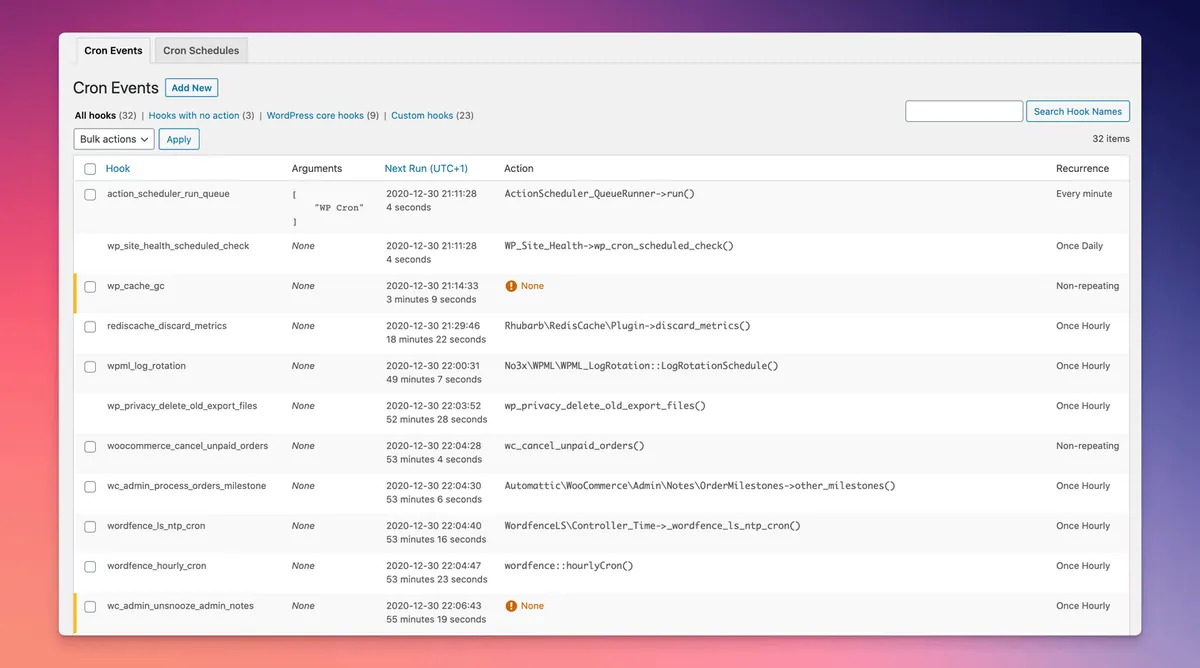
Do not disable wp-cron on a hunch. Install WP Crontrol, a free plugin by the John Blackbourn who maintains Query Monitor, and go to Tools > Cron Events. You see every scheduled event, when it was last run, and when it is due to run next.
If Next Run is a date in the past for many events and the Last Run column shows they never actually fired, wp-cron is not firing often enough. That is your confirmation. If everything is on time and Next Run is always in the future, the problem is somewhere else and disabling wp-cron will not help.
Step 1: Disable wp-cron in wp-config.php
Open wp-config.php through your host's file manager, an FTP client, or WP-CLI. Above the line that reads 'That's all, stop editing! Happy publishing.' add a single line. This does not delete wp-cron.php, it just tells WordPress to stop triggering it from page loads.
// Disable the visitor-triggered WordPress cron.
// Replace with a real server cron that hits wp-cron.php every 5 minutes.
define( 'DISABLE_WP_CRON', true );
Step 2: Add a real server cron on cPanel hosting
Most shared hosts (Bluehost, SiteGround, Hostinger, Namecheap, A2, GreenGeeks) expose cron through cPanel. Log in, scroll to the Advanced section, and click Cron Jobs. In the Add New Cron Job area, choose Common Settings > Every 5 minutes. That fills in the schedule fields as */5 * * * *.
In the Command box, paste the line below and replace yourdomain.com with your actual domain. The --spider flag makes wget request the URL without saving the response, and the -q flag silences output so the server does not email you every 5 minutes. Save. Within 10 minutes you should see WP Crontrol events firing on their new schedule.
wget -q -O - https://yourdomain.com/wp-cron.php?doing_wp_cron >/dev/null 2>&1Step 3: Add a server cron on Plesk, DirectAdmin, or a raw VPS
On Plesk, go to Websites & Domains > Scheduled Tasks > Add Task. Set task type to Fetch a URL, enter the wp-cron URL, and set Run to every 5 minutes. On DirectAdmin, use the Cron Jobs section and paste the same wget command as above.
On a plain Linux VPS with SSH access, run crontab -e as the site's user (not root) and add the line below. Save and exit. Confirm with crontab -l that the entry is there. That is it. WordPress cron now runs on a real schedule.
*/5 * * * * wget -q -O - https://yourdomain.com/wp-cron.php?doing_wp_cron >/dev/null 2>&1Step 4: Verify the switch worked
Go back to Tools > Cron Events in WP Crontrol. Watch the Next Run column for the next 15 minutes. Events that were stuck in the past should update to a future timestamp within one cron interval. If they do, the server cron is firing and WordPress is picking up the run.
If nothing changes after 20 minutes, three things are worth checking. First, the URL in the cron command should be the exact URL of your site including https and the correct www or non-www version. Second, if your site sits behind Cloudflare or a WAF, make sure the server can request its own domain (some setups block loopback requests, in which case use the local file path with php /home/user/public_html/wp-cron.php instead). Third, check your host's cron log for errors on the job you just created.
Clearing a stuck DOING_WP_CRON lock
One edge case worth knowing. WordPress writes a transient called doing_cron when a cron run starts and clears it when the run finishes. If a run crashes half way through (memory limit, plugin fatal, timeout), the transient sits there for up to an hour and blocks all further runs. On a busy site this shows up as a sudden multi-hour freeze of every scheduled task.
The fix is a one-line WP-CLI command run over SSH. If you do not have WP-CLI, run the SQL below in phpMyAdmin. Either way the lock clears instantly and the next cron run picks up all the queued events at once.
# With WP-CLI
wp transient delete doing_cron

# Or with SQL in phpMyAdmin
DELETE FROM wp_options WHERE option_name = '_transient_doing_cron' OR option_name = '_transient_timeout_doing_cron';
A real client example
A B2B services company on SiteGround GrowBig came to me because their sales team was losing leads. WPForms was set to email the sales inbox when someone filled the request-a-quote form. The form worked, entries were captured in the database, but the notification emails were arriving anywhere from 30 minutes to 4 hours late. Sales was calling leads back a day after they filled the form and losing them to competitors.
WPForms uses Action Scheduler under the hood, and Action Scheduler relies on wp-cron. On a site with LiteSpeed Cache serving 95 percent of requests from cache, wp-cron was only firing when someone hit an admin page. Disabling wp-cron in wp-config and adding a 5-minute cron job in cPanel took ten minutes. The Action Scheduler queue drained in under an hour and notification lag dropped to under 5 minutes. Sales stopped complaining.
When not to touch wp-cron
Managed hosts already do this for you. WP Engine, Kinsta, Flywheel, Pressable, Rocket.net, and Cloudways all disable wp-cron out of the box and replace it with a real system cron that fires every 60 seconds. If you are on any of those, do not add DISABLE_WP_CRON, do not add a cPanel cron (they do not even expose cPanel), and do not install a cron plugin. Doing so can double-fire events and confuse Action Scheduler.
The one exception is if you see the same missed-schedule symptoms on managed hosting. In that case open a support ticket, do not try to fix cron yourself. The problem is almost always something the host needs to look at on their side (a failed cron worker, a queue backlog, a firewall rule blocking their internal cron trigger).
Final checklist
Run through this before you close the tab and consider the job done.
- WP Crontrol installed and Tools > Cron Events showing events firing on schedule
- DISABLE_WP_CRON set to true in wp-config.php (only if you are on shared or self-managed hosting)
- A server cron job hitting wp-cron.php every 5 minutes exists in cPanel, Plesk, DirectAdmin, or crontab
- The cron URL in the command matches your site's canonical URL exactly (https, correct www/non-www)
- You are not on a managed host that already handles cron
- You know how to clear the doing_cron transient if a run ever gets stuck
- Scheduled posts publish on time, backup emails arrive on schedule, WooCommerce order emails arrive within minutes
Complete Fix Checklist
- 1Confirm the problem is wp-cron by installing WP Crontrol and checking whether events are queued but never firing.
- 2Add define('DISABLE_WP_CRON', true); to wp-config.php to stop the visitor-triggered version.
- 3Set a real server cron (cPanel Cron Jobs, Plesk Scheduled Tasks, or crontab -e on a VPS) to hit wp-cron.php every 5 minutes with wget or curl.
- 4Verify the switch by watching the WP Crontrol events run on schedule and by checking your host's cron log.
- 5Keep DOING_WP_CRON stuck-lock issues away by deleting the transient with WP-CLI or the database if it ever wedges.
Quick Tips
- Never delete wp-cron.php from the filesystem, disable it in wp-config instead
- The 5-minute interval is a good default, tighter than 1 minute stresses shared hosting and adds no real value
- Managed hosts (WP Engine, Kinsta, Pressable, Cloudways) already replace wp-cron for you, do not add a second cron on top
Frequently Asked Questions
Related Guides
Sources and Further Reading
- Hooking WP-Cron into the system task scheduler - WordPress.org Developer Resources
- Understanding WP-Cron scheduling - WordPress.org Developer Resources
More guides in this area: Scheduling troubleshooting hub