
How to Remove Malware From a Hacked WordPress Site
First moves to take when you suspect your WordPress site has been hacked. Stop the bleeding, then clean.
What's Happening
Cleaning malware properly requires care, half measures let the infection return. Follow these steps before doing anything else.
A hacked WordPress site is rarely obvious at first. The tell is usually a search result with Japanese characters, a redirect that only fires on mobile, or a hosting company email flagging outbound spam. By the time the site owner notices, the malware has often been resident for weeks.
Cleaning up is a two-step problem: remove the malicious code, then close the hole it came in through. Skipping the second step leads straight back to a reinfection within days, which is one of the most common patterns support engineers deal with.
This guide covers the removal and hardening workflow used on real recoveries: isolate the site, identify the entry point, replace core and plugin files with clean copies, scrub the database for injected options, and lock down the account before bringing it back online.
Confirm the Hack and Go Offline (If Possible)
The first thing I do is confirm the site is actually hacked. Sometimes, a plugin conflict can look like a hack. Check if Google has flagged it, or if your host sent a notice. Look for strange redirects, new user accounts you didn't create, or weird content on your pages.
If you confirm it's a hack, the next step is to take the site offline if you can. This stops the malware from spreading, doing more damage, or getting your site blacklisted further. You can do this by changing your site's DNS to point to a maintenance page or by renaming your `index.php` file for a short time.
This isn't always ideal because it means downtime, but it's important for containing the problem. If you can't take it fully offline, at least put up a "site under maintenance" notice. This buys you time to work without exposing visitors to the malware.
Change All Passwords
Changing passwords is always one of my first steps. Think about it: how did the hacker get in? Often, it's through a compromised password. This means all your passwords could be at risk. Start with your WordPress admin passwords. Create strong, unique passwords for every user, especially administrators.
Don't stop there. Change your database password, which you can usually find in your `wp-config.php` file. Then, change your FTP or SFTP password. And finally, change your hosting control panel password. Yes, that's a lot of passwords.
This is a critical step because even if you clean the malware, if the hacker still has your login details, they can just re-infect your site. I've seen client sites get re-hacked days later because they missed changing one of these.
Scan With Security Plugins
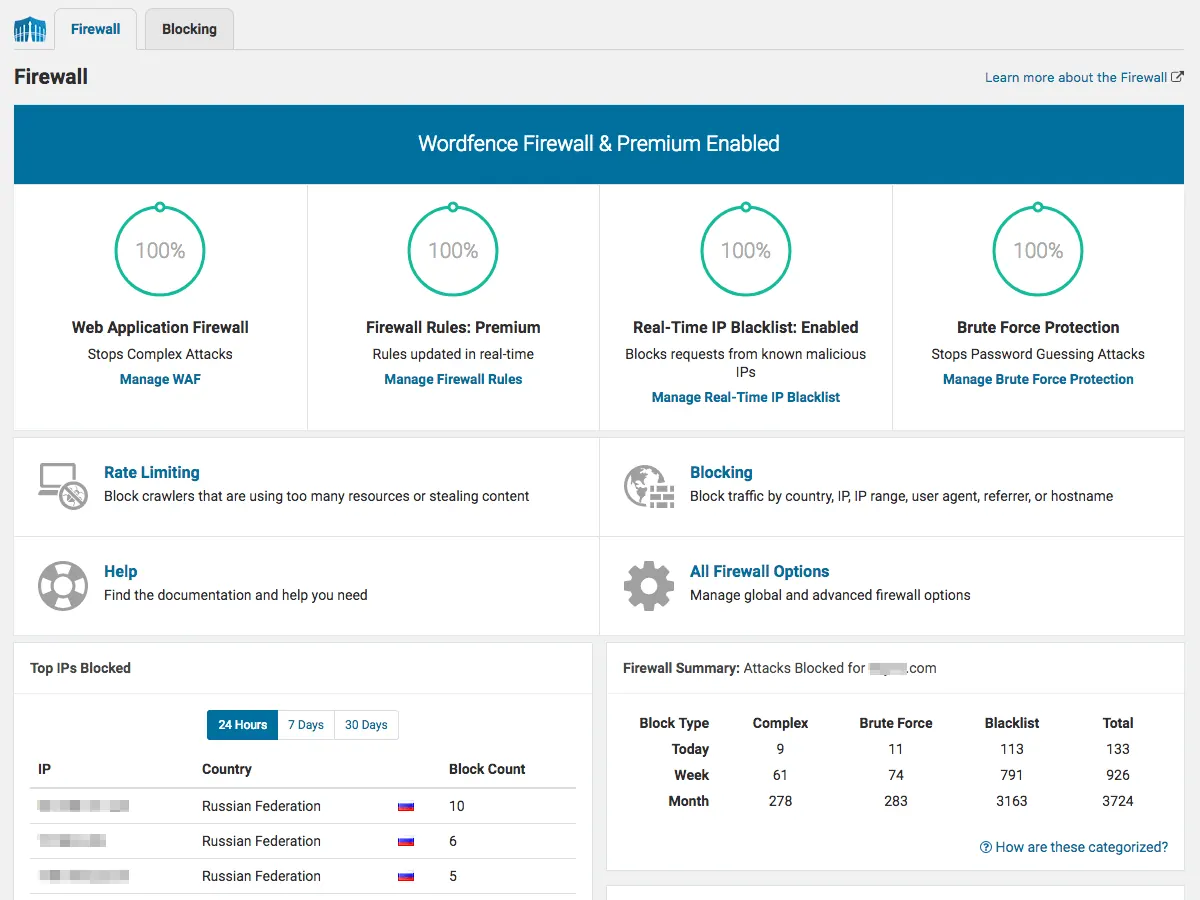
Now that you've changed passwords, it's time to find the malware. My go-to tools for this are Wordfence Security and Sucuri Security. Both offer free versions that scan your site for common infections. Install one of them immediately and run a full scan.
These plugins are designed to look for malicious code, suspicious files, and known vulnerabilities. They'll generate a report showing you where issues were found. Don't ignore the warnings; pay close attention to files marked as critical or suspicious.
I usually start with Wordfence. Its scanner is very thorough. It can sometimes even offer to clean files automatically. While this is helpful, always back up your site first, just in case. If Wordfence doesn't find everything, I'll then try Sucuri for a second opinion.
Manually Check Core Files
Security plugins are great, but sometimes malware hides in plain sight, or modifies core WordPress files. This is where I go in manually. Download a fresh copy of WordPress from wordpress.org that matches your site's version. Then, compare your site's core files with those fresh files.
Pay close attention to `index.php`, `wp-config.php`, and files in the `wp-admin` and `wp-includes` directories. Use a file comparison tool if you have access to one, or just manually open them side-by-side. Look for extra lines of code, strange `eval()` functions, or obfuscated code.
This step can be tedious, but it's often the only way to catch sneaky malware. I once found a client's site reinfected repeatedly because a single line of code in their `wp-config.php` kept bringing back the malware, even after database cleans.
Look for PHP Code in the Uploads Folder
One common trick hackers use is to upload PHP files into your `wp-content/uploads` folder. Normally, this folder should only contain images, videos, and other media. Finding a `.php` file here is a huge red flag. It almost always means a backdoor has been created.
Connect to your site via FTP or your hosting file manager. Navigate to `wp-content/uploads` and sort files by type. Look for any files ending in `.php`. If you find one, open it and inspect its contents. Chances are, it's malicious. Most of the time, I just delete them.
You might also find `.htaccess` files in unexpected places within the `uploads` directory. These can be used to redirect visitors or execute malicious code. If you find one and didn't put it there, delete it. This is a common entry point I've seen abused repeatedly on client sites.
deny from all
<Files ~ "^.*"
<IfModule mod_rewrite.c>
RewriteEngine On
RewriteRule ^.*$ - [L]
</IfModule>
</Files>
Clean the Database
Malware often hides in your WordPress database too. This is where plugin scanners can sometimes miss things. Common places are the `wp_options` table, `wp_posts` table (in post content or revisions), and even new, unfamiliar tables created by the malware.
Access your database using phpMyAdmin through your hosting control panel. Before you do anything, export a backup of your database. Seriously, never touch a database without a fresh backup. I learned that the hard way when I accidentally deleted a client's entire post content a decade ago.
Look for suspicious `script` tags, redirects, or encoded strings in your posts and pages. Check for new, unauthorized admin users in the `wp_users` table. If a plugin scan pointed to database issues, those can guide your manual check.
Re-Upload Clean WordPress Core and Plugins
To be absolutely sure, I often replace all WordPress core files with a fresh, clean copy. This means deleting all files in your WordPress root directory (except `wp-config.php` and `wp-content`) and then uploading a new download of WordPress. Remember to download the exact version your site was running previously.
The same goes for themes and plugins. Download fresh copies of all your themes and plugins from their official sources. Delete the old, potentially compromised versions from your site and upload the clean ones. This ensures no hidden malware lurks in plugin or theme files.
This process is a bit aggressive, but it gives me peace of mind. I've found it's the most reliable way to ensure you haven't missed any hidden malicious code within those files. Just be careful not to delete your `wp-content` folder by mistake; that's where all your site's unique content lives.
- Download a fresh WordPress core from wordpress.org.
- Download fresh copies of all your themes from their original source.
- Download fresh copies of all your plugins from their original source.
Check for Backdoors and Harden Security
Once the site is clean, you need to make sure the hacker can't get back in. Look for "backdoors." These are files hackers leave behind that allow them to regain access. Common filenames are `shell.php`, `wp-vcd.php`, or files with random-looking names in odd folders.
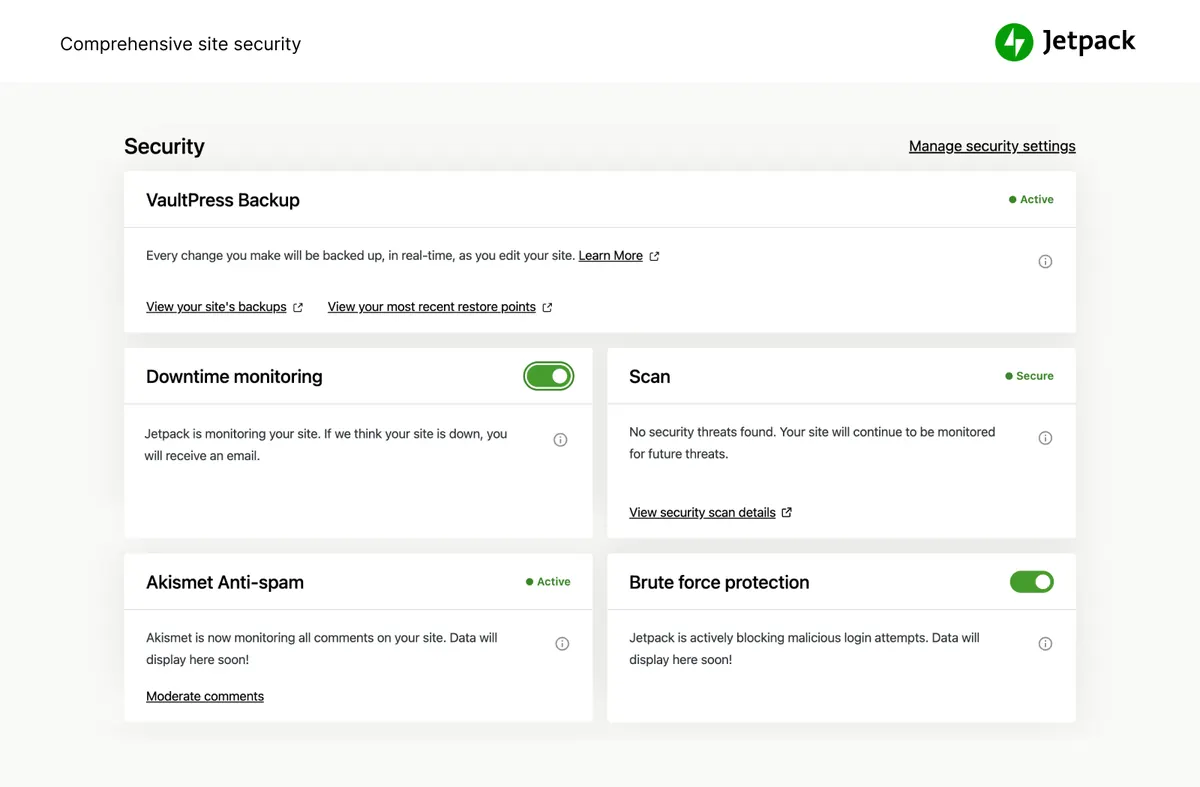
Install a proper security plugin like Wordfence or Sucuri for ongoing protection. These offer firewalls, login security, and continuous scanning. Also, ensure your file permissions are correct; generally, folders should be 755 and files 644. Incorrect permissions can leave your site vulnerable.
Finally, stay updated. Keep WordPress, your themes, and plugins updated to their latest versions. Outdated software is the number one reason I see client sites getting hacked. Enable two-factor authentication for all admin users, and use strong, unique passwords everywhere.
Complete Fix Checklist
- 1Take the site offline if possible (maintenance mode).
- 2Change all admin passwords, FTP, and database passwords from your hosting panel.
- 3Install Wordfence or Sucuri and run a full scan.
- 4Compare core files against a fresh WordPress download.
- 5Remove unknown PHP files from /wp-content/uploads, no PHP should live there.
- 6Restore from a clean backup if available, or hire a professional cleanup service.
Quick Tips
- Always change passwords after cleanup
- Submit a Google Search Console reconsideration if flagged
Frequently Asked Questions
Related Guides
Sources and Further Reading
- Hardening WordPress - WordPress.org Advanced Administration
- Changing file permissions - WordPress.org Advanced Administration
More guides in this area: Security troubleshooting hub