
WordPress Site Recovery Without a Backup
No backup? You can still recover most sites, here's how.
What's Happening
If your site is broken and you have no backup, your best assets are: a clean WordPress download, your database, and your uploads folder.
Recovering a WordPress site without a backup is not hopeless, but it is a different kind of work. Instead of restoring a snapshot, the goal is to reconstruct the site from whatever fragments still exist: the database, the uploads folder, cached copies in search engines, and the WordPress core files themselves.
The order matters. Trying to reinstall WordPress before pulling copies of wp-content and the database is the fastest way to overwrite the only usable data. A calm, staged approach recovers far more than a rushed one.
This guide covers the recovery order used by WordPress support engineers when a client arrives with a broken site and no backup: preserve what exists, rebuild the core, reattach the content, and only then start fixing appearance.
Assess the Damage
Before you do anything, you need to figure out what's gone wrong. Is the site completely down? Are there error messages? Can you access the wp-admin? What caused the problem? Often, a site goes down because of a plugin update gone wrong, a theme conflict, or a malicious attack.
Check your hosting control panel. Look at the file manager. Can you see your WordPress installation? Are the folders like `wp-admin`, `wp-includes`, and `wp-content` still there? What about the `wp-config.php` file? This file is crucial.
A customer once panicked at 2 AM because their site showed a blank white screen. It turned out to be a plugin conflict after an automatic update. By simply renaming the plugin's folder via FTP, we got the site back online. This isn't always the case, but it's a good place to start your investigation.
Backup Whatever You Can Find
Even if you don't have a full site backup, you absolutely must back up everything you can find before proceeding. This is your last resort, your lifeline. If something goes wrong during the recovery process, you'll be glad you have these files.
Use an FTP client like FileZilla or your hosting provider's file manager to download the entire `public_html` (or equivalent) directory. This might take a while, depending on the size of your site and your internet connection. Don't skip this step. Trust me on this.
While you're at it, export your database. Access phpMyAdmin through your hosting control panel. Select your WordPress database and click on the 'Export' tab. Choose 'Quick' export with SQL format. Save this file to your local machine. This database is the heart of your site. Without it, your content, users, and settings are essentially gone.
New WordPress Core Installation
The safest way to get a clean, working WordPress environment is to install a fresh copy of WordPress. This replaces any potentially corrupted core files, themes, or plugins that might be causing issues. This is a "scorched earth" approach that works when you're desperate.
First, delete everything in your previous WordPress installation directory, *except* for the `wp-content` folder and your `wp-config.php` file (if it's still present and you've backed it up). If you can't find `wp-config.php`, don't worry, we will create a new one. Remember, we backed up everything already, so we have a parachute.
Download the latest version of WordPress from wordpress.org. Upload the `wp-admin`, `wp-includes`, and the new core files into your `public_html` directory using FTP. Do not upload the new `wp-content` folder, as we want to preserve our old one.
Restore Your `wp-config.php` File
If you were lucky enough to find your old `wp-config.php` file and backed it up, now is the time to restore it. Upload it back into your root WordPress directory. This file contains your database connection details, unique security keys, and other important settings.
If you didn't have an old `wp-config.php` file, you'll need to create a new one. Rename `wp-config-sample.php` to `wp-config.php`. You'll need your database name, username, password, and host. Your hosting provider can give you these details if you don't know them. Fill in the following lines:
Once you've filled in these details, you'll also want to generate new security keys and salts. Go to the WordPress API salt generator page and copy the generated salts into your new `wp-config.php` file. This adds an extra layer of security to your site.
define( 'DB_NAME', 'your_database_name' );
define( 'DB_USER', 'your_database_username' );
define( 'DB_PASSWORD', 'your_database_password' );
define( 'DB_HOST', 'localhost' );
Database Repair and Restoration
With a fresh core and a working `wp-config.php`, your site should be able to connect to the database. However, the database itself might have issues. Sometimes, during a hack or a crash, database tables can become corrupted. WordPress has a built-in repair tool for exactly this situation.
Add the following line to your `wp-config.php` file, just above the `/* That's all, stop editing! Happy publishing. */` comment:
Now, visit `yourdomain.com/wp-admin/maint/repair.php`. You should see an option to 'Repair Database' or 'Repair and Optimize Database'. Run this tool. It can fix common database table issues. Once you're done, remember to remove the line you added to `wp-config.php` for security reasons.
Reinstall Themes and Plugins
Since we started with a fresh WordPress core, all your themes and plugins are gone. You'll need to reinstall them. The good news is that your database still holds all the settings for these. So once they're reinstalled, they should function as they did before, assuming their files weren't corrupted.
Log into your wp-admin. Go to Appearance > Themes and Plugins > Add New. Search for and reinstall all the themes and plugins you were using. If you were using premium themes or plugins, you'll need to upload them manually via FTP to the `wp-content/themes` and `wp-content/plugins` directories respectively, and then activate them in the dashboard. Activate them one by one to avoid conflicts.
Remember to clear any caching plugins you might have had installed after reinstalling everything. Outdated cache can sometimes prevent changes from showing up or cause unexpected behavior. This is a common oversight that can drive you crazy if you forget it.
Check Your Uploads
Your uploads, especially images, are critical. If you left your `wp-content/uploads` folder intact during the fresh installation, these files should still be there. However, sometimes the database references to these files can be broken. The good news is that WordPress is often smart enough to rebuild these connections.
After reinstalling themes and plugins, visit some of your site's pages and posts. Do the images appear correctly? If not, you might need to use a plugin like "Regenerate Thumbnails" to re-process your image sizes. This can often fix broken image links by forcing WordPress to re-index your media library.
It's also a good idea to check your permalinks. Go to Settings > Permalinks in your wp-admin and simply click "Save Changes" without making any actual changes. This refreshes your permalink structure and can fix issues with broken links to posts and pages.
- Check if images are loading on the front end.
- If images are broken, try a Regenerate Thumbnails plugin.
- Go to Settings > Permalinks and resave them.
Security and Post-Recovery Steps
After you've recovered your site, security should be your top priority. If the site was hacked, you need to assume the attacker still has a way in. Change all your WordPress user passwords immediately, especially for administrators. Use strong, unique passwords.
Install a reputable security plugin like Wordfence or Sucuri. Run a full scan of your site. This will help identify any remaining malicious files or backdoors. Clean anything it finds. Also, check your WordPress settings for any new administrative users you don't recognize. Delete them immediately.
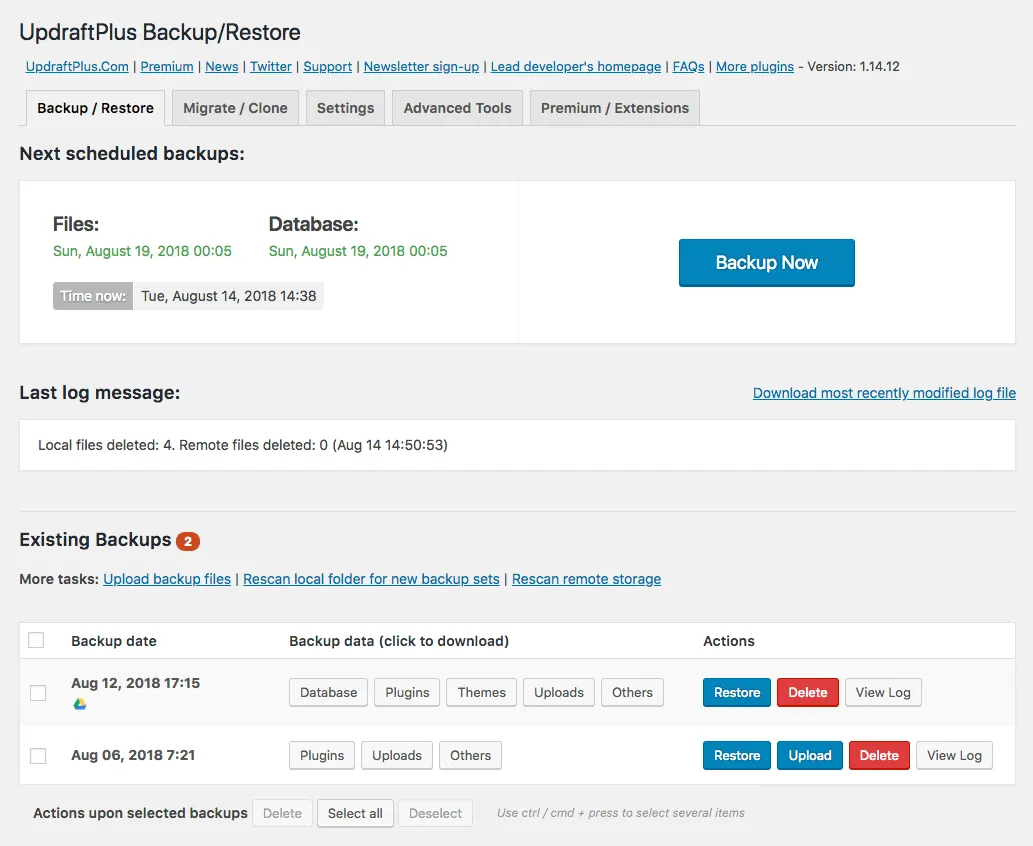
Finally, set up a proper backup solution. This cannot be stressed enough. Use a plugin like UpdraftPlus or set up backups through your hosting provider. Make sure backups are automated and stored off-site. The experience of recovering a site without a backup should only happen once.
Complete Fix Checklist
- 1Download a fresh copy of WordPress.
- 2Replace /wp-admin and /wp-includes with the fresh copies via FTP.
- 3Keep /wp-content (your themes, plugins, uploads) and wp-config.php untouched.
- 4Take a database backup via phpMyAdmin immediately.
- 5Disable all plugins and switch to a default theme to confirm core is healthy.
Quick Tips
- Set up daily automatic backups after recovery (UpdraftPlus, BlogVault)
Frequently Asked Questions
Related Guides
Sources and Further Reading
- WordPress backups - WordPress.org Advanced Administration
- Debugging in WordPress - WordPress.org Developer Resources
- Editing wp-config.php - WordPress.org Advanced Administration
More guides in this area: Recovery troubleshooting hub