
How to Repair a Corrupted WordPress Database
Repair corrupted tables, clean overhead, and get your site back without losing posts or settings.
What's Happening
Database corruption can cause weird errors, missing posts, slow queries, or a flat-out connection error.
The WordPress database is a small MySQL schema, usually eleven tables, that holds every post, comment, option, and user in the site. When one of those tables is marked as crashed or a query starts returning "table doesn't exist," the front end can display anything from a blank page to a partial site with missing widgets.
Repair is not the same as recovery. Repair uses either the built-in WP_ALLOW_REPAIR flag or a native MySQL command to fix indexes and reclaim rows, and it works on tables that are only lightly damaged. Full recovery requires a backup.
This guide covers the built-in repair page, the underlying REPAIR TABLE and OPTIMIZE TABLE statements, and how to tell the difference between a table that can be repaired in place and one that needs a restore.
Why WordPress Databases Break
Before we talk about fixing things, it helps to understand why they break in the first place. Think of your WordPress database as a filing cabinet for your entire website. It stores all your posts, pages, comments, user information, plugin settings, and much more. If any of those files get jostled out of place, you can have problems.
Most database corruption I've seen comes from a few common culprits. Plugin or theme conflicts are huge. I've had many instances where a badly coded update to a plugin would mess with the database structure. This is especially true if a plugin is adding or modifying tables.
Server issues can also play a role. If your web server crashes or loses power during a database operation, it can leave tables in an inconsistent state. I once had a client on a shared host experience frequent database issues, and it turned out the server itself was unstable. Upgrading their hosting solved it.
Always Back Up Before You Touch The Database
I cannot stress this enough. This is my mantra before I do any kind of database work. Before you attempt any repair, *make a full backup* of your WordPress site, including both your files and your database. This is your safety net. If something goes wrong during the repair process, you can always revert to your working backup.
I've learned this the hard way more than once. The first time I hit this on a client site, I was so focused on fixing the immediate problem that I forgot the backup step. Of course, the repair made things worse, and I spent the next few hours manually reconstructing data from an old, incomplete backup. Never again.
There are several ways to back up your database. Many hosting providers offer automated backups, which is a good starting point. You can also use WordPress backup plugins. For more control, you can use phpMyAdmin or WP-CLI to export your database manually. Just make sure you have a copy stored somewhere safe, off your server.
Using WP_ALLOW_REPAIR For Basic Repairs
WordPress has a built-in database repair tool that's often overlooked. It's not enabled by default, but it can be a lifesaver for simple corruption. This tool is pretty good at fixing common table issues, like missing data or malformed entries. It's usually the first thing I try when a client reports a general database error.
To enable it, you need to edit your `wp-config.php` file. This file is located in the root directory of your WordPress installation. You'll need an FTP client or your hosting control panel's file manager to access it. Open the file and add a specific line of code.
After you've added the code, save the file and upload it back to your server. Then, you can access the repair script through your web browser. WordPress will then present you with options to either repair or optimize and repair your database. I generally go for the 'Repair and Optimize' option if given the choice.
define('WP_ALLOW_REPAIR', true);Running the Repair Script
Once you've added `WP_ALLOW_REPAIR` to your `wp-config.php`, you can run the repair script. Open your web browser and go to `http://yourdomain.com/wp-admin/maint/repair.php`. Replace `yourdomain.com` with your actual domain name. You won't need to log in, which is handy if your database issues are preventing you from accessing the admin area.
The page will present you with two options: 'Repair Database' or 'Repair and Optimize Database.' For general troubleshooting, I usually choose 'Repair and Optimize Database.' This option not only attempts to fix any detected issues but also optimizes your tables, which can sometimes improve performance. The process might take a few minutes depending on the size of your database.
After the script runs, it will show you a report of what it did. Look for any error messages or indications that tables couldn't be repaired. If it reports success, try accessing your website again. Remember to remove the `define('WP_ALLOW_REPAIR', true);` line from your `wp-config.php` file after you're done. Leaving it there is a security risk, as it allows anyone to run the repair script.
Manual Repair with phpMyAdmin
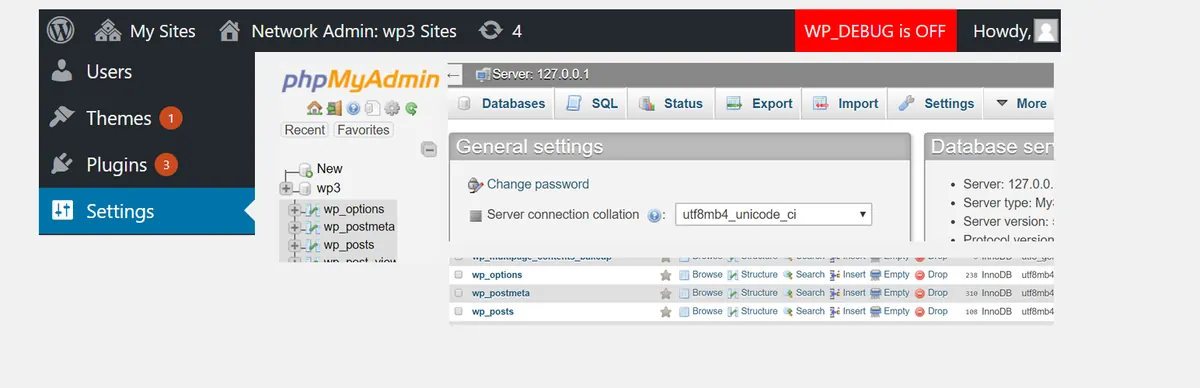
Sometimes the built-in repair tool isn't enough, or your issues are more specific. That's when I turn to phpMyAdmin. Most hosting providers offer phpMyAdmin as part of their control panel. It's a web-based tool for managing MySQL databases, and it gives you a lot more control than the WordPress repair script.
To start, log in to your hosting control panel and find phpMyAdmin. Once inside, select your WordPress database from the list on the left. You'll then see a list of all the tables in your database. This view gives you a direct look at the 'filing cabinet' I mentioned earlier. I often sort by size to quickly see if any tables are unusually large or empty.
If you suspect a specific table is corrupted, or if the WordPress repair tool reported issues with a particular table, you can select just that table. Otherwise, you can select all tables at once. Below the list of tables, there's a dropdown menu labeled 'With selected:'. From that menu, choose 'Repair table.' phpMyAdmin will then attempt to fix any structural issues with the selected tables. Watch for success messages or specific errors.
WP-CLI: The Command Line Approach
For those comfortable with the command line, WP-CLI offers a powerful and often faster way to repair your database. WP-CLI is the command-line interface for WordPress, and it lets you manage your site without using a web browser. I use it often, especially on client sites where I need to quickly diagnose and fix problems.
To use WP-CLI, you'll need SSH access to your web server. If you're not sure how to get SSH access, check with your hosting provider. Once you're connected via SSH, navigate to your WordPress installation directory. From there, you can run a simple command to check and repair your database.
WP-CLI's database commands are very efficient. The `wp db check` command will analyze your database for any inconsistencies. Then, `wp db repair` will attempt to fix them. I find this especially useful for larger databases where the web-based tools might time out or be slow.
wp db check
wp db repair
Optimizing Your Database
Beyond repair, optimizing your database can prevent future issues and improve performance. Think of it as regularly tidying up your filing cabinet. Over time, your database can accumulate a lot of unnecessary data, like old revisions of posts, transient options, and uninstalled plugin data. This clutter can slow down your site and even contribute to corruption.
WordPress itself offers a basic optimization through the `repair.php` script if you choose the 'Repair and Optimize' option. However, dedicated plugins can offer more granular control over what gets optimized. I often use plugins like WP-Optimize or Advanced Database Cleaner on client sites to keep things running smoothly.
Regular optimization can involve deleting old post revisions, cleaning up spam comments, removing orphaned meta data, and defragmenting database tables. It's a good practice to schedule this as part of your regular WordPress maintenance. Just remember my earlier advice, always back up before you optimize. While optimization is generally safe, unexpected issues can still arise.
When To Seek Expert Help
While these methods cover most common database issues, there are times when you've done everything you can, and the problem persists. This is when it's time to call in an expert. I've been there, staring at error messages that make no sense, and realizing I'm in over my head. It's okay to ask for help.
Complex database corruption, issues with specific table schemas, or problems that stem from deep server configurations might require a senior developer or even a database administrator. They have specialized tools and knowledge to dive much deeper than the average WordPress user or even myself in some cases.
Don't risk causing more damage by just guessing. If your site is still down after trying the repair steps, or if you're uncomfortable with any of the more technical steps, reach out to your hosting provider's support or a reputable WordPress development agency. A quick resolution from an expert is always better than prolonged downtime.
Complete Fix Checklist
- 1Add define('WP_ALLOW_REPAIR', true); to wp-config.php.
- 2Visit /wp-admin/maint/repair.php and run 'Repair Database'.
- 3Remove the line from wp-config when done.
- 4If repair fails, restore from your most recent database backup.
Quick Tips
- Always take a DB backup before repair
- Repair is read-only friendly, it does not delete data
Frequently Asked Questions
Related Guides
Sources and Further Reading
- Automatic database optimizing (WP_ALLOW_REPAIR) - WordPress.org Advanced Administration
- REPAIR TABLE statement - MySQL 8.0 Reference Manual
- Debugging in WordPress - WordPress.org Developer Resources
- Editing wp-config.php - WordPress.org Advanced Administration
More guides in this area: Database troubleshooting hub