
WordPress White Screen of Death: How to Fix the WSOD
The WordPress white screen of death has a handful of real causes. Here is the order I use to fix it on client sites.
What's Happening
You open your site and see nothing but a blank white page. No error, no logo, no anything. This is the famous 'white screen of death' (WSOD). It's almost always caused by a PHP fatal error, a plugin, a theme, or a memory limit problem.
A completely blank white page in place of a WordPress site almost always points to a fatal PHP error that stopped the page from rendering before any HTML was sent to the browser. Because nothing gets printed, there is no obvious clue on the front end, which is why the problem feels bigger than it usually is.
The good news is that the list of realistic causes is short: a bad plugin update, an incompatible theme, an exhausted PHP memory limit, a corrupted core file, or a stray character in wp-config.php. Once debug output is turned on, the log usually points to one of these within a minute or two.
This guide walks through the same checks a WordPress engineer would run on a paying client site, starting with the safe reversible ones and only touching core files at the end. Follow the steps in order and you should have a workable answer, and often a fix, before you finish the page.
What Causes the WordPress White Screen of Death?
The white screen of death is usually caused by a PHP error that prevents WordPress from rendering any output. This could be a fatal error, a parse error, or a memory limit issue. When PHP encounters an error it can't recover from, it often just stops executing the script, resulting in a blank page. You don't see an error message in your browser because the error happens before WordPress has a chance to display anything.
From what I've seen, the most common culprits are poorly coded plugins or themes. I've had countless experiences where a client installs a new plugin or updates an old one, and suddenly their site goes blank. Sometimes, it's a conflict between two plugins, or a plugin and the active theme. Memory exhaustion is another frequent cause. WordPress can be resource-intensive, and if your hosting environment has a low PHP memory limit, a complex operation can easily exceed it.
Less common, but still a possibility, are server-side issues. Incorrect file permissions can sometimes lead to a WSOD. An outdated PHP version on your server can also be incompatible with newer WordPress versions or plugins, causing fatal errors. I once had a client who hadn't updated their PHP version in years, and when they finally installed a modern plugin, their site went down immediately.
Step 1: Debugging With WP_DEBUG
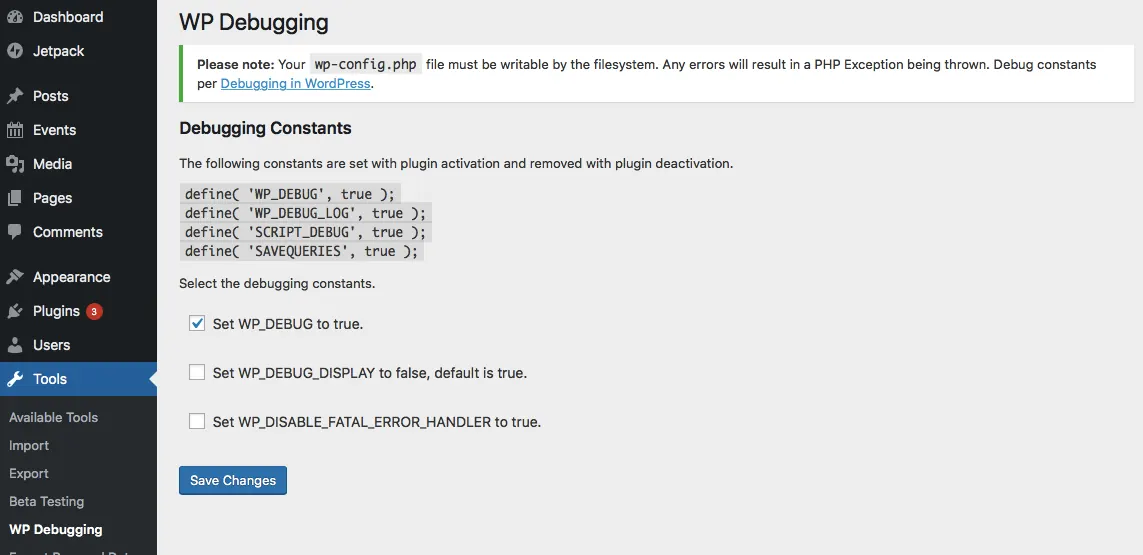
The first thing I always do when facing a white screen is to enable debugging in WordPress. This usually reveals the underlying error, which is a massive step towards a solution. Without it, you are truly working in the dark. It's like turning on the lights in a dark room; suddenly, you can see what you are dealing with. This setting forces WordPress to display PHP errors on your screen.
To enable debugging, you need to edit your `wp-config.php` file. This file is located in the root directory of your WordPress installation. You'll need to access your site's files using an FTP client or your hosting provider's file manager. Once you open `wp-config.php`, look for the line `define('WP_DEBUG', false);`. Change `false` to `true`.
After saving the file and re-uploading it, refresh your site. If there's an error, it should now appear on the blank screen. This error message is your golden ticket. It will often tell you the specific file and line number where the error occurred, pointing directly to the problematic plugin, theme, or core file. Make sure to set `WP_DEBUG` back to `false` when you are done troubleshooting.
define('WP_DEBUG', true);
define('WP_DEBUG_LOG', true);
define('WP_DEBUG_DISPLAY', false);
Using the Debug Log File
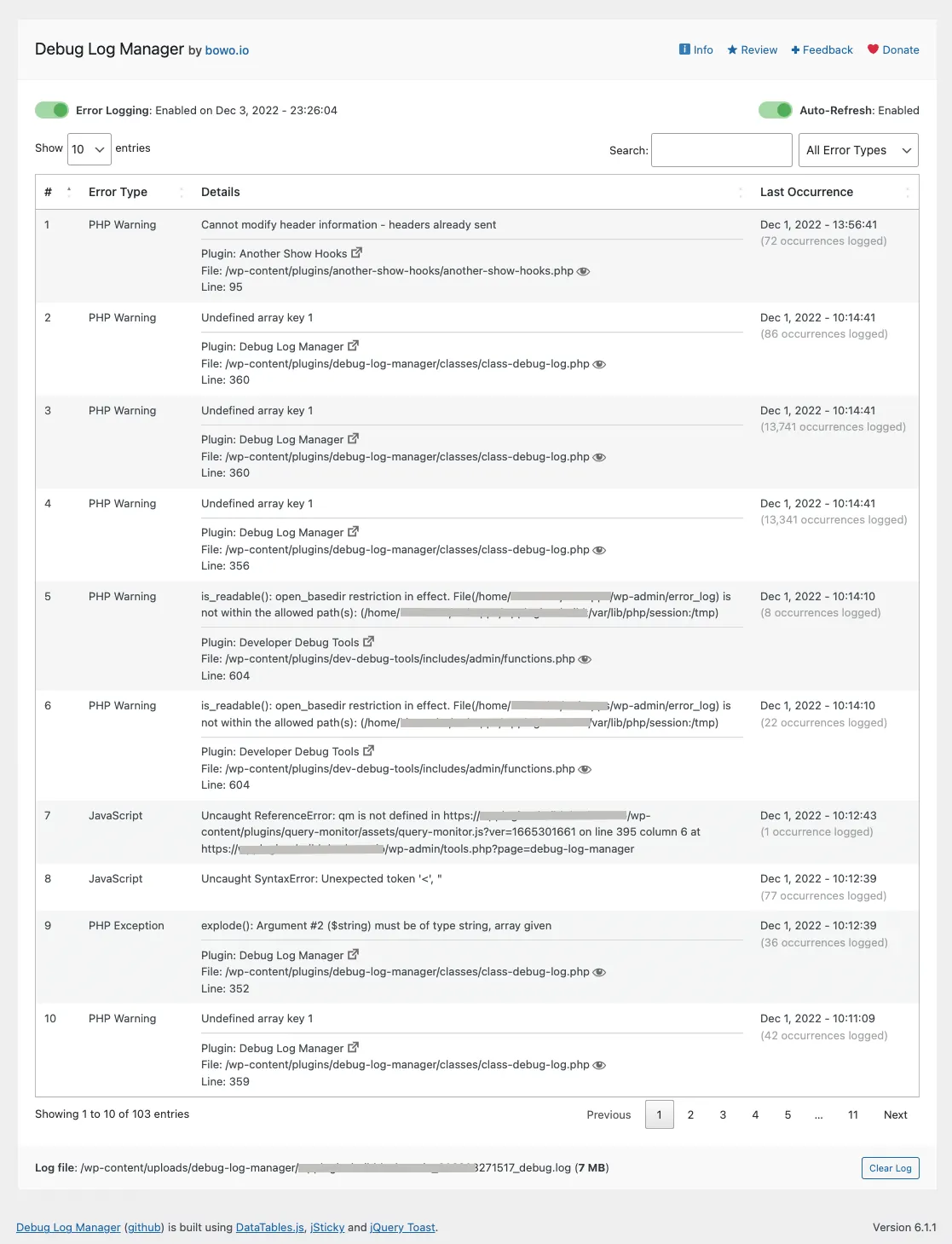
Sometimes, even with `WP_DEBUG` set to `true`, you still don't see an error on the screen. This can happen if WordPress is so broken that it can't even display the error itself. In these cases, the debug log file is invaluable. It writes all PHP errors to a file, so you can review them even if nothing shows up in your browser.
To enable logging errors to a file, you need to add another line to your `wp-config.php` file, right below `define('WP_DEBUG', true);`. Add `define('WP_DEBUG_LOG', true);`. This tells WordPress to create a `debug.log` file inside the `wp-content` directory and write all errors to it. It's a lifesaver when the screen is still completely blank.
After adding that line and trying to load your site again, check for the `debug.log` file. You'll find it in the `wp-content` folder. Open it up with a text editor, and you should see a list of errors. The most recent error, usually at the bottom of the file, is often the one causing your white screen. This method is especially useful for errors that occur very early in the WordPress loading process and can't be displayed on the screen.
Step 2: Increase PHP Memory Limit
A common cause of the white screen of death is your WordPress site running out of PHP memory. This happens frequently on shared hosting plans where memory limits are often set quite low. When a complex plugin, a large image upload, or even a theme tries to consume more memory than allowed, PHP throws a fatal error and your site goes blank. I've seen this many times with image-heavy sites or e-commerce stores with many products.
You can try to increase the PHP memory limit by adding a line to your `wp-config.php` file. Look for the line that says `/* That's all, stop editing! Happy publishing. */` and insert `define('WP_MEMORY_LIMIT', '256M');` just before it. I usually recommend starting with `256M` as it's a good balance for most sites. Some hosts might require you to do this through their control panel, or modify `php.ini` which might require contacting support.
If increasing the memory limit resolves the issue, it suggests your site was indeed running out of resources. While this is a fix, it also highlights that your site might be resource-intensive. Keep an eye on your site's performance and consider optimizing images, using a caching plugin, or even upgrading your hosting plan if the problem recurs. Don't just blindly increase the memory limit without considering the underlying cause.
Step 3: Deactivating Plugins
Plugin conflicts are probably the most frequent cause of the white screen of death in my experience. A new plugin, an update to an existing plugin, or even a conflict between two seemingly unrelated plugins can bring your site down. Since you can't access your WordPress admin dashboard, you'll need to deactivate plugins manually.
Using an FTP client or your hosting's file manager, navigate to the `wp-content` folder and then into the `plugins` folder. Rename the `plugins` folder to something like `plugins_old`. This effectively deactivates all your plugins at once. Now, try to load your website. If it comes back online, you know a plugin was the culprit. This is a huge step in narrowing down the problem. Customers sometimes panic at 2 AM because they installed a new plugin and broke the site.
Once your site is back, rename the `plugins_old` folder back to `plugins`. Then, go into your WordPress admin dashboard, specifically to 'Plugins', and reactivate each plugin one by one, checking your site after each activation. The moment your site goes white again, you've found the problematic plugin. You can then delete it, find an alternative, or contact its developer for support.
Step 4: Switching to a Default Theme
After checking plugins, the next thing I investigate is the theme. A poorly coded theme, a theme update gone wrong, or a conflict with a plugin can also cause the white screen of death. Similar to plugins, you won't be able to switch themes from your dashboard when your site is down, so you'll need to do it manually.
Using FTP or your hosting's file manager, go to `wp-content/themes`. Inside, you'll see folders for all your installed themes. Locate the folder for your currently active theme. Rename it to something like `yourtheme_old`. WordPress will then automatically revert to a default theme, such as Twenty Twenty-Four, if it's available. If you don't have a default theme installed, you might need to upload one first.
Now, try loading your website. If it comes back online, then your theme was the cause. You can then try to troubleshoot the theme. This might involve re-installing it, checking for updates, or contacting the theme developer for assistance. Remember to revert your theme folder name if you were only testing the change.
Step 5: Replace Corrupted WordPress Core Files
Sometimes, the white screen of death can be caused by corrupted WordPress core files. This is less common than plugin or theme issues, but it does happen. Malware infections, failed updates, or server issues can sometimes damage essential WordPress files. In these cases, replacing the core files can resolve the issue. I had a client once whose site was hacked, and replacing core files was a crucial step in cleaning it up.
To do this, you'll need to download a fresh copy of WordPress from wordpress.org. Extract the zip file on your computer. Now, using an FTP client, connect to your server. You'll want to upload the `wp-admin` and `wp-includes` folders from the fresh WordPress installation, overwriting the existing ones on your server. Do NOT upload the `wp-content` folder, as this contains all your theme, plugin, and media files, which are unique to your site.
You should also upload all the individual files from the root directory of the fresh WordPress download, but be careful not to overwrite your `wp-config.php` file, as that contains your database connection details. This process effectively replaces any potentially corrupted core files with fresh, clean versions. After uploading, clear your browser cache and check your site.
Step 6: Check File Permissions
Incorrect file permissions can also lead to a white screen of death. If WordPress can't read or write to certain files or directories, it can cause PHP errors that result in a blank page. This often happens after a server migration, a poorly executed manual update, or sometimes due to a security hardening attempt that went awry. I've spent hours adjusting permissions on migrated sites.
The recommended file permissions for WordPress are: folders should be `755` and files should be `644`. The `wp-config.php` file is an exception and should ideally be `640` or `600` for added security. You can change file permissions using your FTP client. Most FTP clients allow you to right-click on a file or folder and select 'File Permissions' or 'Change Permissions'. You can often apply permissions recursively to folders.
Be cautious when changing file permissions. Setting them incorrectly can lead to other issues, including security vulnerabilities. If you are unsure, consult your hosting provider's documentation or contact their support. They can often run a script to correctly set all WordPress file permissions. This step is less frequent but important to check if other solutions fail.
Complete Fix Checklist
- 1Enable debug mode by adding define('WP_DEBUG', true); to wp-config.php to see the actual error message.
- 2Increase PHP memory by adding define('WP_MEMORY_LIMIT', '256M'); to wp-config.php.
- 3Disable all plugins via FTP by renaming /wp-content/plugins to plugins-off.
- 4Switch to a default theme by renaming your active theme folder.
- 5Re-enable items one by one to find the culprit.
Quick Tips
- Check host error logs for the exact line
- Always back up before editing wp-config
- Clear browser and cache plugin caches after each change
Frequently Asked Questions
Related Guides
Sources and Further Reading
- Debugging in WordPress - WordPress.org Developer Resources
- Editing wp-config.php - WordPress.org Advanced Administration
- PHP runtime configuration: memory_limit and execution time - PHP Manual
- PHP error handling and logging directives - PHP Manual
More guides in this area: Critical Errors troubleshooting hub