
How to Fix the 500 Internal Server Error in WordPress
A 500 error is generic but the suspects are short. Here is the order I work through on real sites.
What's Happening
The HTTP 500 error means the server hit a fatal problem before it could finish your request. In WordPress, the suspects are .htaccess, PHP memory, or a plugin.
A 500 Internal Server Error is the web server saying "something crashed but I am not going to tell you what." On a WordPress site, that crash is almost always inside PHP: a plugin, a theme, or the .htaccess file that Apache reads before WordPress even loads.
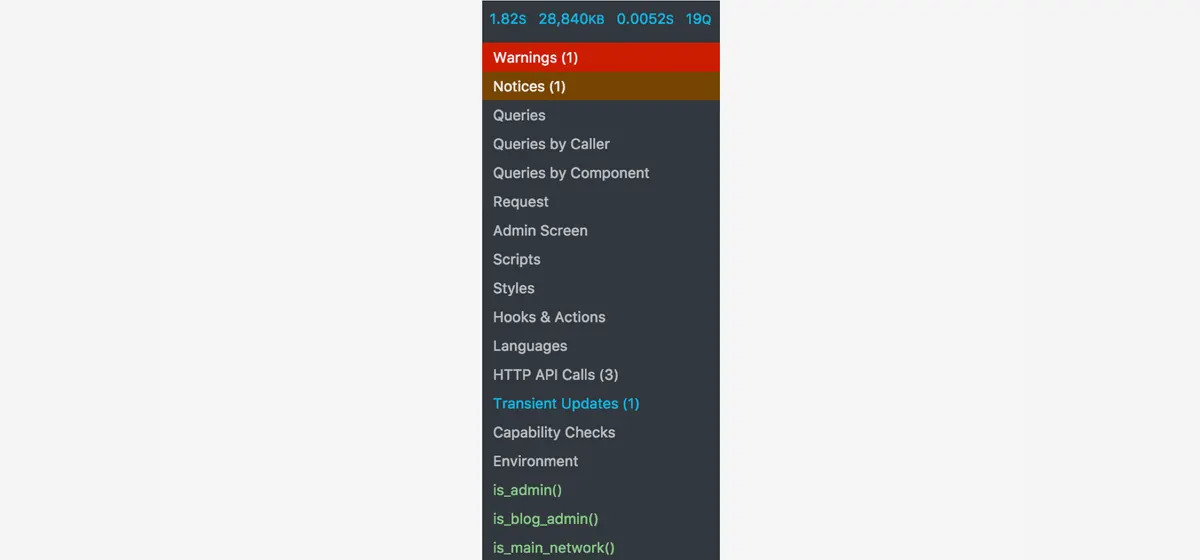
Because the message is generic, the first job is not to guess but to open the log. The PHP error log and the server error log usually name the file and line that failed, which turns a scary error into a small, specific fix.
This guide covers the log-first approach, then works through the five realistic causes in order of frequency, so you spend the least time on the least likely fix.
What Exactly is a 500 Internal Server Error?
A 500 Internal Server Error is a general message from your web server telling you that something has gone wrong. It is like a catch-all error when the server cannot be more specific about the problem. This is why it is so maddening. It does not pinpoint the exact issue, which makes it hard to diagnose at first glance. It means the server encountered an unexpected condition that prevented it from fulfilling the request.
In WordPress, this error most frequently originates from issues within your WordPress installation itself, rather than a problem with the server hardware. This could be anything from a corrupted file, a misconfiguration, or even a conflict between different parts of your site. While it points to the server, the solution is usually found in your WordPress files. It is rarely a sign that your actual web server hardware is failing.
I have seen this pop up when a plugin update goes sideways, or even after a theme file edit. Sometimes, it is a simple syntax error in a custom code snippet. The server just throws its hands up and says, 'I cannot process this,' and delivers the generic 500 error. Understanding this general nature is the first step to narrowing down the real cause.
Check Your Server Error Logs
This is always my very first stop when a 500 error appears. Server error logs are an absolute goldmine of information. They record everything that goes wrong on your server, including specific PHP errors that lead to a 500. Most hosting providers make these logs accessible through your cPanel or a similar hosting control panel. Look for a section like 'Error Logs' or 'Raw Access Logs.'
I remember the first time I hit this on a client site, and the error log immediately showed a fatal error coming from a specific plugin file. Without that log, I would have spent hours guessing. The log often points you directly to the file and line number where the problem occurred. This kind of detail is invaluable for a quick fix. If you cannot find them, contact your host; they will tell you exactly where to look or even provide them to you.
Reading these logs can sometimes feel a bit technical, but look for keywords like 'fatal error,' 'PHP,' or 'parse error.' These often highlight the specific script or file causing the problem. Even if you do not understand every line, identifying the file path can often tell you if it is a plugin, theme, or core WordPress file. This immediately narrows down your investigation.
Corrupted .htaccess File
The .htaccess file is a powerful configuration file that WordPress uses to manage permalinks and direct traffic. It is also a frequent cause of 500 internal server errors. A simple mistake in this file, or even a corrupt upload, can bring your entire site down. It is often the first place I check if the error logs are not immediately helpful or if the error started after I made a change to permalinks or installed a security plugin.
To test if your .htaccess file is the culprit, you need to access your site via FTP or your hosting's file manager. Once connected, locate the .htaccess file in the root directory of your WordPress installation. This is the same folder that contains 'wp-config.php' and 'wp-content'. Download a copy of the file to your computer as a backup, then rename the original file on the server to something like '.htaccess_old'.
After renaming, try visiting your site. If the 500 error disappears, then your .htaccess file was indeed the problem. To generate a new, clean .htaccess file, log into your WordPress admin dashboard, go to 'Settings,' then 'Permalinks.' Without making any changes, just click 'Save Changes.' WordPress will automatically generate a new and correct .htaccess file for you. If a new one is not generated, sometimes you have to manually create an empty .htaccess file and then save permalinks.
Increase PHP Memory Limit
Sometimes, a 500 error means your WordPress site is running out of memory. This often happens on sites with a lot of plugins, a complex theme, or high traffic. PHP memory limit defines how much memory a script can consume. When a script tries to use more memory than allowed, it can trigger a fatal error, which then manifests as a 500 Internal Server Error. I have seen this often on e-commerce sites with many products.
You can increase the PHP memory limit by editing your wp-config.php file. Connect to your site via FTP and open 'wp-config.php' in the root directory. Add the following line of code just before the line that says 'That is all, stop editing! Happy publishing.'
define('WP_MEMORY_LIMIT', '256M');
define('WP_MEMORY_LIMIT', '256M');Deactivate All Plugins
Plugin conflicts are a very common cause of 500 Internal Server Errors. I have lost count of the times a new plugin or an update to an existing plugin has caused a fatal conflict, taking the entire site down. When a plugin introduces a bug or clashes with another plugin or your theme, it can generate an error that the server cannot process, leading to the dreaded 500.
The fastest way to check if a plugin is the problem is to deactivate all of them. If you can access your WordPress admin dashboard, go to 'Plugins,' select all, and choose 'Deactivate' from the bulk actions dropdown. If you cannot access your dashboard, you will need to do this via FTP.
Connect to your site via FTP and navigate to the 'wp-content' folder. Inside, you will find a folder called 'plugins.' Rename this folder to something like 'plugins_old.' This will effectively deactivate all your plugins. Now, try to access your site. If the 500 error is gone, then one of your plugins was the culprit. To find the specific problematic plugin, rename the 'plugins_old' folder back to 'plugins.' Then, log into your WordPress admin area and reactivate each plugin one by one. Check your site after each activation until the 500 error reappears. That last activated plugin is your problem.
Switch to a Default Theme
Just like plugins, your theme can also be the source of a 500 Internal Server Error. A poorly coded theme, a conflict with a plugin, or even a recent theme update can introduce errors that cause the server to crash. I have seen custom themes that were not properly maintained cause these issues after a major WordPress update.
To determine if your theme is the issue, you need to switch to a default WordPress theme like Twenty Twenty-Four, Twenty Twenty-Three, or Storefront (if you are running WooCommerce). If you can access your WordPress admin, go to 'Appearance,' then 'Themes,' and activate a default theme. Then, check your site for the 500 error.
If you cannot access your admin dashboard, you will need to do this via FTP. Navigate to 'wp-content/themes.' Rename your active theme's folder to something like 'mytheme_old.' WordPress will then automatically revert to a default theme if one is present. If it does not, you might need to upload a default theme folder like 'twentytwentyfour' into the 'themes' directory. Check your site again. If the error resolves, your theme was the cause, and you can then investigate it further or contact the theme developer.
Re-upload Core WordPress Files
In some rare cases, the 500 Internal Server Error can be caused by corrupted or missing core WordPress files. This might happen during a failed update, a bad file transfer, or even malicious activity. While less common than plugin or .htaccess issues, it is a possibility I consider when all else fails. I once had a client whose site just started showing 500 errors after a manual WordPress update went wrong.
To fix this, you will need to download a fresh copy of WordPress from wordpress.org. Extract the zip file on your computer. Now, using FTP, connect to your website. You will want to upload the 'wp-admin' and 'wp-includes' folders from the fresh WordPress download, overwriting the existing ones on your server. Do not upload the 'wp-content' folder, as it contains all your unique themes, plugins, and uploads. Also, do not overwrite 'wp-config.php'.
This process effectively replaces any potentially corrupted core files with fresh, clean versions, leaving your content and configurations intact. After re-uploading, clear your browser cache and check your site. If the error was due to corrupted core files, your site should now be back online. This is a powerful step but use it carefully, making sure you only replace core files.
Contact Your Hosting Provider
If you have gone through all these steps and the 500 Internal Server Error still persists, it is time to contact your hosting provider. They have access to more detailed server-side diagnostics and can often pinpoint issues that are beyond your control or visibility. Do not hesitate to reach out to them; it is what their support teams are there for. I have had many instances where their server-side tools revealed a deeper, more obscure problem.
When you contact them, provide as much information as possible. Tell them all the troubleshooting steps you have already taken, including checking the error logs, renaming .htaccess, increasing memory, and deactivating plugins and themes. The more details you give them, the faster they can help you. Screenshots of any error messages or log entries you found can also be helpful. They might find an issue with server configuration, file permissions, or other system-level problems.
Sometimes, the issue is not directly with WordPress but with the server environment itself. This could be anything from a misconfigured Apache or Nginx setting to file permission issues that prevent WordPress from operating correctly. Your hosting provider can check these deeper server configurations and often resolve them quickly. They might even restore a backup from before the error occurred, assuming they have one available.
Complete Fix Checklist
- 1Rename .htaccess to .htaccess-old and resave permalinks in Settings.
- 2Increase memory with define('WP_MEMORY_LIMIT', '256M'); in wp-config.
- 3Disable plugins via FTP.
- 4Re-upload fresh /wp-admin and /wp-includes from a clean WordPress download.
- 5Check your host's error logs for the exact PHP line that failed.
Quick Tips
- Don't edit wp-config without a backup
- Some hosts cap memory regardless of wp-config, ask support
Frequently Asked Questions
Related Guides
Sources and Further Reading
- HTTP response status codes - MDN Web Docs
- Apache .htaccess how-to - Apache HTTP Server Documentation
- PHP runtime configuration: memory_limit and execution time - PHP Manual
- PHP error handling and logging directives - PHP Manual
More guides in this area: Server Errors troubleshooting hub