
403 Forbidden Error in WordPress: How to Fix It
A 403 means the server received your request, understood it, and refused it. On WordPress that refusal nearly always comes from a broken .htaccess rule, wrong file permissions, or a security plugin. Here is how to find which one.
What's Happening
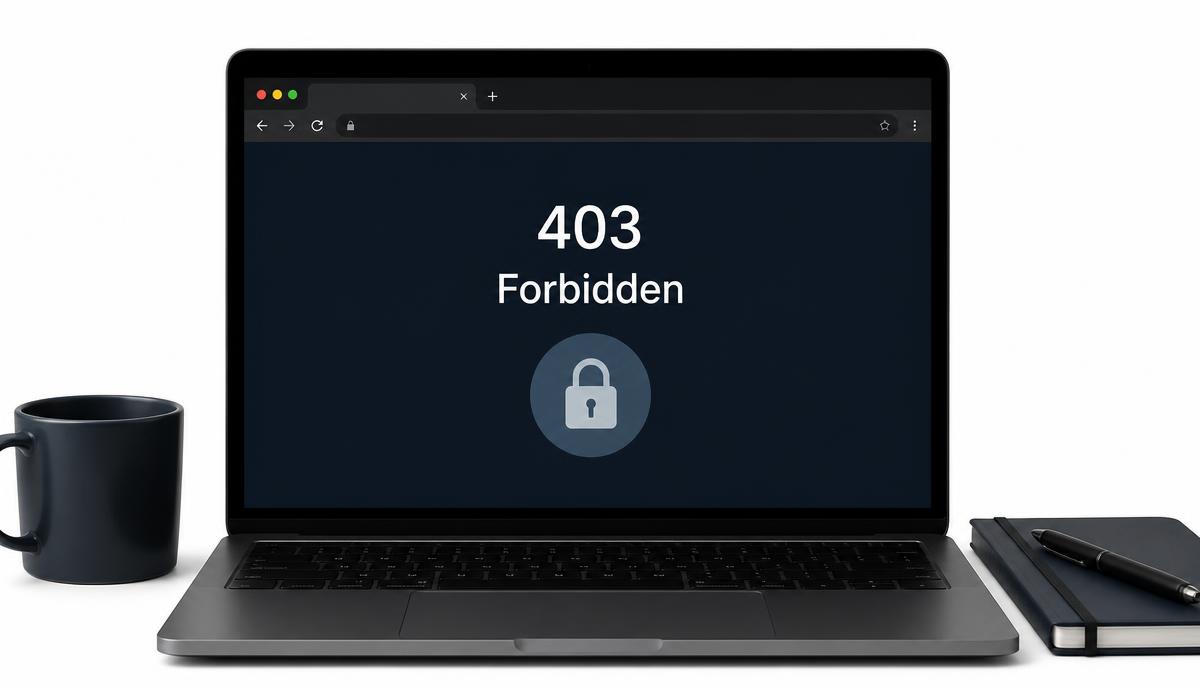
You load your site, your login page, or a single admin screen and the server answers with 403 Forbidden, Access Denied, or 'You don't have permission to access this resource'. Nothing crashed. The server is running fine and is deliberately turning your request away, so the fix is about finding which rule is doing the refusing.
A 403 is a refusal, and that single fact saves you a lot of wasted time. The server is up, PHP is running, and your database is fine. Something in front of your WordPress files read the request and decided it was not allowed. Your job is to work out which layer said no.
In practice there are four suspects, and they are not equally likely. A damaged or conflicting .htaccess file causes most of them. Wrong file and folder permissions cause the next largest group. Security and firewall plugins cause a smaller but growing share, and server level rules such as mod_security or a host firewall account for the rest.
The order below is the one I use when a site lands on my desk with a 403. It starts with the reversible checks that need no login, narrows by observing which URLs are affected, and ends with the questions worth sending to your host if the files turn out to be clean.
Read the error before you change anything
The wording and the scope of a 403 tell you more than any single test. Write down two things before you touch a file: the exact text on screen, and precisely which URLs are affected.
'Forbidden. You don't have permission to access this resource' is standard Apache. 'Access Denied' with your host's branding usually means a firewall or a mod_security rule intercepted the request. A plain white page with only 403 on it is often Nginx. If a security plugin blocked you, the page frequently names the plugin or shows a reference code, which is the single most useful clue you can have.
Scope matters just as much. A 403 on every page points at .htaccess, permissions on the root folder, or an IP block. A 403 only on wp-admin or wp-login.php points at a protection layer around the admin area. A 403 on one uploaded file points at permissions on that file or a rule blocking that file type.
- Whole site down for everyone: root .htaccess, root folder permissions, or a server rule
- Whole site down only for you: your IP address is blocked by a firewall or login limiter
- wp-admin only: security plugin, directory password protection, or mod_security
- One file or file type only: permissions on that file, or a rule blocking that extension
Fix 1: Rename .htaccess and test
The .htaccess file in your site root controls rewrites, redirects, and access rules on Apache and LiteSpeed servers. WordPress writes its permalink block into it, and plugins add their own rules above and below. A single malformed directive, a leftover deny rule, or two plugins writing conflicting blocks will produce a 403 on every request.
Connect over FTP or open your host's File Manager and go to the folder that holds wp-config.php. Turn on hidden files if you cannot see .htaccess, because the leading dot hides it by default. Rename the file to .htaccess_old rather than deleting it. Renaming keeps the original for reference and you can restore it in one click if this turns out not to be the cause.
Reload your site. If the 403 clears, the file was the problem. Log into wp-admin, open Settings > Permalinks, and click Save Changes without altering anything. WordPress writes a fresh, valid rules block. Test your pages again, then reopen .htaccess_old and look at what was in there. Any custom rules you actually need can be added back one at a time so you can see which one breaks things.
# BEGIN WordPress
<IfModule mod_rewrite.c>
RewriteEngine On
RewriteBase /
RewriteRule ^index\.php$ - [L]
RewriteCond %{REQUEST_FILENAME} !-f
RewriteCond %{REQUEST_FILENAME} !-d
RewriteRule . /index.php [L]
</IfModule>
# END WordPress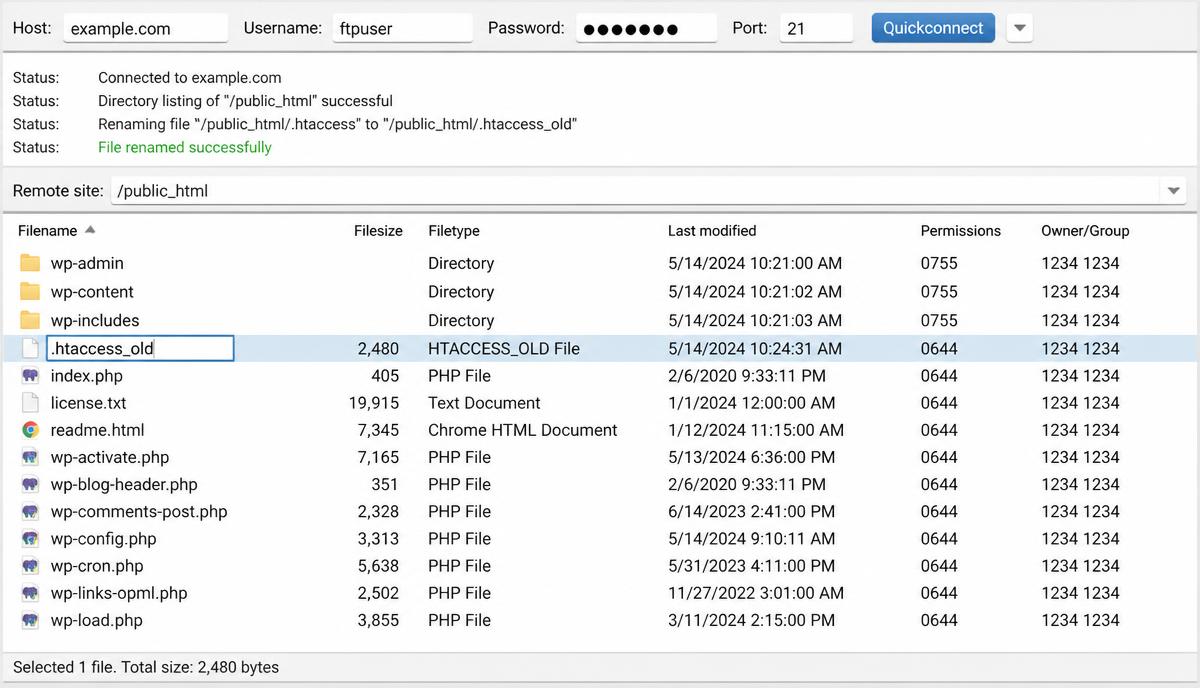
Fix 2: Correct file and folder permissions
Permissions decide who can read, write, and execute each file. If a folder is not readable by the web server user, Apache cannot list or serve anything inside it and answers 403. This tends to happen after a migration, a restored backup, or a bulk permission change made in a hurry.
The baseline that works on most hosts is 755 for directories and 644 for files. wp-config.php can be tightened to 640, or 600 where the host allows it, since only PHP needs to read it. Most File Managers and FTP clients let you apply a value to a folder and everything inside it, which saves clicking through hundreds of files.
One rule has no exceptions: do not set anything to 777. It grants write access to every user on the server, it is one of the most common ways a shared host site gets compromised, and several hosts deliberately return 403 for world writable files as a protection measure. If a plugin's instructions tell you to use 777, treat that as a warning about the plugin.
# Run from the WordPress root over SSH
find . -type d -exec chmod 755 {} \;
find . -type f -exec chmod 644 {} \;
chmod 640 wp-config.php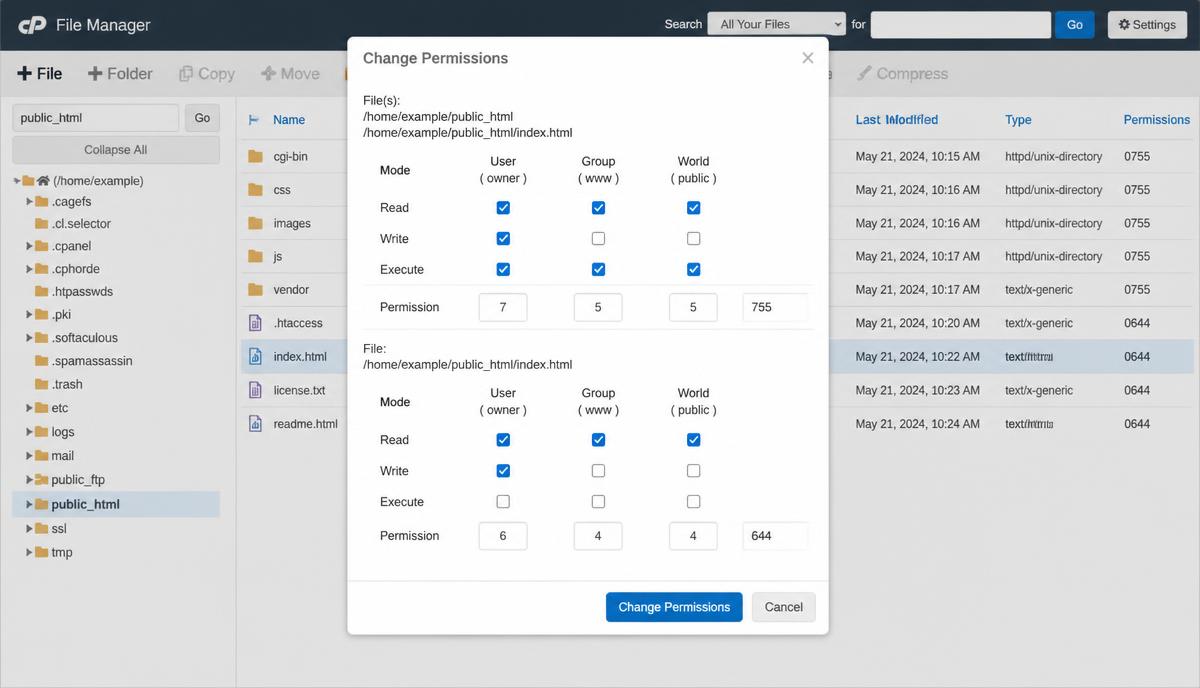
Fix 3: Rule out security and firewall plugins
Firewall plugins return 403 on purpose. That is how they refuse a request they consider hostile. The trouble starts when the rule is too broad or when your own address ends up on the wrong side of it, which happens easily with a dynamic home IP, a VPN, or an office connection where one person triggered a login limit for everybody.
You do not need dashboard access to test this. Over FTP, open wp-content/plugins and rename the folder of each security plugin, for example wordfence to wordfence-off. WordPress cannot find a plugin whose folder has moved, so it deactivates it quietly without deleting settings. Reload the site. If the 403 clears, you have your culprit, and renaming the folder back reactivates it with everything intact.
Once you know which plugin is responsible, fix the rule rather than removing the protection. Whitelist your address, loosen a country block, raise a rate limit, or turn off the specific feature that fired. Look in the plugin's live traffic or blocked requests log first, because it will name the rule and the timestamp and remove all the guesswork.
- Rename one plugin folder at a time so you know which change fixed it
- Check the plugin's blocked request log for your IP before disabling anything
- Login limiters, country blocks, and XML-RPC blocks are the usual sources of an admin only 403
- Rename the folder back once you have adjusted the rule rather than leaving the site unprotected
Fix 4: Server level rules and mod_security
If the files are clean and every plugin is off but the 403 remains, the refusal is happening before the request reaches WordPress. On Apache hosts this is usually mod_security, a rules engine that inspects requests and blocks anything matching a known attack signature. Ordinary WordPress activity trips it more often than anyone would like, particularly when saving a post with code in it, editing a theme file, or importing content.
You cannot see mod_security from inside WordPress, so this is the point to contact your host. Give them the exact URL, the time the 403 happened to the minute, and your IP address. They can pull the matching log entry, tell you which rule ID fired, and disable that single rule for your account instead of turning the whole engine off.
Nginx hosts have a different shape. There is no .htaccess, so directory rules live in the server configuration, and a missing index directive or a location block denying access to a path produces the same 403. Again this is host territory. On managed WordPress platforms, also check whether the site has a password protection or staging lock enabled in the control panel, since those often serve a 403 or a 401 to anyone who is not logged into the panel.
Confirm the fix and check what search engines see
Browsers cache error responses, so a fixed site can keep showing you the old 403. Test in a private window, then from a phone on mobile data, which uses a completely different IP address and instantly tells you whether the block was IP specific. If you use a CDN or a page cache plugin, purge it, because a cached 403 will keep being served to visitors long after the underlying cause is gone.
Then think about crawlers. A 403 that lasted more than a day or two may have been seen by Googlebot, and pages returning 403 get dropped from the index if the refusal persists. Open Google Search Console, run URL Inspection on an affected page, and use the live test. A 200 response there confirms Google can now reach the page, and requesting indexing on the most important URLs speeds up recovery.
Finally, write down what caused it. Almost every repeat 403 I see comes from the same source as the first one: the same plugin rule, the same migration script resetting permissions, the same custom .htaccess snippet pasted back in. A one line note in your maintenance log turns an hour of investigation into a two minute fix next time.
- Retest in a private window and on mobile data before declaring it fixed
- Purge the CDN and page cache so visitors stop receiving the stored 403
- Run a live URL Inspection test in Search Console on an affected page
- Record the cause so the next occurrence takes minutes instead of hours
Complete Fix Checklist
- 1Note exactly which URL returns 403: the whole site, wp-admin, wp-login.php, or one file such as an upload.
- 2Rename .htaccess in the site root to .htaccess_old, then reload the page.
- 3If that clears it, go to Settings > Permalinks in wp-admin and click Save Changes to write a clean .htaccess.
- 4Set folder permissions to 755 and file permissions to 644, and wp-config.php to 640 or 600.
- 5Deactivate security and firewall plugins by renaming their folders in wp-content/plugins over FTP.
- 6Ask your host to check the server firewall and mod_security log for your IP address.
- 7Clear any CDN or page cache, then retest from a different network or a mobile connection.
Quick Tips
- A 403 on wp-admin only is usually a security plugin or a server firewall rule, not WordPress itself
- Never set any folder to 777. It is the fastest way to invite malware and some hosts return 403 for it on purpose
- Test in a private window. Browsers cache 403 responses and make a fixed site look broken
- If only your connection is blocked, the cause is IP based and lives in the firewall, not in your files
Frequently Asked Questions
Related Guides
Sources and Further Reading
- Hardening WordPress - WordPress.org Advanced Administration
- Changing file permissions - WordPress.org Advanced Administration
More guides in this area: Security troubleshooting hub