
WordPress Login Not Working: How to Get Back In
Right password and the login page still kicks you back? Walk through these checks in order.
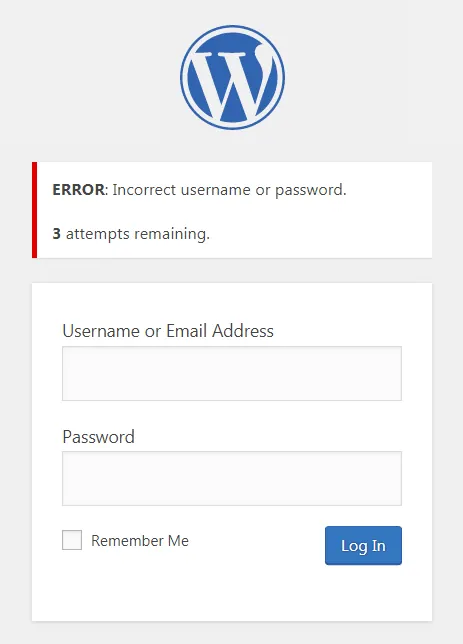
What's Happening
Login problems are usually one of four things: cookies, a security plugin lockout, a Site URL mismatch, or a corrupted user record.
Being locked out of /wp-login.php is a different problem from a broken admin area. The login page is largely self-contained, so when it misbehaves the cause is almost always one of three things: session cookies, a security plugin, or a database options mismatch.
The confusing part is that the same symptom, an endless redirect back to the login screen, can come from any of the three. A cookie problem needs a browser fix, a plugin problem needs a plugins folder rename, and an options problem needs a wp-config.php override.
This guide splits the fixes cleanly so you can rule out the cheap ones in about a minute before touching anything server side.
The Usual Suspects: Browser Cookies and Cache
The first place I always look when someone can't log in is their web browser. Browsers store information like cookies and cached files to make your internet experience faster. Sometimes, this stored data can get corrupted or become outdated, leading to login problems. It's like your browser has an old key for a new lock.
I once had a client who was convinced their site was hacked because they couldn't log in. After spending an hour digging through server logs, I asked them to try logging in with a different browser. Instantly, they were in. The problem wasn't a hack, but a stale cookie in their regular browser. It was a simple fix that taught me to always start with the basics.
Clearing your browser's cookies and cache is usually the quickest first step. This forces your browser to download fresh information from the website. Think of it as giving your browser a fresh start. You'll need to re-enter passwords for other sites, but it's a small price to pay to get back into your WordPress dashboard.
Forgotten Password: The Most Common Culprit
Let's be honest, we've all been there. You're trying to log into a site you haven't accessed in a while, and suddenly, your usual password isn't working. It's frustrating, and often, it's the simplest explanation for a login failure. The 'Forgot your password?' link is there for a reason, and it's surprisingly effective.
I had a client once who insisted they were using the correct password. After several failed attempts, they begrudgingly clicked the reset link. Sure enough, they had simply forgotten their new password after a recent security update. It's a classic case of human memory being less reliable than we'd hope.
WordPress has a built-in password reset feature. You just need access to the email address associated with your administrator account. If that's not an option, there are ways to reset it directly in your database, which we will cover later. But always try the easy way first.
- Navigate to your WordPress login page.
- Click the 'Lost your password?' link.
- Enter your username or email address.
- Check your email for a password reset link.
- Follow the instructions to set a new password.
Site URL Mismatch: When WordPress Thinks it's Somewhere Else
One of the tricky problems I've encountered is when the WordPress site URL settings don't match the actual URL you are using. This often happens after migrating a site, changing domains, or even just switching from HTTP to HTTPS. WordPress gets confused about where it lives, and it won't let you in.
I remember a frantic call from a client whose site had been moved to a new hosting provider. They could see the front end, but the login always redirected them in a loop. Turns out, the WordPress settings still had the old development URL. A quick database edit solved the problem and got them back online.
This issue stems from two core settings in your WordPress database: `siteurl` and `home`. If these values are incorrect, WordPress can't properly authenticate your login session. You'll often see redirect loops or repeated login attempts that go nowhere. Don't worry, there are a few ways to fix this.
define('WP_HOME','http://example.com');
define('WP_SITEURL','http://example.com');Plugin Conflicts or Theme Issues
WordPress plugins and themes are amazing for extending functionality. But sometimes, a newly installed or updated plugin or theme can cause a conflict that locks you out. This is especially true for security plugins that might unintentionally block legitimate login attempts, or even badly coded themes that interfere with the login process.
A while back, a client installed a new security plugin that was a little too enthusiastic. It immediately flagged their own IP address as suspicious and locked them out. I had to go into the file system via FTP and manually rename the plugin's folder to disable it. It was a good reminder that even helpful tools can cause problems.
If you recently added or updated something, and then immediately lost login access, that's your first clue. The goal here is to temporarily disable these potential culprits to see if the login issue resolves. You can do this by renaming their folders via FTP or your hosting file manager.
- Connect to your site via FTP or your hosting control panel's file manager.
- Navigate to `wp-content/plugins`.
- Rename the most recently installed or updated plugin's folder (e.g., `plugin-name` to `plugin-name_DISABLED`).
- Try to log in. If you can, reactivate plugins one by one until you find the culprit.
- If plugins aren't the issue, try renaming your current theme's folder in `wp-content/themes` to temporarily activate a default WordPress theme.
Malware or Hacked Site Issues
This is one of the more serious login problems, and sadly, it's not uncommon. If your WordPress site has been compromised, attackers often change admin passwords, create new malicious users, or block legitimate users from logging in. This is always a worrying discovery, but it's important to keep calm and follow a process.
I remember a Saturday morning when a client called, their voice shaking. Their site homepage was defaced, and they couldn't log in. After a quick scan, it was clear they'd been hacked. We had to clean the site, restore from a backup, and then reset all user passwords. It was a wake-up call for them regarding security.
Signs of a compromised site include strange redirects, unfamiliar content, new users you didn't create, or security warnings from your hosting provider. If you suspect a hack, it's crucial to act quickly to limit the damage and regain control of your WordPress installation.
- Change all WordPress passwords (database, users, FTP, hosting control panel).
- Scan your site with a reputable security plugin like Wordfence or Sucuri.
- Look for unfamiliar files or code snippets, especially in `wp-config.php`, theme files, and plugin files.
- Restore your site from a clean backup, if available.
- Contact your hosting provider, as they might have tools or logs to help identify the breach.
- Implement stronger security measures going forward, like two-factor authentication.
File Permissions Problems
File permissions tell your web server who can read, write, or execute files and folders on your WordPress site. Incorrect permissions can sometimes prevent WordPress from accessing crucial files it needs for the login process. It's like having the right key, but the door is stuck because of a broken hinge.
I once spent hours debugging a mysterious 500 internal server error on a client's site, which also affected login. Turns out, a new junior developer had accidentally set recursive permissions to 777 on the entire WordPress installation. This is a huge security risk and also breaks things. Resetting the permissions fixed everything.
The recommended permissions for WordPress files are typically 644 and for folders, 755. The `wp-config.php` file should ideally be 640 or 604 for enhanced security. You can check and change these permissions using an FTP client or your hosting control panel's file manager.
- Connect to your site via FTP or your hosting control panel's file manager.
- Navigate to your WordPress root directory (where `wp-config.php` is located).
- Select all folders and set their permissions to 755.
- Select all files and set their permissions to 644.
- Special case: Set `wp-config.php` permissions to 640 or 604.
- Attempt to log in to your WordPress dashboard.
Database Issues
At the heart of every WordPress site is its database. This is where all your posts, pages, comments, users, and settings are stored. If there's a problem with the database itself or how WordPress connects to it, login issues are almost guaranteed. This usually manifests as a 'Error establishing a database connection' message, but sometimes it can be more subtle.
I had a scary moment when a client's site suddenly showed a 'database error' message, and naturally, no one could log in. After checking `wp-config.php` and confirming the credentials were correct, I logged into phpMyAdmin and saw that the database was simply too large and maxed out the server's memory. Optimizing the database fixed it immediately.
Issues can range from incorrect database credentials in `wp-config.php` to a corrupted database table. Sometimes, your hosting provider might have briefly restarted the database server, causing a temporary disconnection. If you've ruled out other causes, it's time to look at the database.
- Verify your database connection details in `wp-config.php` (DB_NAME, DB_USER, DB_PASSWORD, DB_HOST). These must be 100% correct.
- Access your hosting control panel and find phpMyAdmin.
- Select your WordPress database and look for any tables marked as 'crashed' or 'corrupted'.
- Try to repair the database using the 'Check Table' and 'Repair Table' options in phpMyAdmin.
- If you're comfortable, you can try resetting your admin password directly in the `wp_users` table.
define('DB_NAME', 'database_name');
define('DB_USER', 'database_username');
define('DB_PASSWORD', 'database_password');
define('DB_HOST', 'localhost');
Complete Fix Checklist
- 1Clear cookies and try incognito.
- 2Reset the password via email or phpMyAdmin.
- 3Check for security plugin lockouts (disable the plugin via FTP if needed).
- 4Verify WP_HOME and WP_SITEURL match the URL you're using.
Quick Tips
- Don't repeatedly retry, many security plugins lock you out for hours after failures
Frequently Asked Questions
Related Guides
Sources and Further Reading
- Debugging in WordPress - WordPress.org Developer Resources
- Editing wp-config.php - WordPress.org Advanced Administration
- Resetting your password - WordPress.org
More guides in this area: Admin Access troubleshooting hub