
WordPress 502 Bad Gateway Error: How to Diagnose and Fix It
A 502 is your web server telling you PHP-FPM or the upstream stopped responding. Here is the exact order I check on a real WordPress site.
What's Happening
The 502 Bad Gateway error is not a WordPress error in the traditional sense. It is your Nginx or Apache front-end saying it could not get a clean response from the PHP process behind it. On WordPress sites the cause is almost always PHP-FPM timing out, a CDN-to-origin handshake failing, or a long-running plugin task chewing up worker slots.
A 502 Bad Gateway on WordPress means the web server accepted the request and then never got a valid response back from PHP. On modern hosting stacks, that gap is between nginx and PHP-FPM, and the failure almost always shows up in the FPM error log within a second of the browser showing the 502.
Because the problem is between two processes rather than inside PHP itself, the usual WordPress debugging tricks are the wrong place to start. Debug mode and Recovery Mode both need PHP to complete a request, and a 502 means PHP is not completing anything.
This guide covers the stack-level checks that actually resolve 502 errors: FPM worker limits, PHP timeouts, upstream health, and the small set of plugin patterns that reliably starve the FPM pool.
What a 502 Actually Means
Modern WordPress stacks have at least two server processes in line. Nginx or Apache handles the incoming HTTP request, then hands the dynamic part to PHP-FPM. PHP-FPM runs WordPress, builds the HTML, and returns it. Nginx or Apache then sends that HTML to the visitor's browser.
A 502 happens when the front-end web server tries to talk to PHP-FPM and either gets no answer at all, or gets an answer that is not valid HTTP. The web server cannot pass garbage to the visitor, so it serves 502 instead. The WordPress codebase is not involved in this conversation. Even a completely uninstalled WordPress site would still return 502 if PHP-FPM was down.
Step 1: Confirm the 502 Is at Your Origin
If you use Cloudflare or another CDN, the 502 you see in the browser might be coming from the CDN, not from your server. Open the page directly using your origin IP, bypassing the CDN. If the origin loads fine, the issue is between the CDN and the origin (often an SSL handshake or an IP block). If the origin also 502s, the problem is on your server.
On Cloudflare specifically, the error page shows a Ray ID. Forward it to Cloudflare support and they will tell you exactly which leg of the request failed. That single ID can save an hour of guesswork.
Step 2: Read the PHP-FPM Error Log
PHP-FPM writes its own error log, usually at /var/log/php-fpm/error.log or /var/log/php8.x-fpm.log. The lines you are looking for are 'server reached pm.max_children setting', 'WARNING: child exited on signal', and 'request_terminate_timeout'. Each of those points to a different fix.
# Tail the PHP-FPM log on a Linux server
sudo tail -f /var/log/php8.2-fpm.log

# On managed hosts, check the Logs section of the dashboard
# WP Engine: User Portal > Site > Logs
# Kinsta: MyKinsta > Sites > Logs > error.log
Step 3: Restart PHP-FPM
On a single-server VPS, a graceful restart of PHP-FPM clears stuck workers and is the fastest emergency fix. On managed hosts you cannot run the command yourself, but every host has a 'restart PHP' button in their dashboard. Use it before doing anything else.
sudo systemctl reload php8.2-fpm
# or, if reload does not help
sudo systemctl restart php8.2-fpm
Step 4: Find the Plugin Holding Workers Open
If 502s return within minutes of a restart, a plugin is almost certainly hogging workers with slow code. The fastest diagnostic is to rename /wp-content/plugins to plugins-off via SFTP, then test the site. If the 502 disappears, rename the folder back and reactivate plugins one at a time, watching the PHP-FPM log between each.
The usual culprits are real-time chat plugins, broken external API integrations (a Mailchimp form trying to reach a dead endpoint), and search plugins that scan every product on every page load.
Step 5: Raise PHP-FPM Worker Limits if You Control the Server
If your traffic genuinely outgrew the worker pool, raise pm.max_children. A safe starting point is total server RAM divided by average PHP process size. For a 4 GB VPS with 80 MB workers, you can run roughly 40 children safely with headroom for MySQL.
; /etc/php/8.2/fpm/pool.d/www.conf
pm = dynamic
pm.max_children = 40
pm.start_servers = 8
pm.min_spare_servers = 4
pm.max_spare_servers = 12
request_terminate_timeout = 60s
Step 6: Look at the Database
A slow database makes PHP wait, and PHP that waits long enough hits request_terminate_timeout and gets killed. The result looks like a PHP problem but the root cause is MySQL. Enable the MySQL slow query log, look for queries running over 2 seconds, and add indexes or rewrite them.
WordPress sites that have ballooned to a million rows in wp_options or wp_postmeta are particularly prone to this. WP-Optimize and 'autoload' cleanup queries usually trim 90 percent of the slowness on those sites.
When 502s Only Happen at Peak Hours
A 502 that only shows up between 9 and 11 AM is a capacity problem, not a code problem. Your stack is fine under normal load but cannot handle the spike. The realistic options are full-page caching (LiteSpeed, WP Rocket, Cloudflare APO), upgrading to more PHP-FPM workers, or moving to a bigger server tier.
Cloudflare's free APO plan alone is enough to fix the problem for many publisher sites because it offloads cached HTML to Cloudflare's edge, so PHP-FPM only runs for logged-in users and cache misses.
How to Read an Nginx Error Log Without Drowning
Nginx logs are noisy. A busy WordPress site generates thousands of entries per hour and the 502-relevant lines are buried among 404s, bot scans, and routine warnings. The fastest way to find the real cause is to filter on the keywords that matter and ignore everything else.
Run a tail with grep so you only see upstream failures. The pattern below covers the four most common 502 signatures: a refused connection to PHP-FPM, an upstream that timed out, an upstream that closed mid-response, and an upstream that sent an invalid header. Each one points to a different fix and the keyword tells you which.
sudo tail -f /var/log/nginx/error.log | \
  grep -E 'upstream|connect\(\)|recv\(\)|FastCGI'

# Common 502 patterns:
# connect() failed → PHP-FPM is down, restart it
# upstream timed out → raise fastcgi_read_timeout
# upstream prematurely closed → PHP process crashed mid-request
# upstream sent invalid header → PHP printed output before headers
The 'Upstream Sent Invalid Header' Trap
If your error log shows 'upstream sent invalid header', the cause is almost never a server config problem. It is a WordPress plugin or theme echoing output before WordPress sends its HTTP headers. The most common offender is a stray BOM or whitespace at the top of a PHP file. The second most common is a PHP notice that prints to the output buffer before WordPress can send the headers.
Find the offender by enabling WP_DEBUG and reproducing the failing page. If the debug log shows a notice fired from a specific file, fix that file. If there is no notice, open the most recently edited plugin or theme file in a hex editor and check for the bytes EF BB BF at the very start, that is the UTF-8 BOM and it must be removed.
Why a CDN Sometimes Hides a Real 502
Cloudflare's 'Always Online' feature serves a cached HTML snapshot when the origin fails. It is a great feature for visitors but a terrible feature for debugging because it hides the very thing you are trying to investigate. Disable Always Online while you work, then re-enable it once the underlying 502 is fixed.
The same caveat applies to BunnyCDN's perma-cache and Fastly's stale-if-error. Edge caches are doing their job by hiding the broken origin, but if you do not know they are active you will assume the 502 came and went on its own when in fact your visitors are now seeing a snapshot from yesterday morning.
An Emergency Playbook You Can Run in Under Five Minutes
When a 502 hits production and the phone is ringing, you do not have time to read logs first. Run the playbook below in order. It is the same sequence I use during real incidents and it resolves the majority of 502s on managed hosts before step five.
- Reload the site in incognito to rule out a cached browser error page
- Open the hosting dashboard and click the 'Restart PHP' button
- Rename /wp-content/plugins to plugins-off via SFTP
- If the site comes back, rename the folder back and reactivate plugins five at a time
- If it does not, restore the most recent automatic backup from your host
- Only after the site is up, open the PHP-FPM log to find the true cause
Preventing the Next 502 With a Cheap Uptime Check
A 502 that lasts 90 seconds at 3 AM costs nothing if your monitoring catches it before Google does. A 502 that lasts six hours because you only noticed at lunchtime costs you that day's traffic and a small but real ranking dip.
Set up an external uptime monitor (UptimeRobot free tier checks every five minutes and is plenty for most sites) that hits the homepage and a known dynamic page like /wp-login.php. Two endpoints catch the difference between Nginx being up but PHP being down, which a single homepage check would miss if the homepage is cached at the CDN edge.
When the 502 Is Actually a 504 in Disguise
Some hosts return 502 for everything that goes wrong upstream, even when the real problem is a timeout that should technically be a 504. The cure is the same as for a real 504, which is to find the slow query or external API call holding up the request.
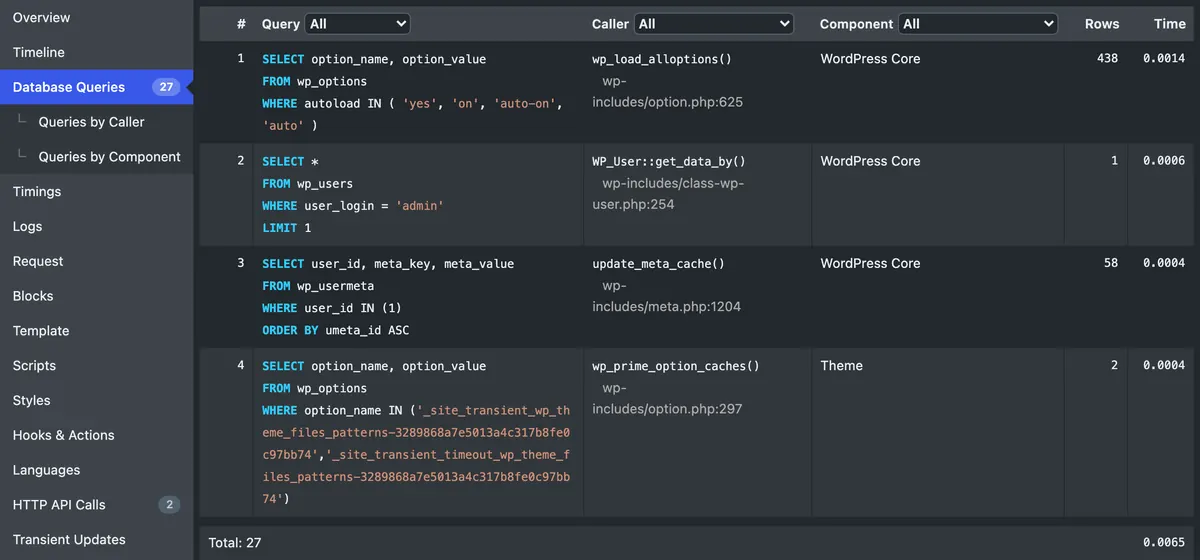
Install Query Monitor on the failing site, log in as admin, and reload the page that 502s most often. Query Monitor shows the slowest 10 queries and any HTTP calls the page made. The fix is almost always either a slow query that needs an index or an external API call that needs a shorter timeout and a graceful fallback.
Complete Fix Checklist
- 1Reload the page after 60 seconds, 502 errors are often transient and clear on their own.
- 2Check your host's status page and PHP-FPM error log for 'pm.max_children' or 'worker exhausted' messages.
- 3Disable plugins via FTP to rule out a slow plugin holding workers open.
- 4If you use Cloudflare, set 'Always Online' on and check the Cloudflare cache offline copy to confirm the error is at the origin, not Cloudflare.
- 5Raise PHP-FPM max_children and request_terminate_timeout if you control the server.
Quick Tips
- A 502 is almost never a WordPress core bug, it is a server-layer problem
- Sites behind Cloudflare see 'Error 502' from Cloudflare, not the origin, check the Ray ID to confirm
Frequently Asked Questions
Related Guides
Sources and Further Reading
- HTTP response status codes - MDN Web Docs
- Apache .htaccess how-to - Apache HTTP Server Documentation
- PHP runtime configuration: memory_limit and execution time - PHP Manual
- PHP error handling and logging directives - PHP Manual
More guides in this area: Server Errors troubleshooting hub