
WordPress Keeps Asking for FTP Credentials? Here's the Actual Fix
You click Install Plugin or Update Now and WordPress throws up a form demanding FTP hostname, username, and password. The prompt is not a security feature, it is a file-permissions symptom. Here is what triggers it, why entering FTP details is the wrong long-term answer, and the two-line fix that stops it for good.
What's Happening
You go to install a plugin, run a theme update, or apply a core update and WordPress interrupts you with a screen that reads 'To perform the requested action, WordPress needs to access your web server' followed by fields for Hostname, FTP Username, FTP Password, and a Connection Type dropdown. Filling that form in with real FTP credentials works once, but the prompt keeps coming back on every future update. The root cause is that the PHP process running WordPress does not own the files it is trying to modify, and WordPress is asking you for another way in.
The FTP credentials prompt is one of those WordPress screens that looks like it wants a security answer and actually wants a permissions answer. You are trying to install a plugin, WordPress refuses, and it presents a form asking for FTP hostname, username, and password. Most people either type their real FTP details in and move on, or they Google the error and paste an FTP snippet into wp-config.php that hardcodes their credentials. Both approaches work in the short term. Both come back to bite the site.
The prompt exists because WordPress cannot always write to its own filesystem. When PHP is running as one user and the files are owned by another, the direct-write attempt fails and WordPress falls back to the next method in its chain: FTP. The prompt is the fallback surfacing to the user. Fix the ownership, the fallback never gets triggered, and the prompt never appears again.
This guide covers the two-line fix that works when ownership is already right, the ownership repair that works when it is not, and the exact reasons the prompt keeps reappearing after a migration, a backup restore, or a plugin install that ran as root.
What the prompt actually means
WordPress has a filesystem abstraction layer called WP_Filesystem. Every time core, a plugin, or a theme needs to create, modify, or delete a file (plugin installs, theme updates, core auto-updates, cache writes in some plugins), it goes through WP_Filesystem. The abstraction tries four methods in a fixed order: direct, ssh2, ftpext, and ftpsockets.
Direct means PHP writes to the disk itself using file_put_contents and fwrite. This is the fastest, safest method and it is what WordPress prefers. It only works when the user PHP is running as owns the files it is trying to modify. If it does not, PHP throws a permission denied error and WordPress moves down the chain.
ssh2 requires the PHP ssh2 extension, which most shared hosts do not enable. It fails silently. ftpext requires the FTP extension, which is more common but still needs credentials. ftpsockets is a pure-PHP FTP client that works almost anywhere. Once WordPress has fallen through to one of the FTP methods, it needs credentials to log in, and that is when the prompt appears.
So the prompt is not asking you to prove who you are. It is telling you 'I cannot write files as myself, please give me a way to log in as someone who can.'
The three reasons ownership goes wrong
In 12 years of fixing this on client sites, almost every case falls into one of three buckets. Knowing which bucket you are in tells you which fix to run.
- You migrated the site and the migration tool created files as a different user than the target host's PHP user (most common cause)
- A support person or a script ran as root, and now a handful of files inside wp-content are owned by root instead of your account
- The host changed its PHP handler (from mod_php to PHP-FPM or LiteSpeed's LSAPI) and the PHP user changed with it, leaving the old files under the old owner
Step 1: Find out who PHP is running as
Before you fix ownership you need to know what to set it to. Drop a one-line file at the root of your WordPress install called whoami.php with a single line that prints the current process user. Load it in a browser, note the username, then delete the file. Leaving a whoami probe on a live site is a small but real information disclosure risk.
<?php
// Save as whoami.php at the WordPress root, load once, then delete.
echo 'PHP is running as: ' . get_current_user() . ' (uid ' . posix_geteuid() . ')';
Step 2: Check current ownership
Over SSH, cd into your WordPress root and run ls -la. The third column of the output shows the owner of each file. Every file and folder should show the same username the whoami probe returned. Anything showing root, apache, nobody, or a different account is the source of the FTP prompt.
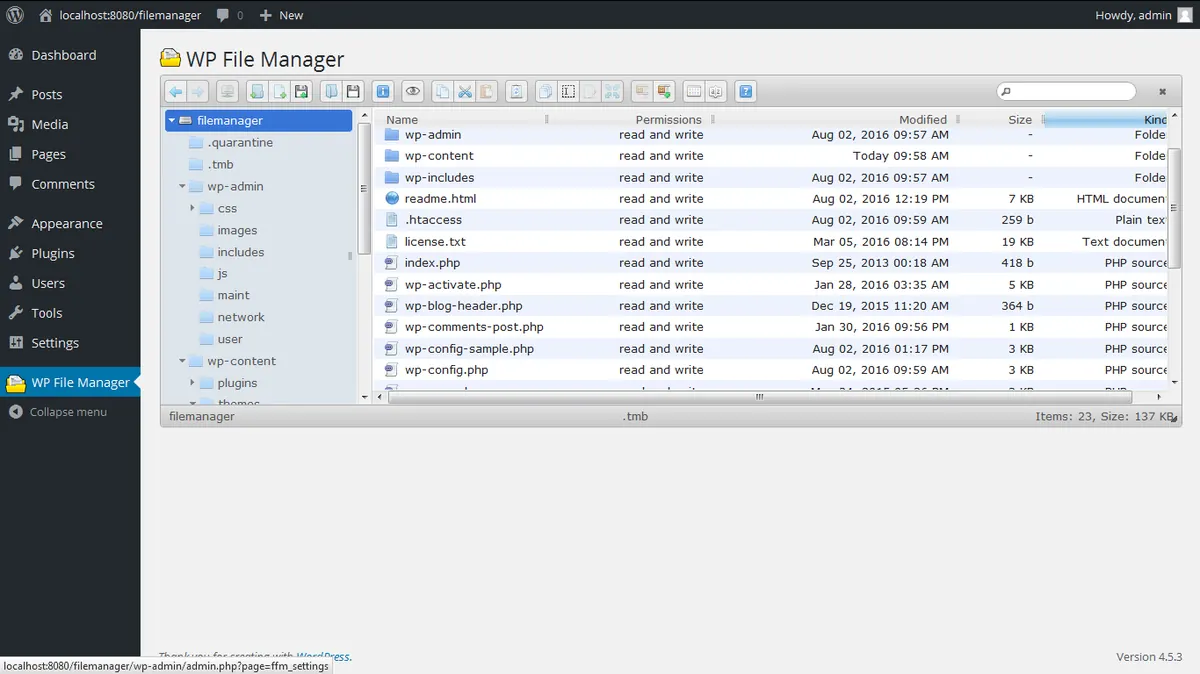
If you do not have SSH, use the File Manager in cPanel or Plesk. Right-click a file, choose Properties or Change Permissions, and the ownership row shows the current owner. Spot-check wp-content, wp-content/plugins, and wp-content/uploads first, those are the folders WordPress writes to most.
# Run inside your WordPress root over SSH
ls -la | head -20
ls -la wp-content/ | head -20

# Look for any file NOT owned by your PHP user
find . ! -user yourphpuser -print | head
Step 3: Fix the ownership
On a cPanel host with SSH, the fix is a single chown command run as root or with sudo. Replace youruser with the username PHP runs as (usually the same as your cPanel account name) and adjust the path to your document root.
If you do not have root SSH access, use cPanel's Fix File Permissions tool or ask your host to run the reset for you. Every reputable host has a one-click or ticket-based option for this. Do not try to guess and chmod your way out, ownership is separate from permissions and chmod does not change it.
# Reset ownership across the whole WordPress install
sudo chown -R youruser:youruser /home/youruser/public_html/

# Then set safe permissions
sudo find /home/youruser/public_html/ -type d -exec chmod 755 {} \;
sudo find /home/youruser/public_html/ -type f -exec chmod 644 {} \;
sudo chmod 600 /home/youruser/public_html/wp-config.php
Step 4: Add FS_METHOD to wp-config.php
Once ownership is correct, tell WordPress to skip the FTP fallback entirely. Add one line to wp-config.php above the 'That's all, stop editing' comment. This forces the direct method and makes the FTP prompt impossible to trigger.
If you set this line and updates start failing silently, ownership is not actually fixed. Remove the line, go back to step 3, then add it again.
// Force WordPress to write files directly. Requires correct file ownership.
define( 'FS_METHOD', 'direct' );
What NOT to do
The internet is full of quick-fix advice that silences the prompt and leaves your site less secure than before. These are the three worst suggestions I see recommended and why they are wrong.
- Do not chmod 777 wp-content. This makes every file world-writable, which is how mass shared-hosting compromises happen. Malware scanners flag 777 folders automatically.
- Do not hardcode FTP credentials in wp-config.php using FTP_HOST, FTP_USER, and FTP_PASS. This puts plaintext credentials in a file the whole PHP process can read, and any plugin vulnerability leaks them.
- Do not disable auto-updates to make the prompt go away. WordPress auto-updates ship security patches and turning them off is a bigger risk than the FTP prompt itself.
A migration case that took ten minutes to fix
A client had moved a WooCommerce store from a Bluehost shared plan to a Hostinger VPS using a manual export and FTP re-upload as a different account. On the new server, every plugin install and update triggered the FTP prompt. They had entered their FTP details three times that week and were about to hardcode them in wp-config.
One SSH session, one chown command across public_html, one FS_METHOD line added to wp-config.php. Total time under ten minutes. The prompt has not reappeared in seven months.
That is the pattern: FTP prompt after a migration is almost always ownership drift from the transfer, not a real filesystem or security problem. Fixing it once, correctly, saves hours of one-off credential entry over the life of the site.
Final checklist
Run through this list before you close the tab. If any item is unchecked, the FTP prompt will come back on the next update.
- You confirmed the user PHP runs as with a whoami probe (and deleted the probe file)
- Every file inside the WordPress root is owned by that user, verified with ls -la or a File Manager spot check
- Folders are 755, files are 644, wp-config.php is 600, no 777 anywhere
- FS_METHOD is set to 'direct' in wp-config.php
- You did NOT hardcode FTP_HOST, FTP_USER, or FTP_PASS in wp-config.php
- A test plugin install from Plugins > Add New completes without prompting for FTP credentials
- If you are on a managed host and still see the prompt, you have opened a support ticket instead of trying to fix it yourself
Complete Fix Checklist
- 1Confirm the prompt is a file-ownership problem, not a broken filesystem, by checking who owns wp-content on your host.
- 2Fix the ownership so the PHP user (usually the same as your cPanel user) owns every file inside the WordPress root.
- 3Add define('FS_METHOD', 'direct'); to wp-config.php so WordPress writes files directly instead of falling back to FTP.
- 4If ownership is right and the prompt still appears, check that wp-content and wp-content/upgrade are writable (755 for folders, 644 for files).
- 5Never leave real FTP credentials in wp-config.php as a workaround, that is a security risk and it hides the underlying permissions issue.
Quick Tips
- The FTP prompt is a fallback, not a security check, WordPress only shows it when it cannot write files directly
- Chmod 777 will silence the prompt and also gets your site flagged by every malware scanner, do not use it
- If the site is on nginx or LiteSpeed, the PHP user is set in the pool config, not by cPanel, check with your host if unsure
Frequently Asked Questions
Related Guides
Sources and Further Reading
- Updating WordPress - WordPress.org
- Debugging in WordPress - WordPress.org Developer Resources
- Editing wp-config.php - WordPress.org Advanced Administration
More guides in this area: Updates troubleshooting hub