
wp-config.php Errors in WordPress and How to Fix Them
Edited wp-config.php and the site went dark? Here is how to undo it and what to watch for next time.
What's Happening
wp-config.php is one syntax error away from breaking your entire site. Missing semicolons, smart quotes, and bad encoding are the usual suspects.
The wp-config.php file is the first PHP file WordPress loads on every request. If it has a syntax error, a missing semicolon, or a stray character from a copy-paste, the site cannot start and every visitor sees a blank page or a raw PHP warning.
Because the file is loaded so early, the usual WordPress recovery tools cannot help. Debug mode, safe mode, and Recovery Mode all rely on WordPress actually starting, so a broken wp-config puts them out of reach. The fix has to happen at the file-system level.
This guide covers the three most common wp-config.php mistakes, how to read the exact PHP parse error the server logs, and how to restore a clean copy without losing the database credentials.
Understanding the wp-config.php File
Before we dive into fixing errors, let us quickly cover what the `wp-config.php` file does. It is a core WordPress file that contains sensitive information about your website. This includes your database name, username, password, and host, which WordPress uses to connect to your database.
It also defines unique authentication keys and salts, which are essential for securing your site's cookies and user sessions. Additionally, `wp-config.php` can be used to configure various WordPress settings, such as enabling debugging, setting memory limits, or changing the default table prefix.
Because of the critical information it holds, any syntax error, missing character, or even an invisible character in this file can prevent WordPress from loading correctly. Your site will likely display an error message, or in some cases, a blank white screen, often called the White Screen of Death (WSOD).
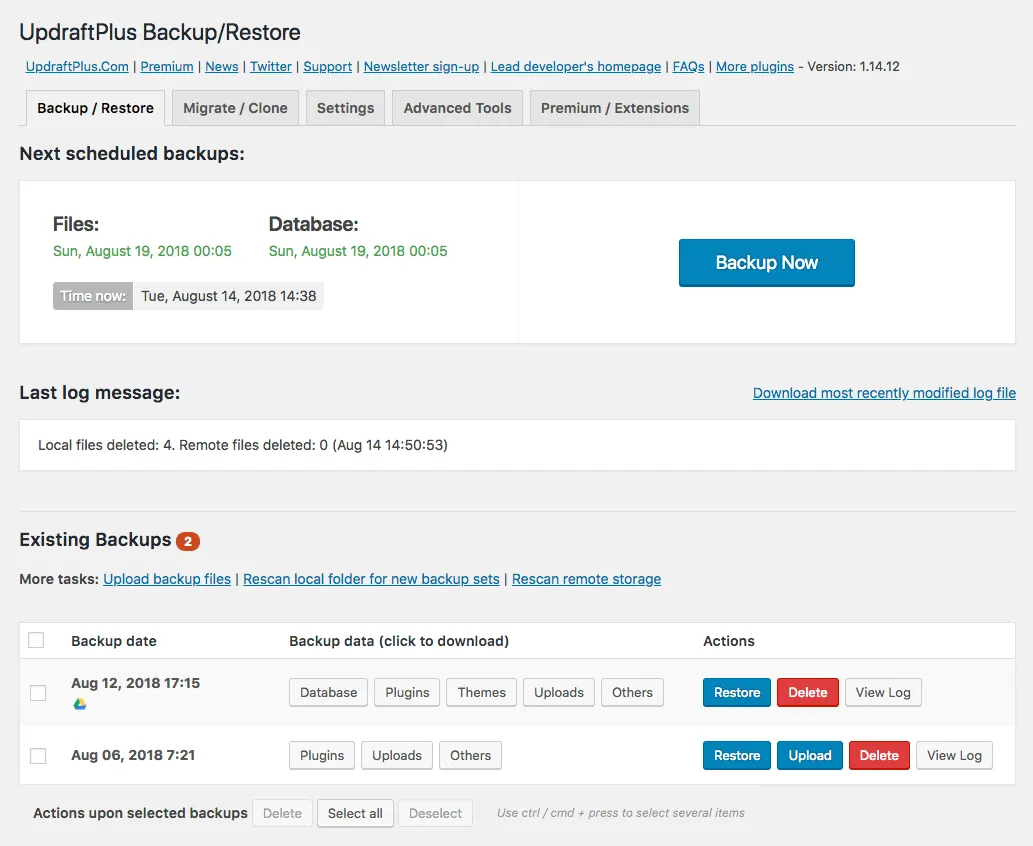
Backup Your wp-config.php File Before Editing
This is probably the most important piece of advice I can give you. Before you make any changes to your `wp-config.php` file, always, always, always create a backup. I have learned this the hard way more times than I care to admit. A simple copy and paste into a file named `wp-config.php.bak` can save you hours of headache.
If something goes wrong during your edits, you can quickly revert to the working backup file. This single habit minimizes downtime and stress. You can download the file via FTP or your hosting control panel's file manager and save it to your computer.
I usually keep a folder on my local machine specifically for client site backups of critical files like this. It avoids that frantic feeling when you realize you have introduced a problem and do not have an easy way to go back.
Common `wp-config.php` Syntax Errors
Syntax errors are by far the most common cause of `wp-config.php` issues. A misplaced comma, a missing semicolon, or an unclosed quote can bring your entire site to a halt. When you see messages like
These errors usually point to a specific line number in the `wp-config.php` file. This line number is your best friend in debugging. For example,
This means the error is on line 87. You would open your `wp-config.php` file, go to line 87, and carefully inspect the code around that area for any obvious mistakes. Look for missing semicolons at the end of lines, unmatched parentheses, or unclosed quotes. Remember, every little detail matters in PHP syntax.
<?php
/**
 * The base configuration for WordPress
 *
 * The wp-config.php creation script uses this file during the
 * installation. You don't have to use the web site, you can
 * copy this file to "wp-config.php" and fill in the values.
 *
 * This file contains the following configurations:
 *
 * * MySQL settings
 * * Secret keys
 * * Database table prefix
 * * ABSPATH
 *
 * @link https://wordpress.org/support/article/editing-wp-config-php/
 *
 * @package WordPress
 */

// ** MySQL settings - You can get this info from your web host ** //
/** The name of the database for WordPress */
define( 'DB_NAME', 'database_name_here' );

/** MySQL database username */
define( 'DB_USER', 'username_here' );

/** MySQL database password */
define( 'DB_PASSWORD', 'password_here' );

/** MySQL hostname */
define( 'DB_HOST', 'localhost' );

/** Database Charset to use in creating database tables. */
define( 'DB_CHARSET', 'utf8' );

/** The Database Collate type. Don't change this if in doubt. */
define( 'DB_COLLATE', '' );

/**#@+*
 * Authentication Unique Keys and Salts.
 *
 * Change these to different unique phrases! You can generate these using
 * the {@link https://api.wordpress.org/secret-key/1.1/salt/ WordPress.org secret-key service}
 * You can change these at any point in time to invalidate all existing cookies.
 * This will force all users to log in again.
 *
 * @since 2.6.0
 */
define( 'AUTH_KEY',         'put your unique phrase here' );
define( 'SECURE_AUTH_KEY',  'put your unique phrase here' );
define( 'LOGGED_IN_KEY',    'put your unique phrase here' );
define( 'NONCE_KEY',        'put your unique phrase here' );
define( 'AUTH_SALT',        'put your unique phrase here' );
define( 'SECURE_AUTH_SALT', 'put your unique phrase here' );
define( 'LOGGED_IN_SALT',   'put your unique phrase here' );
define( 'NONCE_SALT',       'put your unique phrase here' );

/**#@-*/

/**
 * WordPress Database Table prefix.
 *
 * You can have multiple installations in one database if you give each
 * a unique prefix. Only numbers, letters, and underscores please!
 */
$table_prefix = 'wp_';

/**
 * For developers: WordPress debugging mode.
 *
 * Change this to true to enable the display of notices during development.
 * It is strongly recommended that plugin and theme developers use WP_DEBUG
 * in their development environments.
 *
 * For information on other constants that can be used for debugging,
 * visit the documentation.
 *
 * @link https://wordpress.org/support/article/debugging-in-wordpress/
 */
define( 'WP_DEBUG', false );

/* Add any custom values between this line and the "stop editing" line. */


/* That's all, stop editing! Happy publishing. */

/** Absolute path to the WordPress directory. */
if ( ! defined( 'ABSPATH' ) ) {
	define( 'ABSPATH', __DIR__ . '/' );
}

/** Sets up WordPress vars and included files. */
require_once ABSPATH . 'wp-settings.php';
The Problem with Smart Quotes
One of the trickiest syntax errors I have encountered comes from
These are the curly quotation marks that word processors like Microsoft Word often automatically insert. While they look nicer, web servers and PHP do not recognize them as valid code. They expect plain, straight quotation marks.
If you copy and paste code snippets or even entire lines from a word processor into your `wp-config.php` file, you might inadvertently introduce smart quotes. The solution is to always use a plain text editor, like VS Code, Sublime Text, Notepad++, or even basic Notepad on Windows, and TextEdit in plain text mode on Mac. These editors do not auto-correct quotes.
Beware of Byte Order Mark (BOM) Bytes
This is a super subtle issue that has caused me many hours of head-scratching. BOM bytes are invisible characters at the beginning of a file that indicate the byte order of a text file. While some editors handle them gracefully, others, and especially PHP, can get confused.
If your `wp-config.php` file somehow gets saved with a BOM, WordPress might output an
or even worse, a blank white screen because it cannot properly interpret the file. The solution is to resave the file without the BOM. Most advanced text editors have an option to save a file with or without BOM.
Incorrect Database Credentials
While not strictly a syntax error, incorrect database credentials are a very common cause of `wp-config.php` related downtime. If your site displays an
it means WordPress cannot connect to your database. This is usually due to incorrect `DB_NAME`, `DB_USER`, `DB_PASSWORD`, or `DB_HOST` values.
First, double-check these values in your `wp-config.php` file against the credentials provided by your hosting provider. Make sure there are no typos, extra spaces, or incorrect characters. It is easy to make a mistake when manually typing these in.
Rebuilding `wp-config.php` from the Sample File
If you are still struggling to find the error or have made so many changes that you are unsure what is correct, a reliable method is to rebuild your `wp-config.php` file from scratch. WordPress provides a `wp-config-sample.php` file in the root of your WordPress installation.
You can use this file as a clean template. Rename your existing `wp-config.php` to something like `wp-config-old.php` for backup purposes. Then, make a copy of `wp-config-sample.php` and rename it to `wp-config.php`.
Now, carefully copy over your database name, username, password, host, and unique security keys from your `wp-config-old.php` file into the new `wp-config.php` file. Only copy these essential lines. Do not copy any other custom additions at this stage.
Advanced Debugging with `WP_DEBUG`
If your site goes down with a generic error or a White Screen of Death, enabling `WP_DEBUG` can provide more specific error messages. In your `wp-config.php` file, locate the line `define( 'WP_DEBUG', false );` and change `false` to `true`.
This will force WordPress to display any PHP errors, warnings, and notices directly on your site. These messages can often pinpoint the exact file and line number causing the issue, even if it is not directly in `wp-config.php`.
Remember to set `WP_DEBUG` back to `false` once you have resolved the issue, as displaying errors publicly can pose a security risk and is not ideal for live production sites. I typically enable `WP_DEBUG_LOG` and `WP_DEBUG_DISPLAY` to capture errors in a log file without showing them to site visitors.
Complete Fix Checklist
- 1Restore the backup of wp-config.php (you did take one, right?).
- 2If no backup, open the file in a plain-text editor (not Word) and check for smart quotes.
- 3Ensure every line ends in a semicolon.
- 4Confirm the file starts with <?php and has no whitespace before it.
Quick Tips
- Never edit wp-config in Word or TextEdit
- Use VS Code, Sublime, or Notepad++
Frequently Asked Questions
Related Guides
Sources and Further Reading
- Debugging in WordPress - WordPress.org Developer Resources
- Editing wp-config.php - WordPress.org Advanced Administration
- PHP runtime configuration: memory_limit and execution time - PHP Manual
- PHP error handling and logging directives - PHP Manual
More guides in this area: Configuration troubleshooting hub