
WordPress Featured Image Not Showing: How to Fix It in 2026
You set a featured image, save the post, and the thumbnail is nowhere on the site. Here is the exact order I check it on client sites, from a theme support toggle to the deeper permissions and CDN fixes that solve the stubborn cases.
What's Happening
The featured image is set in the post editor, the little preview shows it fine in wp-admin, but the front end of the site does not display it. Sometimes it is missing on archive pages only, sometimes only on single posts, and sometimes it stopped appearing after a theme update or a switch to a new page builder. The cause is almost always one of five things: the active theme is not calling the_post_thumbnail(), the theme lost featured image support, an image optimization or lazy-load plugin is stripping the img tag, the file itself is broken or the uploads folder has bad permissions, or a CDN is caching a version of the page from before the image existed.
A featured image in WordPress is a stored relationship between a post and an attachment, plus a theme call to the_post_thumbnail() somewhere in the template. Both parts have to be in place for the image to render, and either part can quietly fail on its own.
The most common failure is that the featured image saves correctly in the admin but the theme never asks for it. The second is that the image exists but the resized version the theme wants was never generated. The third is that a caching or CDN layer is serving a stale copy of the page from before the image was set.
This guide covers the three checks that separate the three causes, then the specific fix each one needs. It works whether the theme is a classic PHP theme, a block theme, or a page builder layout.
Step 1: Confirm the Image Is Actually Set
This sounds obvious, but I have to say it because I have seen it more times than I can count. Open the post in wp-admin, scroll the right sidebar to the Featured Image panel, and confirm a thumbnail is visible there. If it is not, the image was never saved, usually because someone hit Preview instead of Update after selecting it. Set the image again, click Update, and reload the front end.
If the sidebar shows the image cleanly and the front end still does not, you have moved past the user-error stage and can start on the real fixes below.
Step 2: Switch to a Default Theme for Two Minutes
This is the fastest diagnostic in the whole guide. Go to Appearance > Themes, activate Twenty Twenty-Four (or any other default WordPress theme), and reload the post on the front end. If the featured image now appears, the problem is in your active theme. If it still does not appear, the problem is a plugin or a file on the server.
Switching back is one click, and no data is lost. Your original theme's settings and customizations stay in the database. This ten-second test tells you whether to spend the next hour on theme code or on plugin conflicts, and it is the single most useful thing you can do before opening any file.
Step 3: Add Featured Image Support to the Theme
Some older themes, and a surprising number of custom themes built by agencies, never registered featured image support in the first place. WordPress needs an explicit opt-in. If the Featured Image panel is missing from the post editor entirely, or if it only appears on some post types, this is why.
The fix is one line in your child theme's functions.php. Open the file, find the after_setup_theme hook (or add one), and drop the snippet below. Save, refresh the editor, and the panel appears. If you want featured images on custom post types too, add the post type slugs to the second argument.
// Add to your child theme's functions.php
function wprescue_enable_featured_images() {
  add_theme_support('post-thumbnails');
  // Enable for specific post types only:
  // add_theme_support('post-thumbnails', array('post', 'page', 'product'));
}
add_action('after_setup_theme', 'wprescue_enable_featured_images');
Step 4: Check That the Template Actually Renders It
Support is enabled and the image is set, but the template that renders your post has to actually call the_post_thumbnail() for the browser to see anything. Open the template file that matches your view (single.php for single posts, archive.php for archive pages, or the corresponding block template on a block theme) and search for the_post_thumbnail. If the function is missing, the image will never render on that page type.
Add the call inside the main post loop, above the title or wherever your design wants the image. Wrap it in has_post_thumbnail() so posts without an image do not break the layout. The snippet below is the pattern I use on almost every classic theme fix.
// Add inside the post loop in single.php or archive.php
<?php if (has_post_thumbnail()) : ?>
  <div class="entry-thumbnail">
    <?php the_post_thumbnail('large'); ?>
  </div>
<?php endif; ?>
Step 5: Disable Lazy Load and Image Optimization Plugins
This is the fix I end up applying most often on modern sites. Plugins like a3 Lazy Load, Smush's lazy loading module, WP Rocket's lazy load, Jetpack's site accelerator, and LiteSpeed Cache all rewrite the img tag before the page renders. They swap the src attribute for data-src and rely on JavaScript to load the image when it scrolls into view. If the theme or another plugin does not recognise the placeholder markup, the image never appears.
Turn off lazy loading temporarily. Reload the post. If the image appears, you have found the culprit. From there, either exclude the entry-thumbnail CSS class from lazy processing (every good plugin has this option), or switch to a plugin that respects the theme's markup. Do not disable image optimization entirely just to fix one image, the site-wide speed gain is worth the extra ten minutes of configuration.
Step 6: Regenerate Every Image Size
Every theme and page builder registers its own image sizes with add_image_size(). When you switch themes or update Elementor or WooCommerce, the new code asks for sizes that were never generated for your existing uploads. WordPress falls back to the full-size original, and depending on how the template is written, sometimes it fails silently and shows nothing at all.
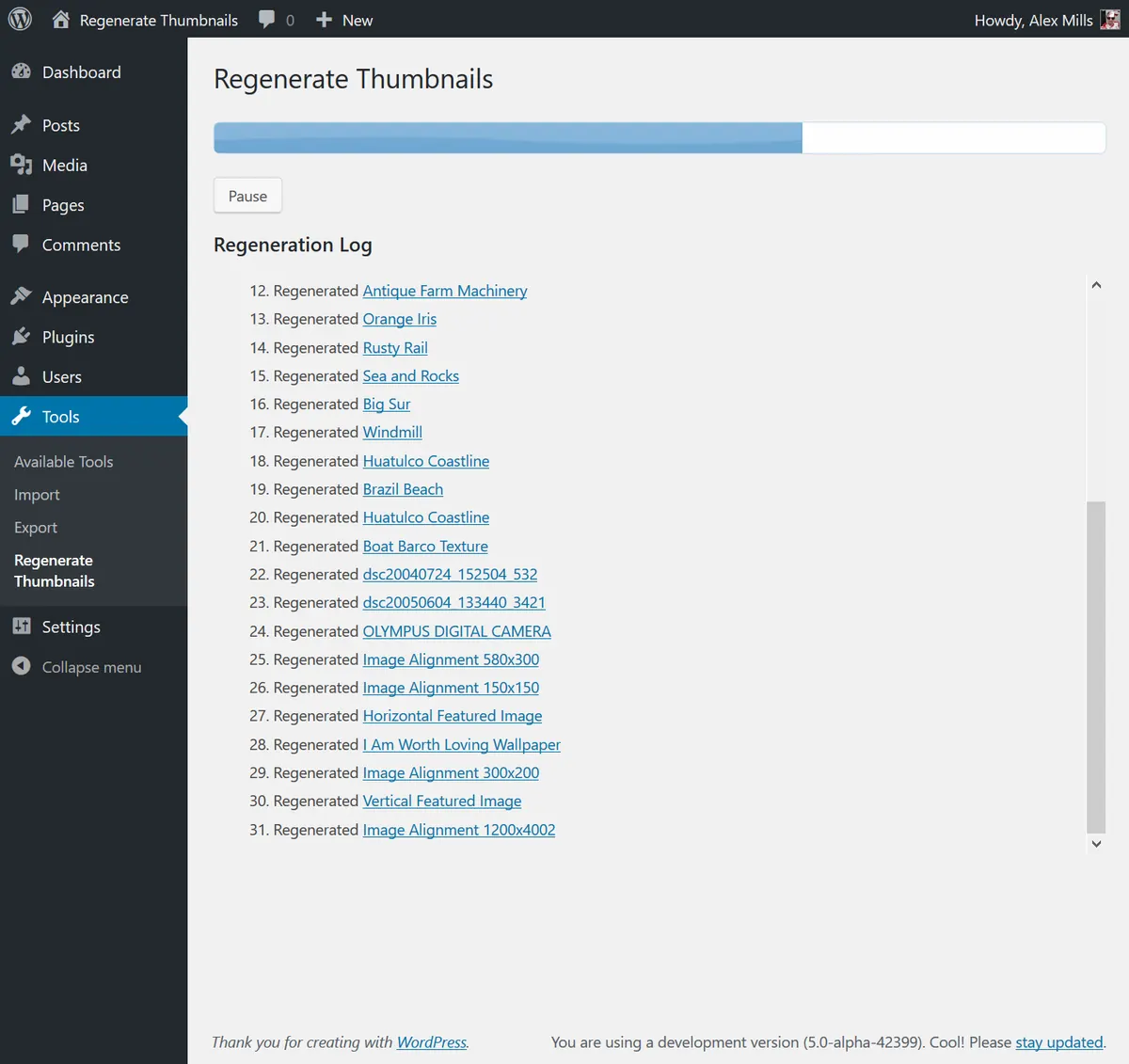
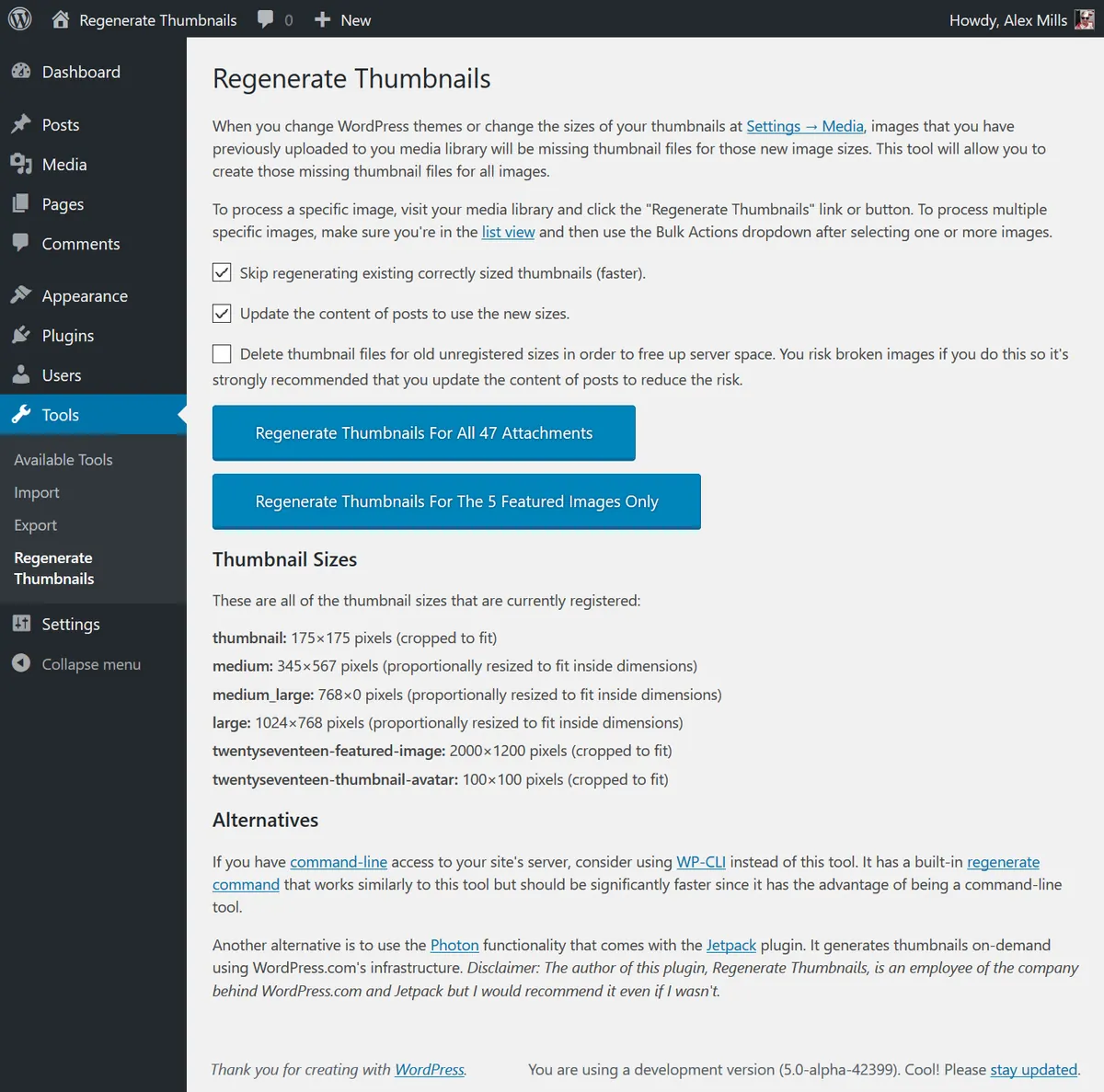
Install the Regenerate Thumbnails plugin (free on WordPress.org, maintained by the folks at Yoast). Run it once from Tools > Regenerate Thumbnails. It rebuilds every registered image size for every image in your media library. On a small site this takes two minutes, on a big site with thousands of images it can take an hour, but it is a background job and does not affect front-end visitors.
Step 7: Check Uploads Folder Permissions
If the file exists on disk but the URL returns 404, the problem is almost always permissions. Log into FTP or the host's file manager and browse to wp-content/uploads. Folders should be 755, files should be 644. Anything more restrictive blocks the web server from serving the image to browsers.
While you are there, look for a .htaccess file inside wp-content/uploads. Some hosts and security plugins drop one in that blocks direct file access as an anti-hotlink measure. If you find one and did not put it there deliberately, rename it to .htaccess.bak and test again. If the image now loads, the rules inside were too aggressive.
# Fix permissions from SSH if you have shell access
find wp-content/uploads -type d -exec chmod 755 {} \;
find wp-content/uploads -type f -exec chmod 644 {} \;
Step 8: Purge Every Cache Layer
Once you have set a featured image on a post that was already cached, the cached copy of the page still has no image reference. You can fix everything else in the stack and the visitor still sees the old broken page until the cache clears. Purge in this order: your page cache plugin first (WP Rocket, W3 Total Cache, LiteSpeed, WP Fastest Cache), then your object cache if you run Redis or Memcached, then your CDN.
Cloudflare in particular caches pages for hours and will keep serving the pre-image version until you either wait or purge manually. Use the Purge Single URL option in the Caching tab and paste the exact URL of the post. Test the result in an incognito window so your browser cache does not lie to you about what the CDN is actually serving.
A Real Client Example
A recipe site sent me a ticket last month where featured images had stopped appearing on new posts. Old posts still showed their images fine. The theme, Kadence, was fully up to date. No plugin changes in weeks. Switching to Twenty Twenty-Four showed the image, so the theme was suspect.
The actual cause turned out to be a lazy load setting inside Kadence's own performance module that had been toggled on during a routine update. It was excluding images above a certain size from lazy loading, but the exclusion rule had a typo that also stripped the src attribute entirely for any image over 500KB. Every new hero image the client uploaded was over that limit. Two clicks in the theme settings fixed it, no template edit, no plugin swap. The lesson is to always check the theme's own performance settings, not just standalone plugins, when the switch-theme test points at the theme.
How to Prevent Featured Image Failures
Always work in a child theme so the_post_thumbnail() calls and add_theme_support declarations survive parent theme updates.
Run Regenerate Thumbnails after every theme switch and after installing any plugin that adds new image sizes. Two minutes now saves a day of confused support tickets later.
Test featured images in an incognito window and on mobile after every major update. If the image is missing on your phone but visible on your laptop, it is a caching issue, not a broken file.
Final Checklist
Run through this before you decide the issue is solved.
- The image appears on the single post page
- The image appears on the blog archive or category page
- The image appears in the WordPress admin post list, if your theme adds a column for it
- The Open Graph preview on Facebook Debugger shows the featured image as og:image
- The image loads in an incognito window with no browser cache
- Regenerate Thumbnails has been run at least once since the last theme change
- Every cache layer has been flushed
Complete Fix Checklist
- 1Confirm the featured image is actually set by opening the post in wp-admin and checking the Featured Image panel on the right sidebar.
- 2Switch to a default theme like Twenty Twenty-Four for two minutes, if the image now appears the problem is in your active theme's template files.
- 3Add add_theme_support('post-thumbnails'); to functions.php if the theme was built without featured image support.
- 4Disable your lazy load and image optimization plugins one at a time and reload the post between each.
- 5Check the wp-content/uploads folder over FTP, permissions should be 755 for folders and 644 for files.
- 6Regenerate thumbnails with the free Regenerate Thumbnails plugin so every registered image size exists on disk.
- 7Purge the page cache, object cache, and CDN in that order, then load the post in an incognito window.
Quick Tips
- If the image shows in wp-admin but not on the front end, the theme is the first place to look, not the media library
- Lazy load plugins that rewrite the img tag are the single most common cause I see after theme issues
- Broken thumbnails after a theme switch almost always mean the new theme registers different image sizes and you need to regenerate
Frequently Asked Questions
Related Guides
Sources and Further Reading
- Uploading files - WordPress.org
- PHP file upload configuration - PHP Manual
More guides in this area: Media troubleshooting hub