
WordPress Theme Broke After an Update: How to Recover It
A theme update wiped your layout or your customizations. Here is how I roll it back without losing content.
What's Happening
A theme update can introduce CSS regressions or, worse, overwrite custom edits to template files.
A theme that worked yesterday and looks broken today is almost always the result of an underlying change: a WordPress core release, a PHP version bump from the host, or a plugin update that reached into the theme's functions. The theme itself rarely rots on its own.
Before rolling anything back, it helps to figure out which of those three changed most recently. The Site Health screen shows the current PHP version, the update log shows the most recent theme and plugin versions, and the host's control panel usually has a PHP switch. Ten seconds of reading saves hours of trial and error.
This guide walks through the four realistic causes of a post-update theme break and the safest way to roll back or patch each one without losing customisations.
Why WordPress Updates Break Your Site
Before we jump into fixing things, it helps to understand why updates cause problems. WordPress, themes, and plugins all interact in a complex ecosystem. An update to one component can sometimes introduce conflicts with another, especially if the site has custom code.
The most common culprit I've seen for theme-related issues is custom code that was directly added to the parent theme's files. When the parent theme updates, those customizations are overwritten, and your site can lose its unique styling or functionality. This is why child themes are so important, as we will discuss later.
Sometimes, the issue is not with your customizations but with the update itself. A specific theme version might have a bug, or it might change how it handles certain features. This can cause CSS regressions, where existing styles no longer apply correctly, or JavaScript errors that break interactive elements on your site. I remember one agency project where a theme update completely changed its templating structure, breaking several custom page templates we had built. It was a mad scramble to rewrite them.
Immediate Steps: Don't Panic, Revert
Your first priority is to get the site back online and looking somewhat normal. The fastest way to do this is usually to revert the problematic update. WordPress has built-in features for this, and there are plugins that make it even easier.
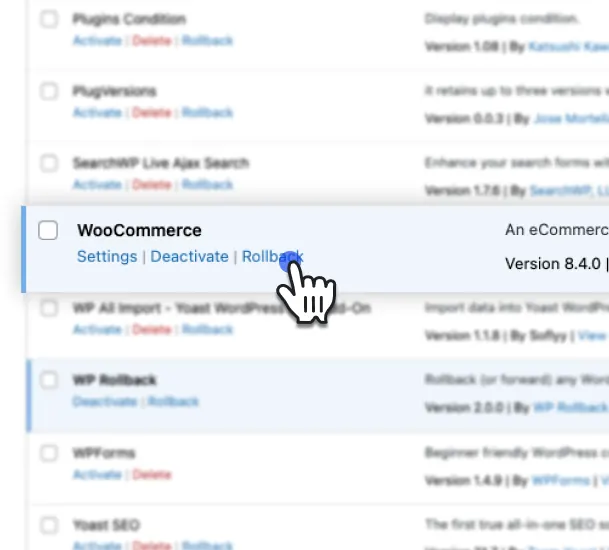
If you updated a plugin or WordPress core and that caused the issue, the WP Rollback plugin is a lifesaver. This plugin lets you revert to previous versions of themes and plugins directly from your WordPress dashboard. I've used it countless times when a recent update went sour, and I needed a quick fix.
For themes, if you don't have WP Rollback, you might need to manually reinstall a previous version. This involves downloading an older version of your theme, often from the theme developer's website or your purchase history, and then uploading it via FTP or your hosting control panel. Always back up your current theme files before attempting a manual rollback, just in case you need them later.
- Install and activate the "WP Rollback" plugin.
- Go to your Plugins page or Themes page in the WordPress dashboard.
- Find the theme or plugin that caused the issue and click "Rollback."
- Select the previous stable version and confirm the rollback.
Checking Backups: Your Safety Net
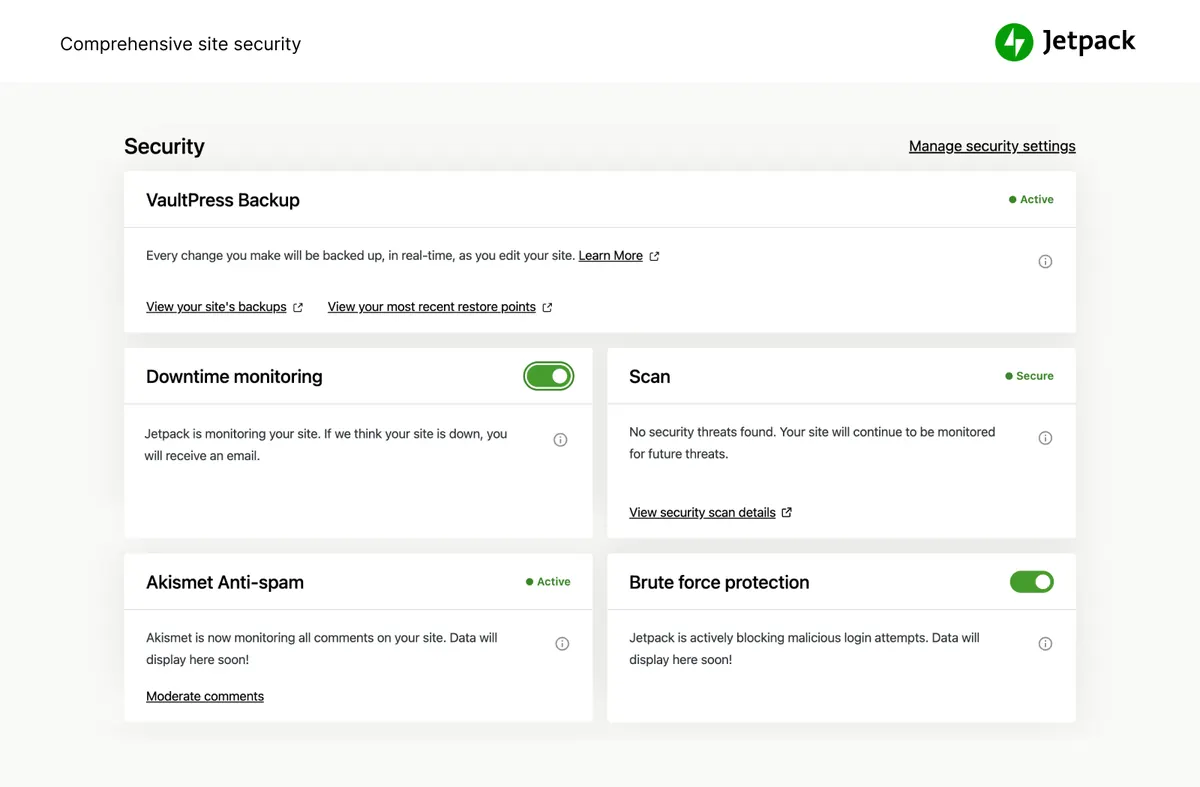
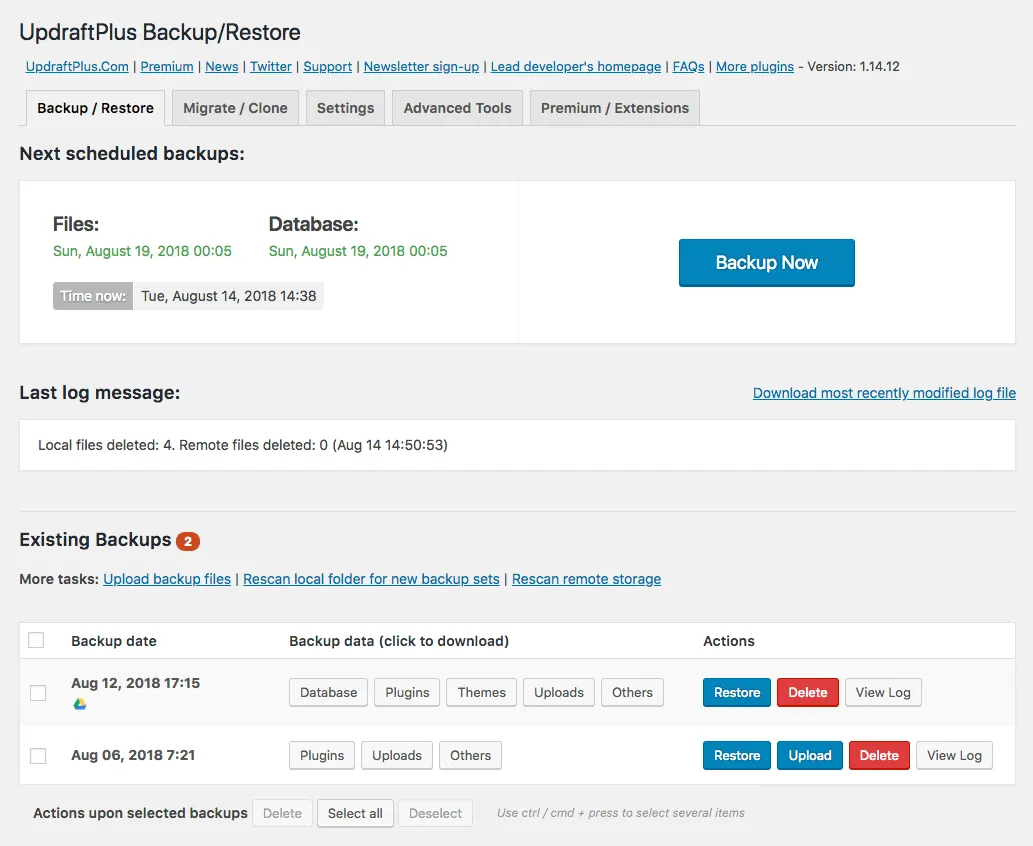
If reverting the update doesn't immediately fix the problem, or if you made changes that were lost, your backup is your next best friend. Hopefully, you have one. Most good hosting providers offer daily backups, and they can help you restore your site to a point before the update.
I once had a client who swore they had backups, but when their site crashed after an update, it turned out their backup solution was misconfigured for months. It was a nightmare. Always verify your backups actually work. Do a test restore on a staging site periodically.
If you have a recent backup, restoring it can bring your entire site back to its pre-update state. Just be aware that any content changes or orders received since that backup was made might be lost. This is why immediate rollback is usually preferred if possible, as it targets only the code change.
Analyzing the Damage: What Exactly Broke?
Once you've recovered, it's time to figure out what actually broke. This step is crucial for preventing future issues. Open your site in a browser and use your browser's developer tools. Right-click on the broken elements and click "Inspect Element."
Look for errors in the browser's console. These often point to JavaScript issues. Also, look at the CSS rules that are applied to the broken elements. Are styles missing? Are there unexpected styles overriding yours? I once spent an hour trying to fix a layout issue only to realize a single CSS rule in the updated theme was setting `display: none;` on a critical element.
Comparing the current broken state with screenshots or memories of how the site *should* look can also help. Pay close attention to colors, fonts, spacing, and the overall layout. If you have a staging site or a local development environment, replicating the update there first can save you a lot of headache on a live site.
The Child Theme Solution: Preventing Future Headaches
If your site broke because custom code was overwritten, a child theme is the definitive solution. A child theme inherits all the functionality and styling of a parent theme but allows you to make modifications without touching the parent theme's files. This means when the parent theme updates, your customizations remain intact.
I tell every new client about child themes. For years, one of my clients had a beautiful, heavily customized site, but every time the parent theme updated, I had to manually re-apply their custom CSS and template modifications. It was a massive waste of time and a source of constant stress until I finally migrated all their customizations into a child theme.
Creating a child theme involves creating a new folder in your themes directory, adding a `style.css` file with specific header information, and often a `functions.php` file to enqueue the parent theme's styles and add custom functions. It's a small upfront investment that pays huge dividends in stability and peace of mind.
/*
Theme Name: My Custom Child Theme
Theme URI: http://example.com/my-custom-child-theme/
Description: A child theme for the Twenty Twenty-Four theme.
Author: Your Name
Author URI: http://example.com
Template: twentytwentyfour
Version: 1.0.0
Text Domain: my-custom-child-theme
*/
Custom CSS and JavaScript: Where to Put It
Even with a child theme, you might have specific CSS or JavaScript customizations. Instead of editing the child theme's `style.css` or `functions.php` directly for every minor tweak, consider using WordPress's built-in Customizer.
The "Additional CSS" section in the WordPress Customizer is perfect for small CSS adjustments. These styles are saved in the database and loaded after your theme's styles, giving them priority without needing to edit any files. For JavaScript, a plugin like "Code Snippets" allows you to add custom JavaScript without modifying theme files.
For more extensive CSS or JavaScript, or if you are developing a child theme, keeping these in separate, well-organized files within your child theme is best. I always create custom CSS files for specific sections or components. It makes debugging much easier when you know exactly where to look for an offending style.
function my_child_theme_enqueue_styles() {
    wp_enqueue_style( 'parent-style', get_template_directory_uri() . '/style.css' );
    wp_enqueue_style( 'child-style', get_stylesheet_directory_uri() . '/style.css', array('parent-style'), wp_get_theme()->get('Version')
    );
}
add_action( 'wp_enqueue_scripts', 'my_child_theme_enqueue_styles' );
Staging Sites: Update with Confidence
The ultimate way to avoid a broken live site after an update is to use a staging environment. A staging site is a clone of your live site where you can test updates, make changes, and experiment without affecting your visitors. Once you're happy with everything, you can push the changes to live.
Every professional WordPress setup I manage includes a staging site. It's not optional. A customer once panicked at 2 AM because a plugin update on their live site broke their entire checkout process right before a Black Friday sale. If they had a staging site, we could have caught that issue beforehand and avoided the emergency.
Many hosting providers offer one-click staging site creation. If yours doesn't, plugins like WP Staging or Duplicator can help you create a staging environment. Make it a routine to test all theme, plugin, and WordPress core updates on your staging site before pushing them to live. This small step eliminates most update-related anxieties.
- Set up a staging site (check your host or use a plugin).
- Clone your live site to the staging environment.
- Perform all updates (theme, plugins, core) on the staging site.
- Thoroughly test all critical functionality, especially areas with customizations.
- If everything looks good, push the changes to your live site.
Complete Fix Checklist
- 1Clear browser, caching plugin, and CDN caches.
- 2If layout is broken, hard refresh and check for stale CSS.
- 3If customizations are gone, restore from backup. Never edit parent theme files directly, use a child theme.
- 4Roll back to the previous theme version with the WP Rollback plugin.
Quick Tips
- Always use a child theme for custom edits
- Take a backup before any theme update
Frequently Asked Questions
Related Guides
Sources and Further Reading
- Using themes - WordPress.org
- Debugging in WordPress - WordPress.org Developer Resources
- Editing wp-config.php - WordPress.org Advanced Administration
More guides in this area: Themes troubleshooting hub