
WordPress Too Many Redirects: How to Stop the Loop
ERR_TOO_MANY_REDIRECTS in WordPress almost always traces to two settings. Here is how to find and fix them.
What's Happening
A redirect loop happens when two rules send the browser back and forth. In WordPress it's almost always a Site URL mismatch or an SSL plugin.
A browser gives up on a page after roughly twenty consecutive redirects and shows ERR_TOO_MANY_REDIRECTS or the WordPress equivalent. Each of those twenty hops is a real HTTP response, and the DevTools Network tab will show every one of them, which is the fastest way to see where the loop begins.
On WordPress, the loop almost always starts at one of four places: the Site URL setting, the HTTPS setting, a caching or CDN redirect, or an .htaccess or nginx rule that fights with the WordPress-generated one.
This guide names each of the four, explains how to read the network waterfall to spot which one is guilty, and gives the exact fix. No guessing, no editing files at random.
What is a Redirect Loop in WordPress?
A redirect loop happens when your browser gets stuck in an endless cycle of being sent from one URL to another, and then back again, or to another, and on and on. It's like being in a maze where every path leads you back to where you started. The browser eventually gives up and displays an error message like ERR_TOO_MANY_REDIRECTS or "This page isn't redirecting properly."
From WordPress's perspective, this usually means there's a disagreement somewhere about the site's address. WordPress thinks it lives at one URL, but your server or a security service tells it to go to another. Then, that other place tells it to go back to the first one, or to a slightly different variation, creating the loop. I've had clients call me, completely baffled, because their site just stopped loading one day, and this was the message they saw.
The core issue is often a conflict between how WordPress is configured and how the server or a caching layer is sending visitors around. It's a fundamental breakdown in communication about where your website actually resides. Pinpointing exactly where that breakdown is, is the key to solving it.
Fix Your WordPress Address Settings
The most common cause of a redirect loop is incorrect WordPress Address (URL) and Site Address (URL) settings. These are found in your WordPress admin under Settings > General. If these two values don't match exactly, or if one is http and the other is https, it can cause problems. I've seen this many times, especially after a site migration or an SSL certificate installation.
For example, if your WordPress Address is https://yourdomain.com and your Site Address is http://yourdomain.com, WordPress will try to redirect to https, but then your server might redirect back to http, causing a loop. Or, if one has 'www' and the other doesn't, that can do it too. A customer once panicked at 2 AM because their site only showed a redirect error after they manually changed one of these without realizing the other needed to match.
If you can still access your WordPress admin, go to Settings > General and make sure both the "WordPress Address (URL)" and "Site Address (URL)" are identical. They should both use 'https' if you have an SSL certificate. If they display 'http' and your site should be 'https', change them both.
If You Can't Access the WordPress Admin
Sometimes, a redirect loop will completely lock you out of the WordPress admin. This is a common and very annoying situation. You can't change the settings from within WordPress because you can't even log in. In these cases, you'll need to update the site URL directly in the database or through your wp-config.php file. I've used both methods countless times when clients are completely locked out.
To do this via wp-config.php, you'll need FTP or file manager access to your site's files. Open your wp-config.php file which is usually in the root directory of your WordPress installation. Add the following two lines right above the line that says "That's all, stop editing! Happy publishing."
Remember to replace 'yourdomain.com' with your actual domain name. Make sure to use 'https' if your site has an SSL certificate. Once you add these lines, save the file and upload it back to your server, overwriting the old one. This hardcodes the URLs and often resolves the loop. Once the site is accessible, you can remove these lines if you prefer to manage the settings through the admin.
define('WP_HOME','https://yourdomain.com');
define('WP_SITEURL','https://yourdomain.com');
Check for Plugin Conflicts
Plugins are another very frequent cause of redirect loops. Security plugins, caching plugins, and SEO plugins are particularly prone to causing these issues because they often deal with URL rewriting and redirects. I've spent hours debugging sites only to find a recently updated caching plugin was misbehaving, causing an endless loop.
If you recently installed or updated a plugin and then saw the redirect error, that's a huge clue. The goal here is to deactivate all plugins to see if the loop disappears. If it does, you've found your culprit. Then, you reactivate them one by one until the error returns, narrowing down the problem plugin.
If you can access your admin, go to Plugins > Installed Plugins, select all of them, and choose "Deactivate" from the bulk actions dropdown. If you're locked out of the admin, you'll need to use FTP or your hosting file manager. Navigate to wp-content/plugins/ and rename the 'plugins' folder to something like 'plugins_old'. This will deactivate all plugins. Once you can access your site, rename the folder back to 'plugins' and then reactivate them one by one from the WordPress admin until the loop returns.
Inspect Your .htaccess File
The .htaccess file is a powerful server configuration file that WordPress uses for permalinks, but it's also a common source of redirect loops if it contains incorrect rules. Bad redirects from old plugins, custom redirects, or even malformed rules can send your site into a spiral. I once dealt with a client's site that had a redirect loop after a migration, and the old host had left some aggressive redirect rules in .htaccess that conflicted with the new environment.
To check your .htaccess file, you'll need FTP or file manager access. It's usually located in the root directory of your WordPress installation. Before you do anything, make a backup of the file. Just download it to your computer or rename it on the server (e.g., .htaccess_old).
Once backed up, you can try replacing the existing .htaccess file with a fresh, default WordPress .htaccess. The default content is quite simple. If replacing it fixes your loop, you know the problem was in your old .htaccess. You can then try to re-add your custom rules one by one, testing after each addition, to find the conflict.
# BEGIN WordPress
<IfModule mod_rewrite.c>
RewriteEngine On
RewriteBase /
RewriteRule ^index\.php$ - [L]
RewriteCond %{REQUEST_FILENAME} !-f
RewriteCond %{REQUEST_FILENAME} !-d
RewriteRule . /index.php [L]
</IfModule>
# END WordPress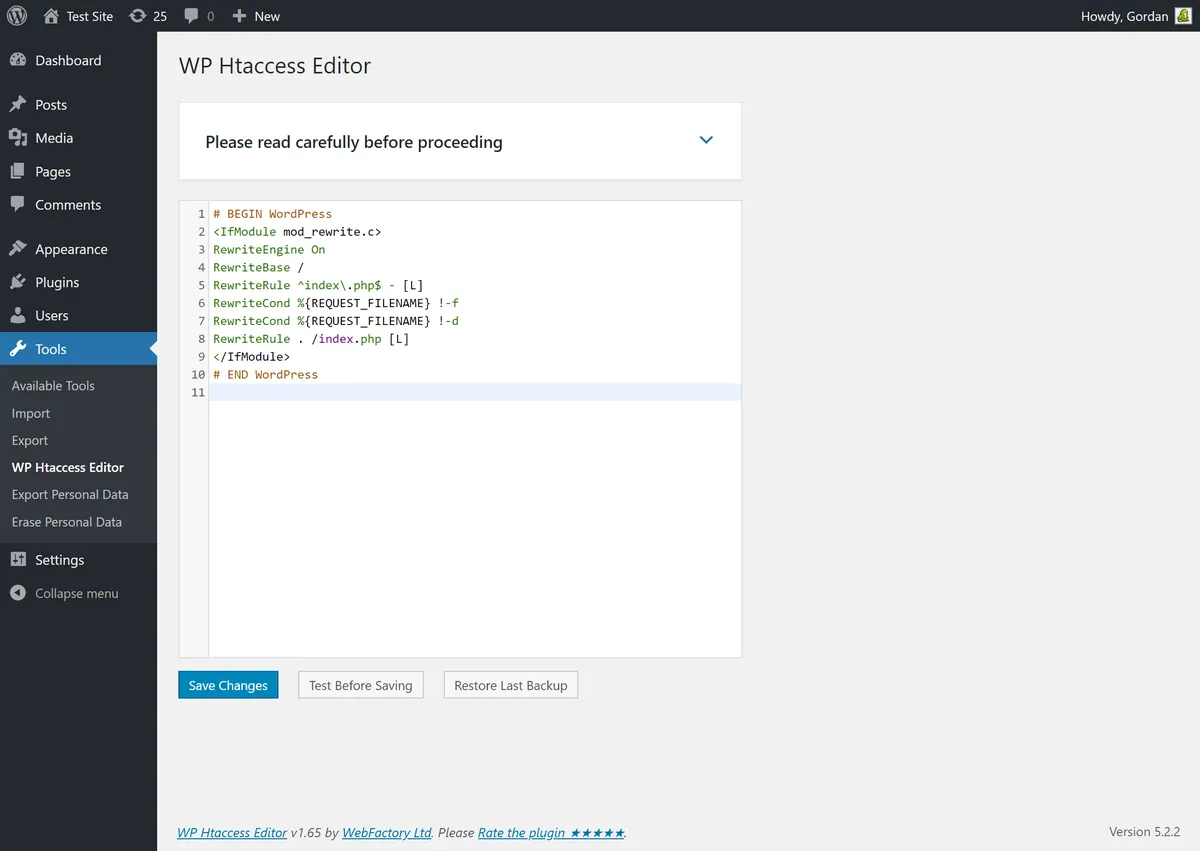
Clear Browser and Server Cache
Caching can sometimes hide the real problem or even cause a redirect loop itself. Browser cache, server-side cache, and CDN cache can all hold onto old redirect rules or conflicting information, even after you've fixed the source of the problem. A while back, I spent a good hour trying to figure out why a client's site was still looping, only to realize my browser's cached redirects were messing with me.
Start by clearing your browser's cache and cookies. This ensures you're getting a fresh look at the site. If the site still loops, purge any server-side cache you might be using, like from a caching plugin (WP Super Cache, W3 Total Cache) or your hosting provider's built-in caching. Most caching plugins have a "Clear Cache" or "Purge All Cache" button in their settings or a toolbar.
Finally, if you use a Content Delivery Network (CDN) like Cloudflare, make sure to clear its cache as well. CDNs often cache redirects, and unless you purge them, they'll keep sending visitors to the wrong place. After clearing all caches, test your site again.
Troubleshooting Cloudflare Flexible SSL
Cloudflare's Flexible SSL option is a very common cause of redirect loops. This happens when you have Cloudflare set to "Flexible SSL" but your hosting server isn't properly configured for SSL, or you've accidentally hardcoded HTTP URLs in WordPress. With Flexible SSL, Cloudflare connects to your visitors over HTTPS, but then it connects to your web server over plain HTTP. If your WordPress site is configured to force HTTPS (either in settings or via .htaccess), then WordPress tries to redirect to HTTPS, Cloudflare tries to serve it over HTTPS but sends HTTP to the server, and the server says "I need HTTPS," creating a loop. I've seen this countless times with clients using Cloudflare.
The fix often involves a few steps. First, ensure your WordPress Address and Site Address are both set to 'https' in your WordPress General Settings or wp-config.php. Next, in your Cloudflare dashboard, go to the SSL/TLS section and change your SSL/TLS encryption mode from "Flexible" to "Full" (or "Full (strict)" if you have a valid SSL certificate installed on your origin server).
If your hosting server doesn't have an SSL certificate installed, you'll need to install one before changing to "Full" SSL in Cloudflare. Many hosts provide free SSL certificates like Let's Encrypt. Another option, if you must use Flexible SSL, is to add a "Always Use HTTPS" Page Rule in Cloudflare. However, I generally recommend using "Full (strict)" SSL if possible, as it provides end-to-end encryption and avoids these common redirect loop headaches. Be aware: if you change to Full and don't have an SSL on your host, your site will show a different error immediately.
Check for Server-Level Redirects
Sometimes, redirects can be happening at the server level, outside of WordPress's direct control. This could be in your server's configuration files (like Apache's httpd.conf or Nginx's configuration files) or through rules configured directly in your hosting control panel. I've encountered situations where a hosting provider, during a server migration, accidentally left an old redirect rule that caused a conflict with a new WordPress setup.
If you've checked all the WordPress-specific settings, plugins, and .htaccess, and your site is still looping, it's a good idea to contact your hosting support. They can check their server logs and configuration to see if any redirects are being applied before WordPress even has a chance to load. This troubleshooting step often requires server-level access that only your host will have.
Explain the ERR_TOO_MANY_REDIRECTS error and the steps you've already taken. Provide them with the exact URL that's looping. They can often spot a conflicting server-side redirect rule quickly. This is often the last resort, but it's a powerful one because it checks the layer completely external to your WordPress installation.
Complete Fix Checklist
- 1Set WP_HOME and WP_SITEURL in wp-config.php to the exact URL you want.
- 2Disable HTTPS/redirect plugins via FTP.
- 3Check Cloudflare SSL mode, use Full or Full (Strict), not Flexible.
- 4Rename .htaccess and resave permalinks.
Quick Tips
- Clear all caches after each change
- Test in incognito to avoid stale 301 redirects in the browser cache
Frequently Asked Questions
Related Guides
Sources and Further Reading
- HTTPS for WordPress - WordPress.org Advanced Administration
- Redirections in HTTP - MDN Web Docs
More guides in this area: SSL & Redirects troubleshooting hub