
WordPress Search Not Returning Results: How to Fix It
The built-in WordPress search returns no results, wrong results, or only old posts. Here is the actual fix, with no plugin spam.
What's Happening
WordPress ships with a search feature that works fine on a 50-post blog but starts missing results on real-world sites with custom post types, custom fields, page builders, or sites that have been migrated. The fix depends on which of those four conditions applies to you.
WordPress search is essentially a LIKE query against wp_posts. It looks at the post title and post content columns, ignores custom fields, ignores taxonomy terms, and gives every match roughly the same relevance. That design is why a search on a real content site so often returns "no results" for terms the reader can clearly see on the page.
Fixing search is really two projects. The first is making the built-in search return the right posts for the terms it is capable of matching. The second is extending search so it covers custom fields, taxonomies, media, and everything else the default query ignores.
This guide covers both, starting with the theme-level and query-level fixes that make the built-in search behave predictably, then moving to the small set of plugins that reliably replace it with something modern.
Step 1: Confirm What 'Not Working' Means
Before reaching for a plugin, pin down the exact failure. Run three test searches: one for a word that is definitely in a post title, one for a word that is only in the post body, and one for a word that is only in a custom field or attribute. Note which return results and which do not. The pattern tells you which layer is broken.
If the title search fails, you have a template or theme problem. If the body search works but custom fields do not, you have hit the default search's limits. If everything returns 'Nothing found' but the database clearly has matching posts, you probably have a caching issue or a broken WP_Query filter.
Step 2: Switch to a Default Theme
Some themes ship a custom search.php template that filters results aggressively. Switching to Twenty Twenty-Four for two minutes tells you whether the theme is at fault. If the search works under the default theme, your custom theme's search.php or its functions.php is interfering with the WP_Query.
If you cannot switch themes on production, copy your search.php aside, replace it with one that just calls the_post() and the_title(), and test again. A bare-bones template removes all theme-side filtering.
Step 3: Add Custom Post Types to the Search
Custom post types are excluded from search by default. If your site uses CPTs for portfolio items, events, or knowledge base articles, you need to opt them in either when registering the CPT or via a pre_get_posts filter.
add_action('pre_get_posts', function($query) {
    if (!is_admin() && $query->is_main_query() && $query->is_search()) {
        $query->set('post_type', ['post', 'page', 'product', 'kb_article']);
    }
});
Step 4: Install Relevanssi or SearchWP for Custom Fields
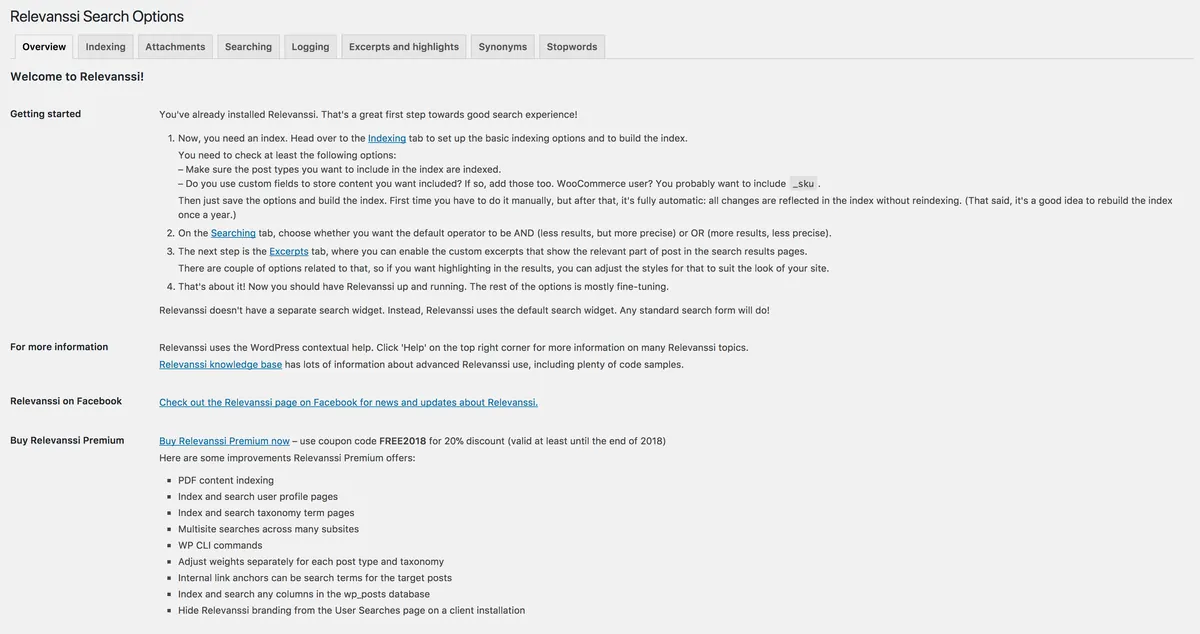
If your content lives in ACF fields, WooCommerce attributes, or page builder modules, the default search cannot see it. Relevanssi (free version is enough for most sites) and SearchWP (paid) both build their own search index that includes custom fields, taxonomies, comments, and shortcode-rendered output.
After installing Relevanssi, go to Settings > Relevanssi > Indexing, tick the post types and custom fields you want included, and click 'Build the index'. The first build can take a minute on a large site, then search becomes near-instant and accurate.
Step 5: Exclude /?s= URLs from Cache
Caching plugins sometimes cache search result pages, which means an empty result page can get served for queries that should return matches. Open your caching plugin settings and add /?s= or */?s=* to the never-cache list.
On Cloudflare, add a Page Rule for *example.com/?s=* with 'Cache Level: Bypass'. On LiteSpeed Cache, the Exclude URI list under Cache > Excludes does the same job. Test after each change with a query that previously failed.
Step 6: Rebuild the Index After a Migration
MySQL FULLTEXT indexes do not always survive a migration cleanly. If search broke immediately after moving hosts, run the SQL below in phpMyAdmin to rebuild the FULLTEXT index on wp_posts.
ALTER TABLE wp_posts DROP INDEX post_search;
ALTER TABLE wp_posts ADD FULLTEXT post_search (post_title, post_content);
When Search Returns Too Many Results
The opposite problem, search returning hundreds of irrelevant results, usually means your content is too uniform. Every page mentions your company name, every product description starts with the same paragraph, and the search engine cannot tell them apart.
The fix is two-part. Edit your boilerplate so it does not appear on every page, and switch to a search plugin that uses relevance scoring (Relevanssi by default) rather than the bare LIKE query. Together they cut a 200-result page down to the 10 to 15 results that actually match the visitor's intent.
Understanding How the Default Search Actually Works
Open the WordPress source and look at WP_Query::parse_search. The query it builds is essentially a SQL LIKE clause against post_title and post_content joined together with OR. There is no stemming, no synonym handling, no field weighting, and no relevance score beyond a basic 'matched in title beats matched in body' bonus.
This explains the weirdest behaviors people report. Searching for 'cats' does not match a post that only uses the word 'cat'. Searching for 'WP-Rocket' does not match 'WP Rocket' because the hyphen is treated as a token boundary. Searching for an exact product code with a slash returns nothing because MySQL's LIKE escapes the slash differently than the visitor typed it.
Once you understand the underlying query, the fix you need becomes obvious. If your problem is stemming or synonyms, you need Relevanssi or Elasticsearch. If your problem is a missing field, you need a pre_get_posts filter. If your problem is the wrong field weighting, you need SearchWP. The default WordPress search cannot do any of those things and no amount of tweaking changes that.
Debugging With a Quick Drop-in
Add the snippet below to a child theme's functions.php to log every search query, the number of results, and the SQL that ran. After a day of real traffic you have a clear picture of what visitors actually search for and which queries return zero results. Most sites discover they have three or four common queries that always fail, and fixing those three pays back the investigation many times over.
add_action('pre_get_posts', function ($q) {
    if (!is_admin() && $q->is_main_query() && $q->is_search()) {
        add_filter('posts_request', function ($sql, $query) use ($q) {
            if ($query === $q) {
                error_log('[search] q=' . $q->get('s') . ' sql=' . $sql);
            }
            return $sql;
        }, 10, 2);
    }
});
When the Search Bar Itself Disappears
A surprising number of 'search not working' tickets turn out to be a missing search form, not a broken search engine. Block themes hide the search block by default in many headers, and classic themes that have been over-customized often have a get_search_form() call that points to a deleted template part.
Open the page that should have the search form, view source, and look for an input named 's'. If it is missing, the problem is the template, not the search. Re-add the search block in the site editor or restore the searchform.php from the parent theme.
Why WooCommerce Product Search Deserves Its Own Plugin
WooCommerce ships its own search override that searches product titles, short descriptions, long descriptions, and SKUs. It does not search attributes, variations, or custom fields, which is exactly where serious WooCommerce shops put the data buyers actually search for.
If your shop has size, color, or material attributes, install FiboSearch (formerly AJAX Search for WooCommerce). It indexes attributes, variations, and SKUs, and it adds the live dropdown that converts browsing visitors into buyers. The free version handles most sites and the upgrade is one of the highest-ROI plugins you can buy for a product catalog.
For shops with thousands of products, pair FiboSearch with a real search backend like Algolia or Elasticsearch. The search latency drops from seconds to milliseconds and the dropdown becomes usable for visitors on slow connections.
Indexing Schedule for a Healthy Search Plugin
Relevanssi and SearchWP rebuild their index incrementally on save, which works fine for most editorial sites. On large WooCommerce shops the incremental update can fall behind because of bulk import scripts that bypass the normal save hooks.
Schedule a nightly full reindex via WP-Cron or a real cron job hitting wp-cli. The command for Relevanssi is `wp relevanssi index --rebuild` and for SearchWP it is `wp searchwp index --rebuild`. A 50,000-product shop rebuilds in about 20 minutes on standard hosting, and a fresh index every morning means visitors never see stale results after an overnight catalog update.
# Add to your server crontab
0 3 * * * cd /var/www/example.com && wp relevanssi index --rebuild --quiet >> /var/log/relevanssi.log 2>&1
Final Sanity Checks Before You Close the Ticket
Run the same three test searches you used to confirm the failure. Then try one new test that no one used during the build: a partial word, a misspelling, and a multi-word phrase that spans the title of one post and the body of another. If all four return sensible results, the search is genuinely fixed and not just patched.
- Search a rare title word
- Search a rare body word
- Search a custom field value
- Search a deliberately misspelled term
- Search a phrase that should match across multiple posts
Complete Fix Checklist
- 1Confirm the broken search is on the front end, not the wp-admin search, the two use different code paths.
- 2Test with a single rare word that you know exists in a published post.
- 3Switch to the default Twenty Twenty-Four theme briefly, a custom search.php template can silently swallow results.
- 4Install Relevanssi or SearchWP if you need custom post types or custom fields searched.
- 5If the database recently moved hosts, rebuild the search index, the old MySQL FULLTEXT index does not always survive a migration.
Quick Tips
- The default WordPress search only looks at post title and post content, not custom fields, not ACF, not WooCommerce attributes
- Page builder content stored as shortcodes is often invisible to the default search
Frequently Asked Questions
Related Guides
Sources and Further Reading
- WordPress support documentation - WordPress.org
- Debugging in WordPress - WordPress.org Developer Resources
- Editing wp-config.php - WordPress.org Advanced Administration
More guides in this area: Site Features troubleshooting hub