
WordPress Mixed Content Warning: How to Fix HTTPS Errors
Get rid of the Not Secure padlock warning and the missing images that come with it after switching to HTTPS.
What's Happening
After switching to HTTPS, browsers warn if any image, script, or stylesheet still loads over HTTP. The fix is to update every URL.
After migrating a WordPress site to HTTPS, the browser often shows a broken padlock and quietly refuses to load some images, scripts, or fonts. The console will label them as "Mixed Content" and list the exact URLs, which is where the fix has to start.
Mixed content is not a WordPress bug. It is content in the database or theme that still points at http:// while the page itself loads over https://. Modern browsers block the insecure requests to protect the visitor, which is why the site looks half broken.
This guide covers the two-part fix used on managed hosting migrations: a database search-and-replace for the http:// URLs in the options and post content, and a small set of theme adjustments for links that are hard-coded in files.
What Mixed Content Is and Why It Happens
Mixed content in WordPress means your website is trying to load some elements over a secure HTTPS connection and other elements over an insecure HTTP connection. Your browser sees this and, for your visitors' safety, displays a warning. This warning usually says "Not Secure" in the address bar where the padlock icon should be.
This problem often appears after you've installed an SSL certificate and switched your WordPress site from HTTP to HTTPS. You might think everything is secure because your site address starts with HTTPS, but behind the scenes, WordPress might still be calling for old HTTP assets.
The reason this happens is usually because some links to images, videos, stylesheets, or JavaScript files were hardcoded with HTTP in your database or directly in your theme files. WordPress doesn't always update every single instance of your URL when you make the switch. It's like moving to a new house and forgetting to tell the post office to forward all your mail.
Check Your WordPress General Settings
The very first place I always check when a client reports a mixed content error is the WordPress General Settings. This is a quick fix if the problem is just a simple oversight in how WordPress itself is configured.
Go to your WordPress dashboard, then click on "Settings" and then "General." You'll see two fields: "WordPress Address (URL)" and "Site Address (URL)." Both of these need to be set to HTTPS.
If either of these are still showing HTTP, change them to HTTPS and save your changes. Sometimes, this simple step is all it takes to resolve the issue. If you can't access your admin area after changing these, you might need to adjust them in your `wp-config.php` file, which I'll cover next. I have seen situations where making this change here breaks the site's admin access. If that happens, do not panic, just revert the settings in the `wp-config.php` file.
define('WP_HOME','https://yourdomain.com');
define('WP_SITEURL','https://yourdomain.com');
Update URLs in the WP-Config.php File
If you can't access your WordPress admin area or if the General Settings aren't saving correctly, you can force WordPress to use HTTPS by adding a few lines to your `wp-config.php` file.
This file is located in the root directory of your WordPress installation. You'll need to access it via FTP or your hosting control panel's file manager. Before you make any changes, always download a copy of `wp-config.php` as a backup. I once had a client who skipped this step and accidentally locked themselves out completely.
Add the following lines of code just above the `/* That's all, stop editing! Happy publishing. */` line. Remember to replace `yourdomain.com` with your actual domain name. This forces WordPress to recognize your site and home URLs as HTTPS, overriding any database settings. If you already changed Settings, then remove these from wp-config.php after you fix the problem.
define('WP_HOME','https://yourdomain.com');
define('WP_SITEURL','https://yourdomain.com');
Use a Search and Replace Plugin for Database URLs
Often, the mixed content issue comes from old HTTP URLs stored directly in your WordPress database. These can be links to images in posts, custom fields, or even theme options. Manually finding and updating every single one of these links would be impossible for a large site.
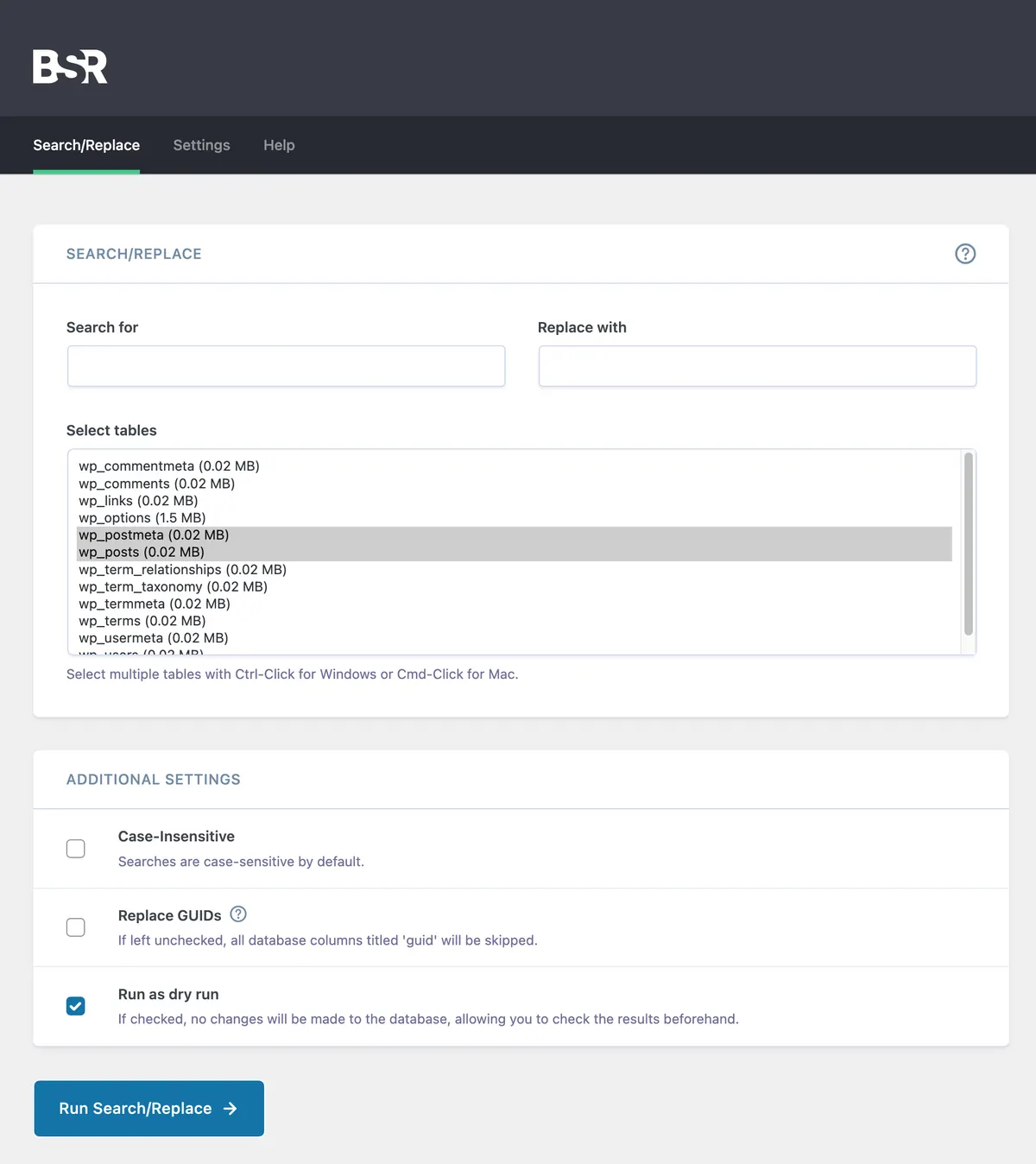
This is where a plugin like "Better Search Replace" comes in handy. It allows you to search your entire database for old HTTP URLs and automatically replace them with the correct HTTPS ones. This is my go-to solution for comprehensive URL updates.
Install and activate "Better Search Replace." You'll find it under "Tools" > "Better Search Replace." In the "Search for" field, enter your old HTTP URL, for example, `http://yourdomain.com`. In the "Replace with" field, enter your new HTTPS URL, for example, `https://yourdomain.com`. Make sure you select all tables in your database. It's a good idea to run a dry run first to see what changes it will make before you commit.
// Example of using Better Search Replace
// Search for: http://yourdomain.com
// Replace with: https://yourdomain.com
// Select all database tables.
Check for Hardcoded Links in Theme and Plugin Files
Sometimes, even after updating the database, you might still have mixed content warnings. In these cases, the problem is often hardcoded HTTP links directly within your theme or plugin files. This is less common with well-coded themes, but I've certainly seen it on older sites or custom themes.
You'll need to manually inspect your theme files, especially `header.php`, `functions.php`, and any template files that load assets like images or scripts. The same goes for any custom plugins you might be using. Look for any occurrences of `http://yourdomain.com` and change them to `https://yourdomain.com`.
This step requires a bit more technical comfort, as you're directly editing code. Always use a child theme for any theme modifications, and back up files before you edit them. If you find a hardcoded HTTP link in a third-party plugin, contact the plugin developer, as updating the plugin will overwrite your changes.
<img src="http://yourdomain.com/image.jpg">
// Change to:
<img src="https://yourdomain.com/image.jpg">
Use a Plugin for Automatic SSL Rewrites
If you've tried the above steps and are still seeing mixed content warnings, or if you prefer a more automated approach, several WordPress plugins can help. These plugins essentially force all HTTP requests to load over HTTPS, rewriting URLs on the fly.
Plugins like "Really Simple SSL" or "SSL Insecure Content Fixer" are popular choices. They work by detecting insecure HTTP content and replacing it with HTTPS, usually without you having to do much configuration. These are often a great quick fix, but I always prefer to get the core site config right first.
While these plugins are convenient, they can sometimes add a small performance overhead. I generally recommend fixing the underlying issue with the database and hardcoded links first. However, for a site with a lot of scattered mixed content, they can be a lifesaver.
- Really Simple SSL
- SSL Insecure Content Fixer
Troubleshooting Specific Assets
Sometimes, the mixed content warning is caused by a very specific asset, like a single image or an iframe from an external source. Your browser's developer tools can help you pinpoint exactly what's causing the problem. This is how I debugged that first late-night client emergency.
In most browsers, you can right-click on your page and select "Inspect" or "Inspect Element." Go to the "Console" tab. Here, you'll often see warnings or errors related to mixed content, showing you the exact URL that's loading insecurely. This tells you what you need to fix.
Once you identify the problematic URL, you can trace it back. Is it an image in a post? An old embed code? A custom script? Knowing the exact source makes it much easier to go back to the relevant section outlined above and apply the correct fix, whether it's updating a database entry or editing a theme file.
What About the GUID Column?
For years, there's been debate in the WordPress community about updating the GUID (Globally Unique Identifier) column in the `wp_posts` table during a search and replace operation. The GUID is a unique identifier for each post, page, and custom post type.
WordPress documentation historically advised against changing the GUID, stating it should never be changed. This is because it's meant to be a permanent identifier, especially for things like RSS feeds where external services rely on it to track content. However, when migrating a site from HTTP to HTTPS, many people wonder if they should update it there too.
My professional advice, based on years of experience, is to leave the GUID column alone unless you have a very specific reason to change it and understand the potential implications for RSS feeds and third-party integrations. Focus on updating all other instances of your URL in your database. Changing the GUID is rarely, if ever, necessary for an SSL mixed content fix and can introduce new problems.
Complete Fix Checklist
- 1Install Better Search Replace.
- 2Search for http://yoursite.com and replace with https://yoursite.com (skip GUID column).
- 3Update WP_HOME and WP_SITEURL in wp-config to the HTTPS version.
- 4Clear all caches and re-test.
Quick Tips
- Take a database backup before search-replace
- Avoid the Really Simple SSL plugin long-term, fix the URLs once
Frequently Asked Questions
Related Guides
Sources and Further Reading
- HTTPS for WordPress - WordPress.org Advanced Administration
- Redirections in HTTP - MDN Web Docs
More guides in this area: SSL & Redirects troubleshooting hub