
Error Establishing a Database Connection: How to Fix It
Your site can't reach its database. Here's how to find out why and restore service.
What's Happening
This error means WordPress cannot connect to MySQL. The cause is usually wrong credentials in wp-config, a downed database server, or corrupted tables.
When WordPress prints "Error establishing a database connection," the front end never gets past the very first bootstrap step. The database has all the posts, options, and user records the theme needs to render anything, so a broken connection produces the same blank error no matter which page is requested.
The message covers four distinct failure modes: wrong credentials in wp-config.php, an unreachable database host, a corrupted database, or a server that has hit its connection limit. Each one needs a different check, and running them in the wrong order wastes time.
This guide covers the four causes in the order a WordPress engineer would test them, starting with a two-line credentials check that solves the majority of tickets and only moving on to repair tools if the simple checks come back clean.
Your wp-config.php File Has Incorrect Database Credentials
The wp-config.php file is like the key to your WordPress site's database. It is where you tell WordPress the database name, username, password, and host it needs to connect. If any of these bits of information are wrong, WordPress will not be able to open the database's door. This is often the first place I check, especially if a client just migrated a site or if their hosting provider changed something.
I once had a client who swore they had not touched anything, but their database connection suddenly broke. After some digging, it turned out their hosting provider had updated their database password for "security reasons" and not properly informed the client. Updates like that require a corresponding change in wp-config.php.
Even a tiny typo, a missing character, or an extra space can cause this error. It is a common mistake when manually editing the file. Always double-check every character against the credentials provided by your hosting company.
define('DB_NAME', 'database_name_here');
define('DB_USER', 'username_here');
define('DB_PASSWORD', 'password_here');
define('DB_HOST', 'localhost');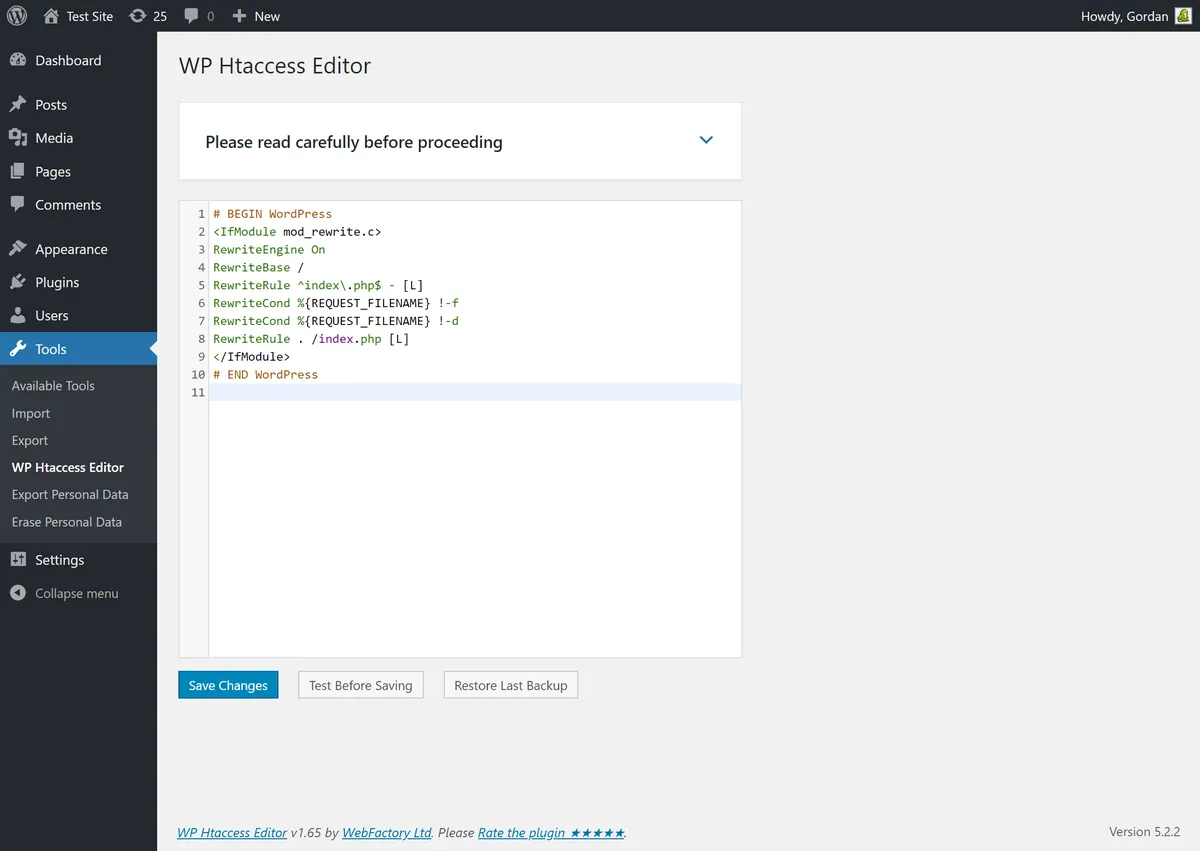
How to Verify and Correct Database Credentials
To start, you need to connect to your website's files. You can use an FTP client, like FileZilla, or your hosting control panel's file manager. Once connected, locate the wp-config.php file in the root directory of your WordPress installation. This is usually the same directory where you see wp-admin and wp-content folders.
Open the wp-config.php file with a plain text editor. You are looking for the lines that define DB_NAME, DB_USER, DB_PASSWORD, and DB_HOST. These are the four crucial pieces of information WordPress uses to connect to your database.
You will need to compare these values with the actual database credentials. Your hosting provider usually provides these in your control panel, often in a "Databases" or "MySQL Databases" section. If you can not find them, contact your host's support. They can give you the correct details.
- Access your website files using FTP or your hosting's file manager.
- Locate `wp-config.php` in the root directory and open it with a text editor.
- Find the `DB_NAME`, `DB_USER`, `DB_PASSWORD`, and `DB_HOST` definitions.
- Log in to your hosting control panel (e.g., cPanel, Plesk).
- Locate your MySQL databases section. This is where your actual database name, username, and host are listed. You might need to reset the password here if you are unsure or want to set a new one.
- Compare the values in `wp-config.php` with the ones from your hosting control panel. Correct any discrepancies.
- Save the `wp-config.php` file and upload it back to your server, overwriting the old one. Clear your browser cache and check your site.
Your Database Server Might Be Down
Sometimes, the problem is not with your WordPress configuration, but with the database server itself. This is less common with large, reliable hosting providers, but it does happen. Think of it like your electricity going out, completely beyond your control. When the database server is down, no website on that server can connect to its database.
I remember a weekend when a major hosting provider had an unexpected outage. All my clients hosted there went down with this exact error. There was nothing to do but wait for the host to fix their servers. It is a frustrating situation because your wp-config.php could be perfect, but the actual database service is simply unavailable to respond.
If you have multiple WordPress sites on the same hosting account, and they are all showing the "Error Establishing a Database Connection" message, that is a very strong indicator that the database server, or perhaps the entire hosting server, is having issues.
How to Check Your Database Server Status
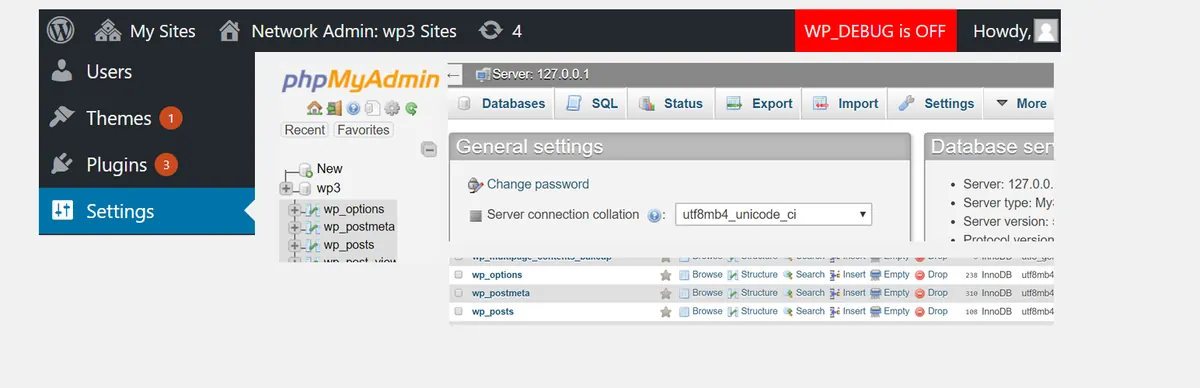
The easiest first step is to check if other sites on your hosting account are also down. If they are, it points to a server-wide issue. Next, try to access your database through your hosting control panel, for example, using phpMyAdmin. If you can not log in or see your databases, it confirms an issue with the database server.
Most hosting providers have a system status page. Look for this on their website. It will tell you if they are experiencing any known outages or maintenance. This is the official word on server health.
If you suspect a server issue, the best course of action is to contact your hosting provider's support team directly. They can confirm if there is a server problem and give you an estimated time for resolution. Be prepared to provide them with your domain name and any other relevant account information.
- Check if other websites on your hosting account are also experiencing the error.
- Try to access your database using phpMyAdmin or a similar tool in your hosting control panel.
- Visit your hosting provider's system status page for any reported outages or maintenance.
- Contact your hosting provider's support team for confirmation and an estimated time to resolution.
Your WordPress Database May Be Corrupted
Database corruption is like a few pages falling out of a physical book. Most of the book is there, but some crucial information is missing or jumbled, making it impossible to read. This can happen due to various reasons, such as a server crash in the middle of a database operation, a buggy plugin, or even a malicious attack. When your database tables are corrupted, WordPress can not properly retrieve the data it needs, leading to the connection error.
I once saw a database corruption after a client's website was hacked. The attacker had injected malicious code into some database tables, which then broke the entire database structure. This is a severe form of corruption, but sometimes it is simpler, like a single table becoming unreadable.
While less common than incorrect credentials or a down server, database corruption does happen. It is often indicated when the site was working fine, and then suddenly, the error appeared without any configuration changes on your part. Thankfully, WordPress has a built-in feature to attempt repairs.
How to Repair a Corrupted Database
WordPress includes a hidden repair utility that you can enable. To do this, you need to edit your wp-config.php file again. Add the following line of code anywhere above the `/* That is all, stop editing! Happy blogging. */` line:
After adding this line, save the file and upload it back to your server. Now, you can access the repair utility by going to `yourdomain.com/wp-admin/maint/repair.php` in your browser. You will see an option to "Repair Database" or "Repair and Optimize Database."
Click the "Repair Database" button. WordPress will then attempt to fix any corrupted tables. This process can take a few minutes, depending on the size and extent of the corruption. Once complete, remove the `define('WP_ALLOW_REPAIR', true);` line from your `wp-config.php` file for security reasons. Then, check your website to see if the error is resolved.
- Add `define('WP_ALLOW_REPAIR', true);` to your `wp-config.php` file.
- Save and upload the updated `wp-config.php` file.
- Visit `yourdomain.com/wp-admin/maint/repair.php` in your browser.
- Click on "Repair Database" or "Repair and Optimize Database."
- Once the repair is complete, remove the `define('WP_ALLOW_REPAIR', true);` line from `wp-config.php`.
- Check your website.
define('WP_ALLOW_REPAIR', true);Complete Fix Checklist
- 1Open wp-config.php and verify DB_NAME, DB_USER, DB_PASSWORD, and DB_HOST.
- 2Log into your hosting panel and confirm the database is online.
- 3Test the password by logging into phpMyAdmin with the same credentials.
- 4If connection works but pages still error, visit /wp-admin/maint/repair.php to repair tables.
- 5If nothing works, contact your host, the DB server may be down.
Quick Tips
- Take a backup of wp-config before editing
- Don't change DB_HOST unless your host tells you to
- Repair mode requires define('WP_ALLOW_REPAIR', true);
Frequently Asked Questions
Related Guides
Sources and Further Reading
- Automatic database optimizing (WP_ALLOW_REPAIR) - WordPress.org Advanced Administration
- REPAIR TABLE statement - MySQL 8.0 Reference Manual
- Debugging in WordPress - WordPress.org Developer Resources
- Editing wp-config.php - WordPress.org Advanced Administration
More guides in this area: Database troubleshooting hub