
Fatal error: Allowed memory size exhausted in WordPress? Here's the real fix
The 'Allowed memory size of X bytes exhausted' fatal is one of the most misdiagnosed WordPress errors. Most guides tell you to bump WP_MEMORY_LIMIT in wp-config.php and call it done. On half the hosts I work with, that line does nothing. Here is what the error actually means, how to find the real memory cap on your host, and how to raise it without hiding a memory leak.
What's Happening
You open the site or the wp-admin dashboard and instead of a page you get a white screen with a line that starts with 'Fatal error: Allowed memory size of 134217728 bytes exhausted' followed by a file path and a line number. Sometimes the number is 268435456 (256M), sometimes 67108864 (64M). Either way PHP has hit its ceiling and the request died before WordPress could finish rendering. The fix is not always to raise the number. Sometimes the fix is to figure out which plugin is eating 400M of RAM on a single admin page load.
The memory exhausted fatal is the WordPress error that most confidently ignores your fix attempts. You paste the WP_MEMORY_LIMIT snippet from a top-ranking blog post, save wp-config.php, reload the page, and see the exact same error with the exact same byte count. Nothing changed. That is not a broken snippet, that is the snippet doing what it was designed to do while a completely different cap somewhere else on the server holds the real ceiling.
The reason this error is so slippery is that PHP memory in a WordPress stack has at least four possible caps stacked on top of each other: the host's php.ini, a .user.ini file the panel writes on your behalf, the FastCGI or PHP-FPM pool config, and WordPress's own WP_MEMORY_LIMIT. Any one of them can be the lowest, and the lowest one wins. Raising a higher one has no effect until you find and raise the actual bottleneck.
The other reason people struggle with this error is that raising the limit is often the wrong answer. If a plugin is leaking memory, doubling the cap just delays the crash. This guide walks through both sides: how to raise the real limit on every common host, and how to find the leak when raising it stops helping.
Read the error message before you touch anything
The full fatal usually reads something like 'Fatal error: Allowed memory size of 268435456 bytes exhausted (tried to allocate 20480 bytes) in /home/user/public_html/wp-content/plugins/some-plugin/includes/class-loader.php on line 217'. Three pieces of that message matter.
The byte count tells you the current cap: 134217728 is 128M, 268435456 is 256M, 536870912 is 512M. The file path tells you which file was running when memory ran out, which is often a hint (not a verdict) about the guilty plugin. The 'tried to allocate' number tells you how close the request came before dying, a tiny allocation like 20 bytes usually means the request was already at 99 percent of the cap when it asked for one more object.
Do not skip this step. If the file path points to wp-includes/class-wp-hook.php or a plugin's autoloader, the leak is almost certainly upstream of that file and you need Query Monitor to see it. If it points to a specific report file inside a plugin like /woocommerce/includes/admin/reports/, you have already found the culprit.
Find the true memory_limit, not the one wp-config claims
There are two reliable ways to see the real memory ceiling your site is running under. The first is Tools > Site Health > Info > Server inside wp-admin. The row labelled 'PHP memory limit' is what PHP is actually enforcing right now. The row labelled 'PHP max input variables' and 'PHP time limit' will also matter on big admin pages.
The second way is a one-line phpinfo file. Create phpcheck.php at the site root with a single line: <?php phpinfo(); and load yourdomain.com/phpcheck.php in a private browser tab. Search the page for memory_limit. You see two columns: Local Value (what is active for this request) and Master Value (what the server default is). Delete the file the moment you are done, leaving a phpinfo dump exposed is a real security risk.
If Local Value shows 128M and your wp-config.php sets WP_MEMORY_LIMIT to 512M, WordPress is being overruled by the host. That means you need to raise the limit at the host level, not in wp-config.
Raise the limit in wp-config.php (works on generic hosting)
This is the first thing to try. It works on most cPanel hosts and any environment where the host has not explicitly locked memory_limit. Open wp-config.php, and above the 'That's all, stop editing' comment, add two lines. WP_MEMORY_LIMIT sets the front-end and general limit, WP_MAX_MEMORY_LIMIT sets the higher ceiling used for admin pages and cron.
// Raise WordPress memory ceiling. PHP memory_limit must be at least as high.
define( 'WP_MEMORY_LIMIT', '256M' );
define( 'WP_MAX_MEMORY_LIMIT', '512M' );
Raise it in php.ini or .user.ini when wp-config is ignored
If Site Health still shows the old memory limit after the wp-config change, the host has locked ini_set. In that case you need to raise memory at the PHP config level. On most cPanel hosts you can drop a .user.ini file in the site root with a single line and it takes effect within a few minutes.
On some older shared setups you use php.ini instead of .user.ini in the same location. If neither takes effect, the setting is being locked at the pool level and only your host can raise it.
; .user.ini or php.ini at the WordPress root
memory_limit = 512M
max_execution_time = 120
max_input_vars = 3000
Raise it through the hosting control panel
This is the fastest path on hosts that lock PHP config files. On cPanel look for MultiPHP INI Editor under the Software section, pick the domain, and edit memory_limit directly. Save and reload.
On Plesk go to Websites & Domains > PHP Settings and change memory_limit from the dropdown. On SiteGround use Site Tools > Devs > PHP Manager > PHP Variables and edit memory_limit there. On Kinsta, WP Engine, Pressable, and Cloudways you cannot change this at all, memory is set at the plan level, and you need to either upgrade the plan or ask support to raise the account-level cap.
When raising the limit stops helping: find the memory leak
If you have already raised the limit once and the error is back, do not raise it again. A site that legitimately needs more than 512M on a page load is rare. Almost every time I see repeated memory errors on a growing limit, the cause is a plugin that scales badly with data size.
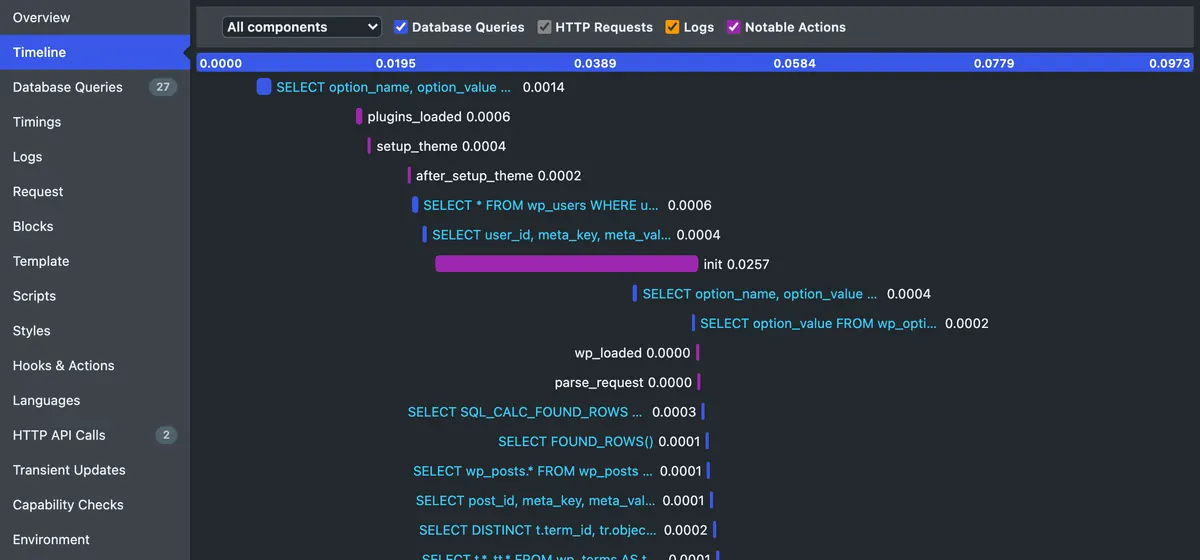
The tool for this job is Query Monitor. Install it, load the failing page, and open the panel at the bottom. The Queries by Component section shows which plugin issued the most queries and used the most memory. If one plugin is responsible for 80 percent of the queries or the memory footprint, you have your culprit.
The second thing to check is the wp_options table. WordPress autoloads every row where autoload equals yes on every single request. If a plugin dumped a giant serialised array into an autoloaded option (I have seen 40MB rows), that alone pushes memory past the limit before WordPress does anything else.
-- Find bloated autoload rows in wp_options
SELECT option_name, LENGTH(option_value) AS size_bytes, autoload
FROM wp_options
WHERE autoload = 'yes'
ORDER BY size_bytes DESC
LIMIT 20;
Use Health Check troubleshooting mode to isolate a plugin
Install the official Health Check & Troubleshooting plugin. Open Tools > Site Health > Troubleshooting > Enable Troubleshooting Mode. This deactivates every plugin and swaps to a default theme for your session only, live visitors keep seeing the normal site.
Now load the page that was failing. If it works, re-enable plugins one at a time from the top admin bar and reload the failing page after each. The plugin that brings the memory error back is your suspect. This method takes 10 minutes on a site with 20 plugins and it is safer than deactivating everything in production.
A support case that changed how I think about this error
A membership site running on a mid-tier Hostinger plan kept throwing 'Allowed memory size of 536870912 bytes exhausted' every time an admin tried to load the members list. 512M is already a generous cap for WordPress. The owner had been raising it every few months as the site grew, from 128 to 256 to 512, and the error always came back.
The problem was not the limit. A caching plugin was writing a serialised member cache to an autoloaded option, and the option had grown to 34MB. Every single admin page was pulling 34MB of data into memory before WordPress did anything else. Trimming the autoload and moving the cache to a proper transient took the memory footprint on that page from 480M to 90M. The 512M limit that felt tight suddenly felt oversized.
That is the pattern to watch for: if raising the limit only buys you a few months before the error returns, you are treating a symptom. Find the row, the query, or the plugin that grows with your data and fix it at the source.
When it is the host, not you
Some shared hosting plans hard-cap PHP memory at 128M and nothing you do on the site side can raise it. If Site Health shows 128M, your wp-config sets 512M, your .user.ini sets 512M, and the control panel does not have a memory setting, you are on one of those plans. The answer is either to upgrade to the next tier (most hosts raise it to 256M or 512M automatically on the next plan up) or to move the site to a host that treats memory as configurable.
Managed WordPress hosts like Kinsta, WP Engine, and Pressable set memory at the account level and support responds to memory bump requests in minutes if your plan allows it. Do not spend hours fighting a cap that a two-line ticket can fix.
Final checklist
Run through this before you close the tab and consider the site fixed.
- You have read the full fatal message and noted the byte count, file path, and allocation size
- Site Health > Info > Server confirms the real memory_limit matches what you set
- wp-config.php has WP_MEMORY_LIMIT and WP_MAX_MEMORY_LIMIT defined explicitly
- If wp-config was ignored, you have raised memory in .user.ini or the hosting control panel
- The failing page loads without a memory error and the same page loaded under normal traffic does not spike CPU or crash
- You have checked wp_options for oversized autoload rows and cleared any obvious offenders
- If the fix required raising memory above 512M, you have opened Query Monitor and understand what is using the extra memory
Complete Fix Checklist
- 1Read the fatal message carefully and note the byte count, the file path, and the line number, that is your first clue about what triggered it.
- 2Check the true PHP memory_limit with a phpinfo() probe or your host's control panel, not just wp-config.php.
- 3Raise the limit in the right place for your host: wp-config.php, php.ini, .user.ini, or the hosting control panel.
- 4If the error keeps coming back at a higher limit, stop raising and start hunting the memory leak with Query Monitor or the debug log.
- 5Rule out the two silent memory killers: an oversized autoload row in wp_options and a plugin doing a full-table query on every admin page.
Quick Tips
- WP_MEMORY_LIMIT can never exceed the underlying PHP memory_limit set by the host, if they clash the host wins
- Raising memory above 512M on shared hosting is a bandage, not a fix, find the leak instead
- The file path in the fatal error is where memory ran out, not the plugin that caused it, treat it as a hint not a verdict
Frequently Asked Questions
Related Guides
Sources and Further Reading
- Increasing memory allocated to PHP - WordPress.org Advanced Administration
- PHP runtime configuration: memory_limit and execution time - PHP Manual
- PHP error handling and logging directives - PHP Manual
More guides in this area: Critical Errors troubleshooting hub