
WordPress Stuck in Maintenance Mode: How to Remove the .maintenance File
Your site shows 'Briefly unavailable for scheduled maintenance. Check back in a minute.' and never comes back. Here is the 60-second fix and how to stop it happening again.
What's Happening
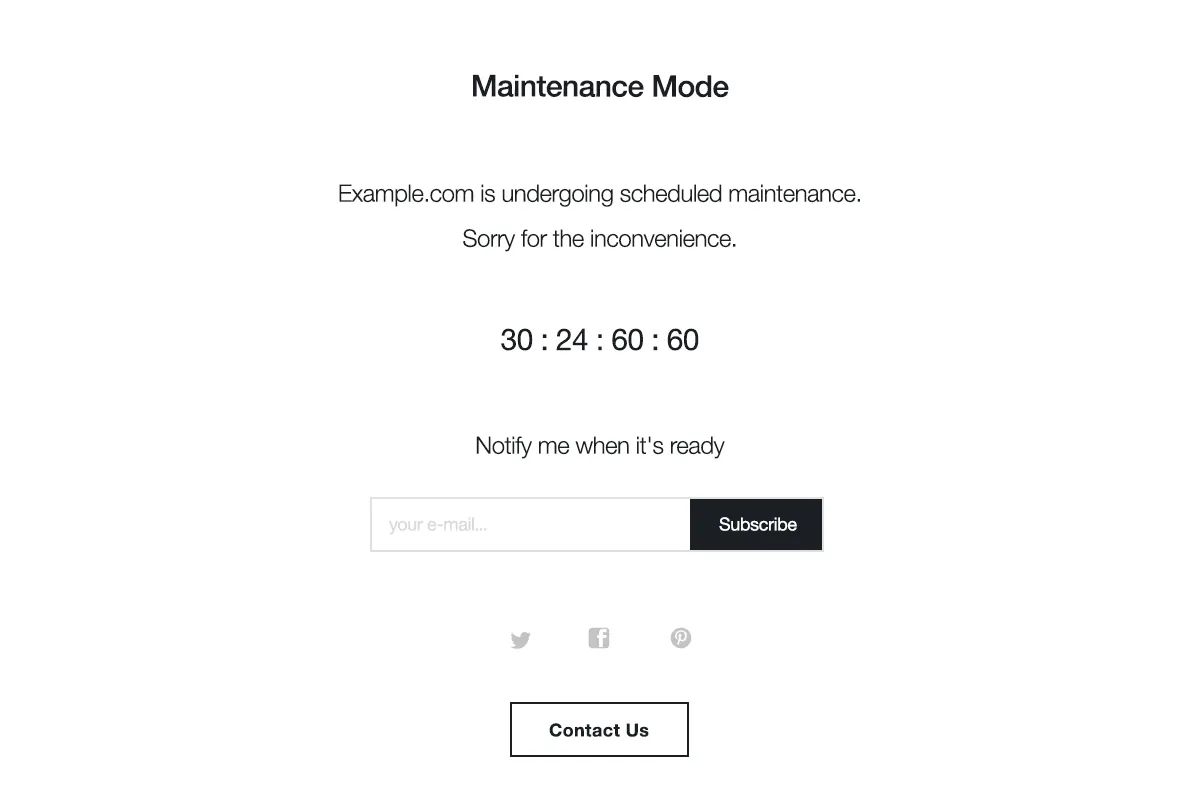
When you update plugins, themes, or WordPress core, WordPress drops a tiny file named .maintenance into your site's root folder. That file is what triggers the 'Briefly unavailable for scheduled maintenance' message visitors see. If an update is interrupted (timeout, browser tab closed, bad plugin, memory limit hit), the .maintenance file is never deleted and the site stays in maintenance mode forever.
"Briefly unavailable for scheduled maintenance. Check back in a minute." The message is normal during a bulk plugin update, and it is supposed to disappear the moment the update finishes. When it does not, WordPress is stuck in maintenance mode.
The mechanism is almost embarrassingly simple. When an update starts, WordPress creates a tiny file named .maintenance in the site root. When the update ends, it deletes the file. If the update crashes halfway through, the file is left behind and every visitor sees the maintenance page.
This guide covers the one-line fix that resolves ninety percent of maintenance-mode tickets, plus the follow-up steps for cases where the update itself actually failed and left plugins or core files in an inconsistent state.
Why WordPress Gets Stuck in Maintenance Mode
Every time WordPress installs or updates a plugin, theme, or core file, it writes a tiny PHP file called .maintenance into your site root. That file contains a single timestamp. While it exists, every page request returns the maintenance message instead of loading the site. When the update finishes successfully, WordPress deletes the file and the site returns to normal.
The trouble starts when the update does not finish. A PHP script timeout, a memory limit error, a closed browser tab, or a plugin that crashes mid-install will all leave the .maintenance file behind. WordPress assumes the update is still running and keeps showing the message indefinitely. The site is not actually broken. It is just waiting for permission to come back.
Step 1: Open Your Site Root Over SFTP or File Manager
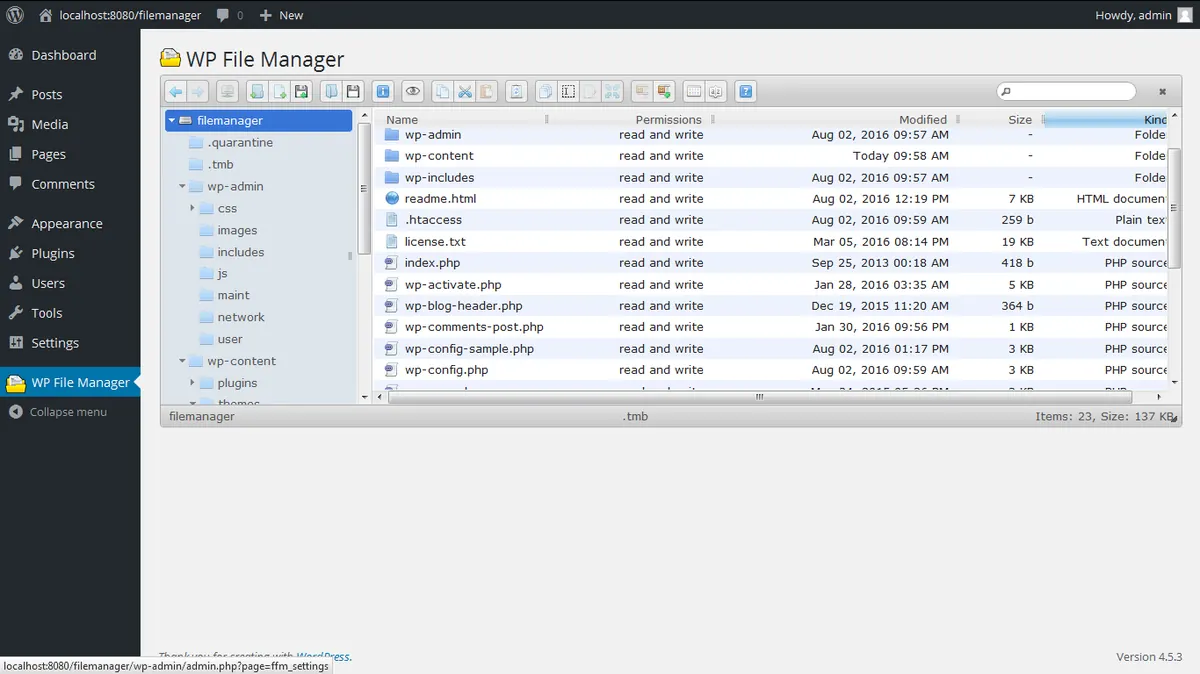
You need direct file access to delete .maintenance. The WordPress dashboard cannot help because you cannot reach it. Use SFTP with an app like FileZilla or Cyberduck, SSH if your host supports it, or the file manager built into cPanel, Plesk, or your managed host's dashboard.
Navigate to the folder that contains wp-config.php. On shared hosting this is usually public_html or www. On WP Engine it is sites/your-site/. On Kinsta it is public/. If you see wp-admin, wp-content, and wp-includes folders, you are in the right place.
Step 2: Find the .maintenance File
The file starts with a dot, which means some file managers hide it by default. In FileZilla, go to Server > Force Showing Hidden Files. In cPanel File Manager, click Settings in the top right and tick 'Show Hidden Files'. In Cyberduck, press Shift+Cmd+. to toggle dotfiles.
Once hidden files are visible, .maintenance will sit alongside wp-config.php. It is usually a few bytes in size. If you do not see it at all, the lock is gone already and your problem is somewhere else, most likely cache.
public_html/
├── .htaccess
├── .maintenance      <-- delete this one
├── index.php
├── wp-config.php
├── wp-load.php
├── wp-admin/
├── wp-content/
└── wp-includes/
Step 3: Delete .maintenance and Reload the Site
Right-click the file and choose Delete. There is no recycle bin to worry about and no confirmation step that matters. As soon as the file is gone, the next page request to your site will skip the maintenance check and load normally.
Open the homepage in an incognito window to test. If you still see the maintenance message, do not panic, it is almost certainly a cached copy. Purge your caching plugin, purge your CDN if you use Cloudflare or BunnyCDN, and try again.
Step 4: Finish the Interrupted Update
Removing .maintenance only ends the message. It does not finish whatever update was running when the failure happened. Log into wp-admin, go to Dashboard > Updates, and look for any plugin or theme that still shows an available update. Re-run those updates one at a time so you can spot the offender if it happens again.
Then visit each section of the site, public and admin, to make sure nothing else is broken. A half-applied update can leave a plugin in a weird state where the front end works but a settings page throws an error.
Step 5: Prevent It From Happening on the Next Bulk Update
Almost every stuck maintenance case I have seen traces back to one of three causes: a PHP timeout, a memory limit hit, or 30 plugins being updated in one click. You can fix all three in about five minutes.
- Raise PHP max_execution_time to 300 seconds in php.ini or via your host's PHP settings panel.
- Raise memory_limit to 256M in php.ini or by adding define('WP_MEMORY_LIMIT', '256M'); to wp-config.php.
- Update plugins in small batches of five. It takes 30 seconds longer and avoids the bulk-update timeout entirely.
- Take a complete backup before bulk updates with UpdraftPlus or your host's snapshot tool.
- Update on a fast, wired connection if you can. Closing a browser tab in the middle of a bulk update is the single most common cause of this issue.
When the .maintenance File Keeps Coming Back
If you delete the file and WordPress immediately recreates it, the update process is still running in the background. Wait two minutes and check again. If the file is still being recreated 10 minutes later, an auto-update cron job is probably looping on a broken plugin.
In that case, rename /wp-content/plugins to /wp-content/plugins-off, delete .maintenance again, and load the site. With all plugins disabled the auto-updater has nothing to chew on. Then rename the folder back and reactivate plugins one at a time to find the one that keeps crashing the updater.
Complete Fix Checklist
- 1Connect to your site over SFTP, SSH, or your host's file manager and open the public_html or site root folder.
- 2Look for a file called .maintenance (yes, with the leading dot) sitting next to wp-config.php and wp-load.php.
- 3Delete the .maintenance file. The site comes back instantly on the next page load, no cache flush required.
- 4Log into wp-admin and finish whatever update was interrupted. Updates > Re-run any plugin or theme update that was in progress.
- 5Increase PHP max_execution_time to 300 and memory_limit to 256M so the next bulk update has room to finish without timing out.
Quick Tips
- If the file manager hides dotfiles, enable 'Show hidden files' or use SFTP
- Never close the browser tab during a WordPress update, even if it looks frozen
- Update plugins in small batches of 5 or fewer to reduce the chance of a timeout
- Take a database and files backup before the next bulk update
Frequently Asked Questions
Related Guides
Sources and Further Reading
- Updating WordPress - WordPress.org
- Debugging in WordPress - WordPress.org Developer Resources
- Editing wp-config.php - WordPress.org Advanced Administration
More guides in this area: Updates troubleshooting hub