
Another Update Is Currently in Progress in WordPress: Fix
WordPress locks updates so two never run at the same time. When an update dies halfway, the lock never clears and every new update gets refused. Here is how to release it safely.
What's Happening
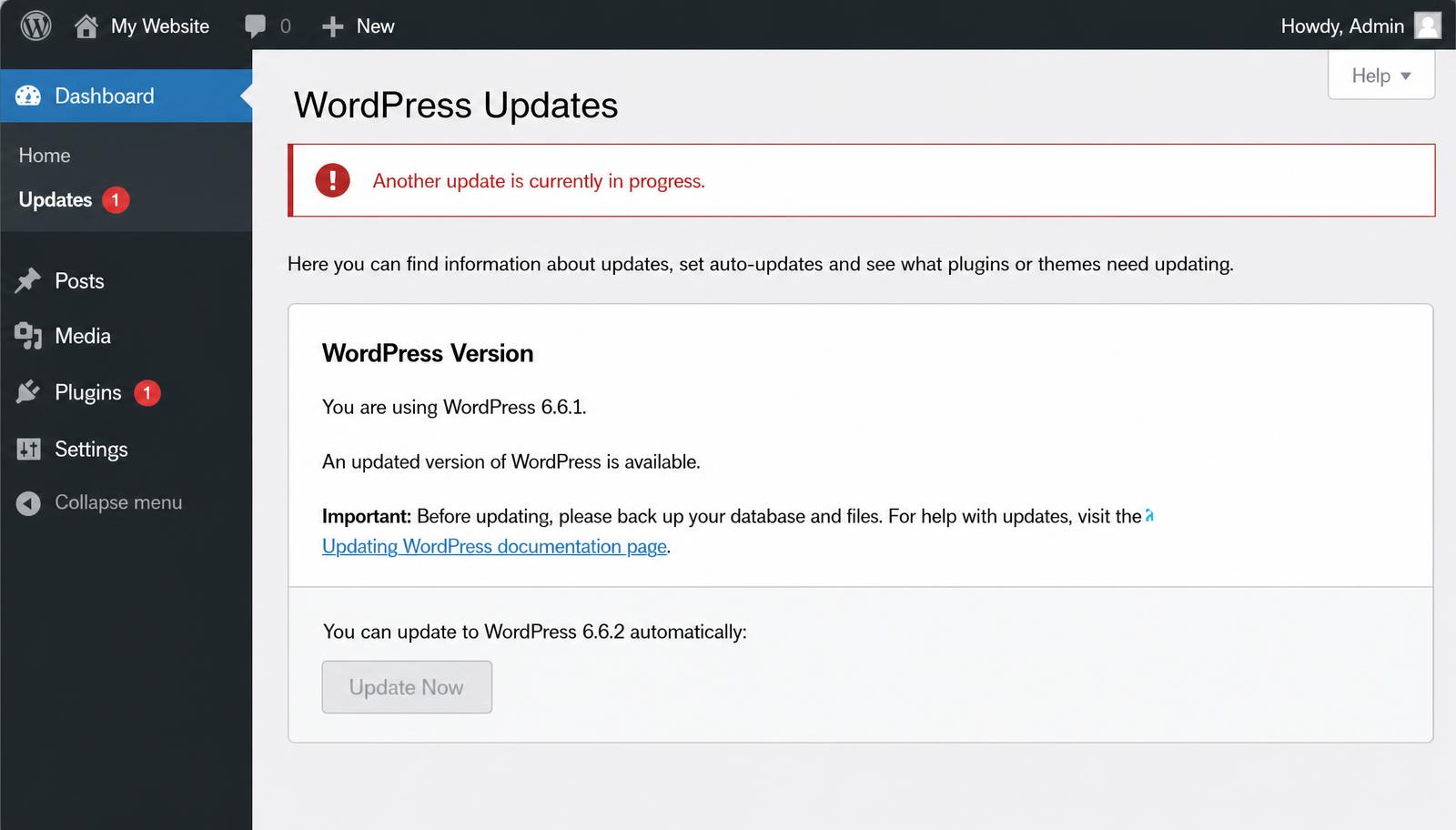
You open Dashboard > Updates, click Update Now, and instead of an update you get a red notice: Another update is currently in progress. You wait, refresh, and try again, but the same message appears. Hours later it is still there. In most cases no update is actually running. WordPress simply thinks one is, because the last attempt crashed before it could remove its lock.
This message looks like WordPress is busy, but most of the time nothing is happening at all. 'Another update is currently in progress' appears when a previous update started, set a lock so no second update could run alongside it, and then died before it could remove that lock. The updater is gone. The lock stayed.
The lock is a single row in your database called core_updater.lock. Deleting that row takes about a minute and fixes the problem in the vast majority of cases. The only thing that matters is doing it in the right order, because on rare occasions an update really is still running, and interrupting a live update can leave core files half written.
This guide walks through the same sequence I use on client sites: confirm nothing is running, clear the leftover maintenance file, delete the lock with phpMyAdmin, WP-CLI, or a small snippet, deal with the cases where the message comes straight back, and set the site up so it does not happen again.
What this message actually means
When WordPress runs a core update it does two things before touching a single file. It drops a file called .maintenance into the site root, which is what shows visitors the 'Briefly unavailable for scheduled maintenance' screen, and it writes a row called core_updater.lock into the wp_options database table. The lock row holds a timestamp. Its job is to stop a second update from starting while the first one is mid-flight, because two updaters writing core files at the same time would corrupt the install.
When the update finishes, WordPress cleans up after itself. The .maintenance file is deleted, the lock row is removed, and the updates page works normally again.
The failure happens in the gap. If the PHP process running the update is killed, by a timeout, a memory limit, a server restart, or a host that terminates long processes aggressively, there is nothing left to delete the lock. WordPress comes back up, reads the database, sees core_updater.lock, and concludes an update is in progress. From that moment on, every click on Update Now gets the same refusal, and it will sit there for weeks if you let it.
First rule: wait fifteen minutes before touching anything
A real core update usually finishes in under a minute, but on a slow shared server with a large update package it can legitimately take several. Deleting the lock while a genuine update is running is the one way to turn this small annoyance into a broken site, so the first step costs you nothing but patience.
Give it fifteen minutes from the moment you first saw the message. While you wait, open the front of the site in a private window. If visitors see the maintenance screen, the .maintenance file exists and something tried to update very recently. If the front end looks completely normal and fifteen minutes have passed, you are almost certainly looking at an abandoned lock and it is safe to proceed.
- Signs an update is genuinely running: maintenance screen on the front end, high CPU in your hosting panel, lock timestamp from the last few minutes
- Signs the lock is dead: front end loads normally, message is hours or days old, no server activity
- When in doubt, read the lock value in wp_options. It is a Unix timestamp for when the update started
Fix 1: Delete the .maintenance file
Connect to the site with an FTP client or the File Manager in your hosting control panel and open the site root, the folder that contains wp-config.php and the wp-content, wp-admin, and wp-includes directories. Look for a file named .maintenance.
The leading dot makes it a hidden file on many systems. If you cannot see it, find the setting called 'show hidden files' in your FTP client or File Manager and turn it on. In cPanel's File Manager it sits under Settings in the top right corner.
Delete the file. This clears the maintenance screen for your visitors, and on some sites it is all that is needed. Be aware that the .maintenance file and the database lock are separate things, so if the updates page still refuses after this, the lock row is still there and the next fix is the one that matters.
Fix 2: Delete the core_updater.lock row with phpMyAdmin
Log into your hosting control panel and open phpMyAdmin. In the left sidebar, click your WordPress database, then click the wp_options table. If your install uses a custom table prefix the name will differ, for example wpx7_options, but it always ends in _options.
The table is long, so use the search instead of browsing. Click the Search tab, enter core_updater.lock in the option_name field, and run it. You should get exactly one row back. The option_value is the timestamp the update started, which is a useful sanity check: if that timestamp is days old, nothing is running.
Click Delete on that row and confirm. That is the entire fix. Reload Dashboard > Updates and the Update Now button works again. Rerun the update straight away and let it finish so core is not left half patched.
DELETE FROM wp_options WHERE option_name = 'core_updater.lock';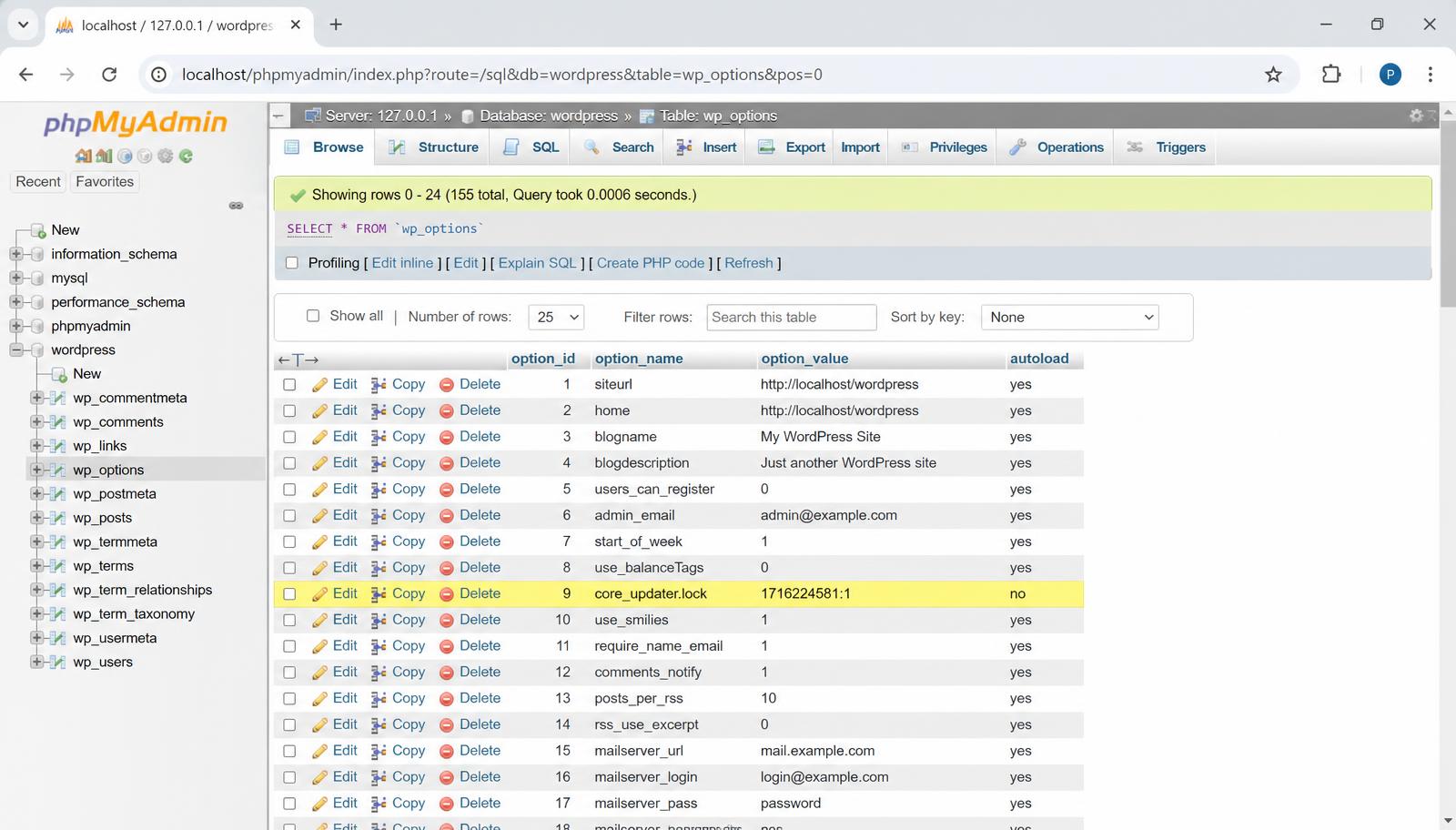
Fix 3: Clear the lock with one WP-CLI command
If your host gives you SSH access, this is the fastest method of all. Connect, change into the WordPress root directory, and run one command.
WP-CLI answers with a success line and the lock is gone. No phpMyAdmin, no clicking through tables. This is the method I use on any site where a terminal is available, and it is also the safest one to script if you maintain many sites and want to check for stale locks across all of them at once.
cd /path/to/wordpress
wp option delete core_updater.lock
Fix 4: No database tools? Clear it from inside wp-admin
If you can still log into wp-admin but have no phpMyAdmin and no SSH, you have two easy options. The first is the free Fix Another Update In Progress plugin from the official WordPress directory. Install it, activate it, and it adds a button under Settings that deletes the lock for you. Remove the plugin afterwards, it has done its job.
The second option is a temporary code snippet. Open Appearance > Theme File Editor, or use a snippets plugin, and add the code below to your theme's functions.php. Load any admin page once so the code runs, confirm the updates page is unblocked, then remove the snippet again. Leaving it in place would delete the lock on every page load, which would defeat the protection the lock exists to provide.
// Temporary: add to functions.php, load wp-admin once, then delete these lines.
add_action( 'admin_init', function () {
    delete_option( 'core_updater.lock' );
} );
When the message keeps coming back
Most sites are fixed at this point. If the notice disappears and returns within minutes or hours, something else is going on, and there are three realistic causes.
The first is a persistent object cache. On hosts running Redis or Memcached, option values are cached outside the database, so the updates page can keep reading the old cached lock even after you deleted the row. Flush the object cache from your caching plugin or hosting panel, then reload. If your host manages the cache for you, their dashboard will have a flush button or you can ask support to clear it.
The second is a failed scheduled retry. WordPress sometimes queues update attempts through WP-Cron, and a cron event that keeps starting and dying will keep recreating the lock. Install a cron viewer such as WP Crontrol, look for update related events with a past due or failing status, and delete or fix them. If you find missed schedules everywhere, the underlying problem is cron itself and our WP-Cron guide walks through moving to a real system cron.
The third is a host that kills the update process every single time. If each attempt locks and dies at the same point, raise the PHP time and memory limits and try again. If it still dies, skip the auto updater entirely: download the latest WordPress zip, and replace wp-admin and wp-includes over FTP. That is a manual core update, and it never touches the lock.
- Flush the object cache after deleting the row, Redis and Memcached serve stale values
- Check WP Crontrol for a failing update event that recreates the lock
- Raise PHP max_execution_time and memory_limit if updates die mid-run
- Ask the host whether a process watchdog terminates long PHP requests
- Fall back to a manual FTP update of wp-admin and wp-includes if auto update always fails
A Friday update that never finished
A WooCommerce shop I maintain hit this the Friday before a weekend sale. The owner had clicked Update Now on Thursday night, watched the spinner for a while, closed the laptop, and gone to bed. By morning the updates page was refusing everything and a security patch was sitting unapplied with the busiest traffic of the month two days away.
The lock value told the story in seconds. The timestamp was from 11pm the previous night, about fourteen hours old, so nothing was running. The host's logs showed the PHP process had been killed after thirty seconds, right in the middle of extracting the update package, by a watchdog the host had never mentioned.
We deleted the .maintenance file, deleted the core_updater.lock row, flushed the object cache, and reran the update. It completed in forty seconds. The whole repair took less time than writing the support ticket would have. The only lasting change was moving core updates to a quieter hour and asking the host to raise the process limit, because a thirty second ceiling will keep killing updates no matter how many locks you delete.
How to stop it happening again
You cannot make updates uncrashable, but you can make a crash very unlikely and very cheap to recover from.
- Update one thing at a time: core, then plugins, then themes, not everything in one batch
- Never close the browser tab or navigate away while the update spinner is running
- Keep PHP memory_limit at 256M or higher and max_execution_time at 120 seconds or more
- Take a backup before core updates so a half written install is a two minute restore, not a rebuild
- Update during low traffic hours so the server is not juggling visitors and an updater at once
- If the site is busy or revenue critical, test updates on staging first and push when they pass
Final checklist
Work through this in order and stop at the step that clears the notice. Most sites never get past the third line.
- Fifteen minutes have passed since the message first appeared
- The .maintenance file is deleted from the site root
- The core_updater.lock row is deleted from wp_options via phpMyAdmin, WP-CLI, or a snippet
- The object cache and page cache have been flushed
- Dashboard > Updates loads without the red notice
- The pending update has been rerun and allowed to finish
- If the lock returned, WP-Cron has been checked and PHP limits raised
Complete Fix Checklist
- 1Wait 15 minutes from when the message first appeared, in case a genuine update is still running.
- 2Connect via FTP or your host's File Manager and delete the .maintenance file in the site root if it exists.
- 3Open phpMyAdmin, select your WordPress database, and open the wp_options table.
- 4Search for the row where option_name equals core_updater.lock and delete it.
- 5Flush any object or page cache, then reload Dashboard > Updates.
- 6Click Update Now and let the update finish without closing the browser tab.
Quick Tips
- The message means a leftover lock, not an active update, in almost every case
- core_updater.lock is one row in the wp_options table and deleting it is safe
- Clear the .maintenance file as well or visitors may keep seeing the maintenance screen
- If the lock returns, flush the object cache and check WP-Cron before retrying
Frequently Asked Questions
Related Guides
Sources and Further Reading
- Updating WordPress - WordPress.org
- Debugging in WordPress - WordPress.org Developer Resources
- Editing wp-config.php - WordPress.org Advanced Administration
More guides in this area: Updates troubleshooting hub